01
Red Accent — street & motion
A high-saturation red on a desaturated city scene: red bus, brake lights, a phone-booth, a jacket. The classic editorial splash that signals movement and urgency.
Create a color splash effect from your photo with AI and keep one key color vivid while the rest goes black and white.
 Before
 After
AfterA handful of frames rendered with the AI Color Splash effect — every shot keeps a single accent hue alive while the rest fades to silver-gelatin grayscale. Drag or swipe to browse the gallery.
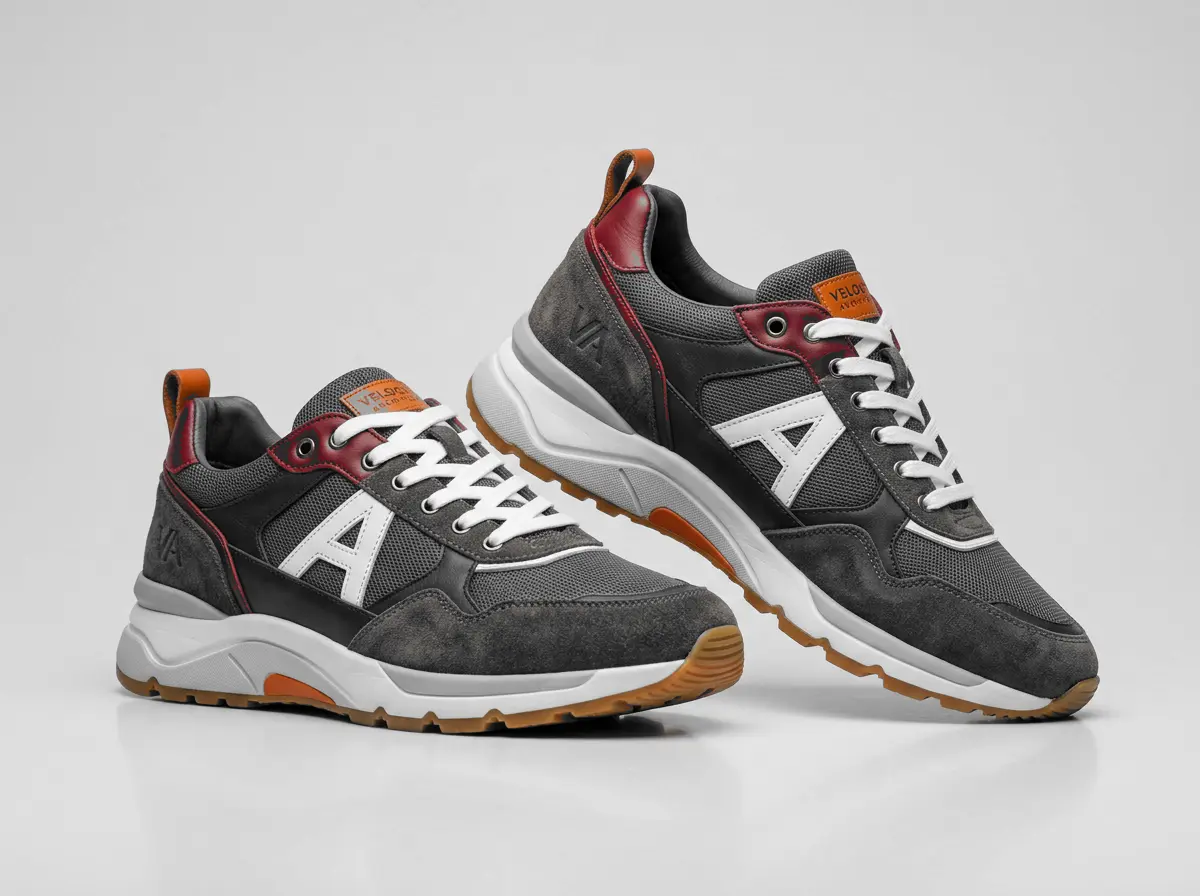
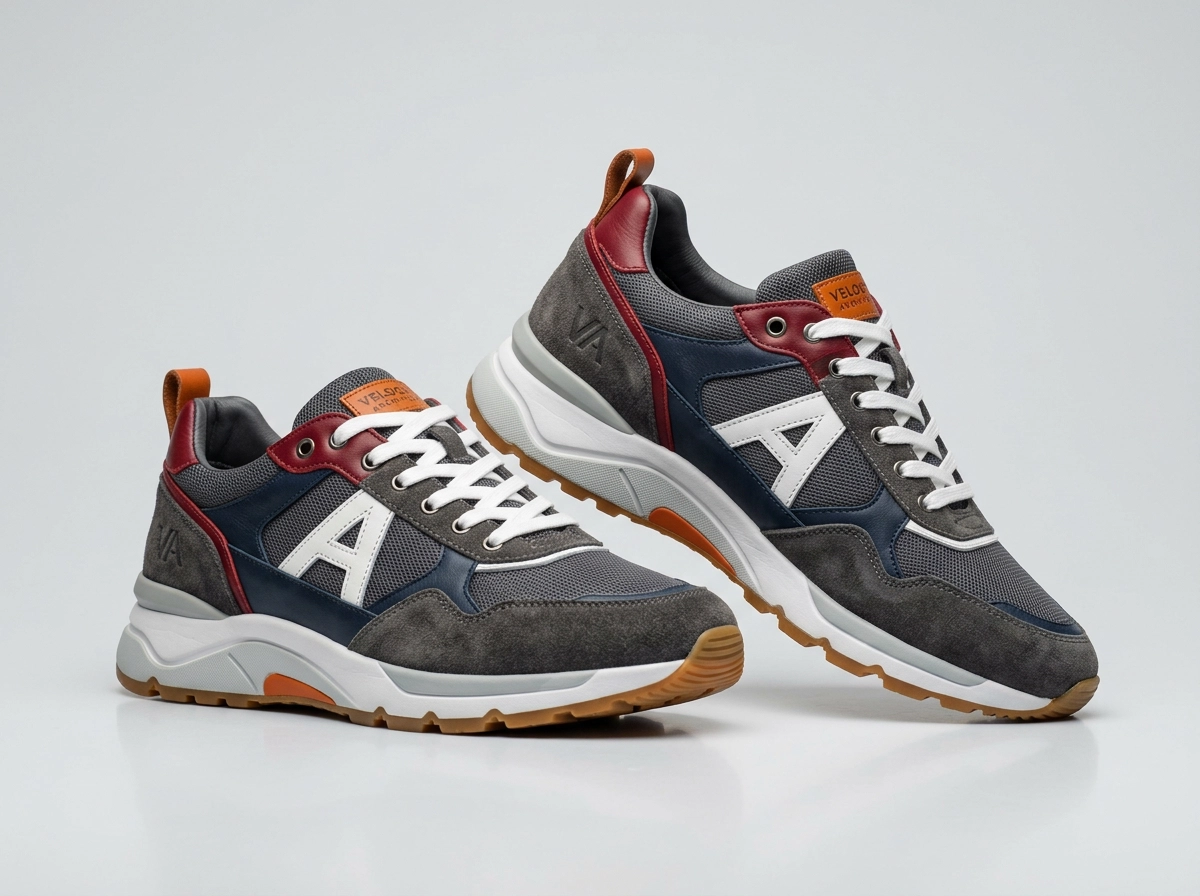
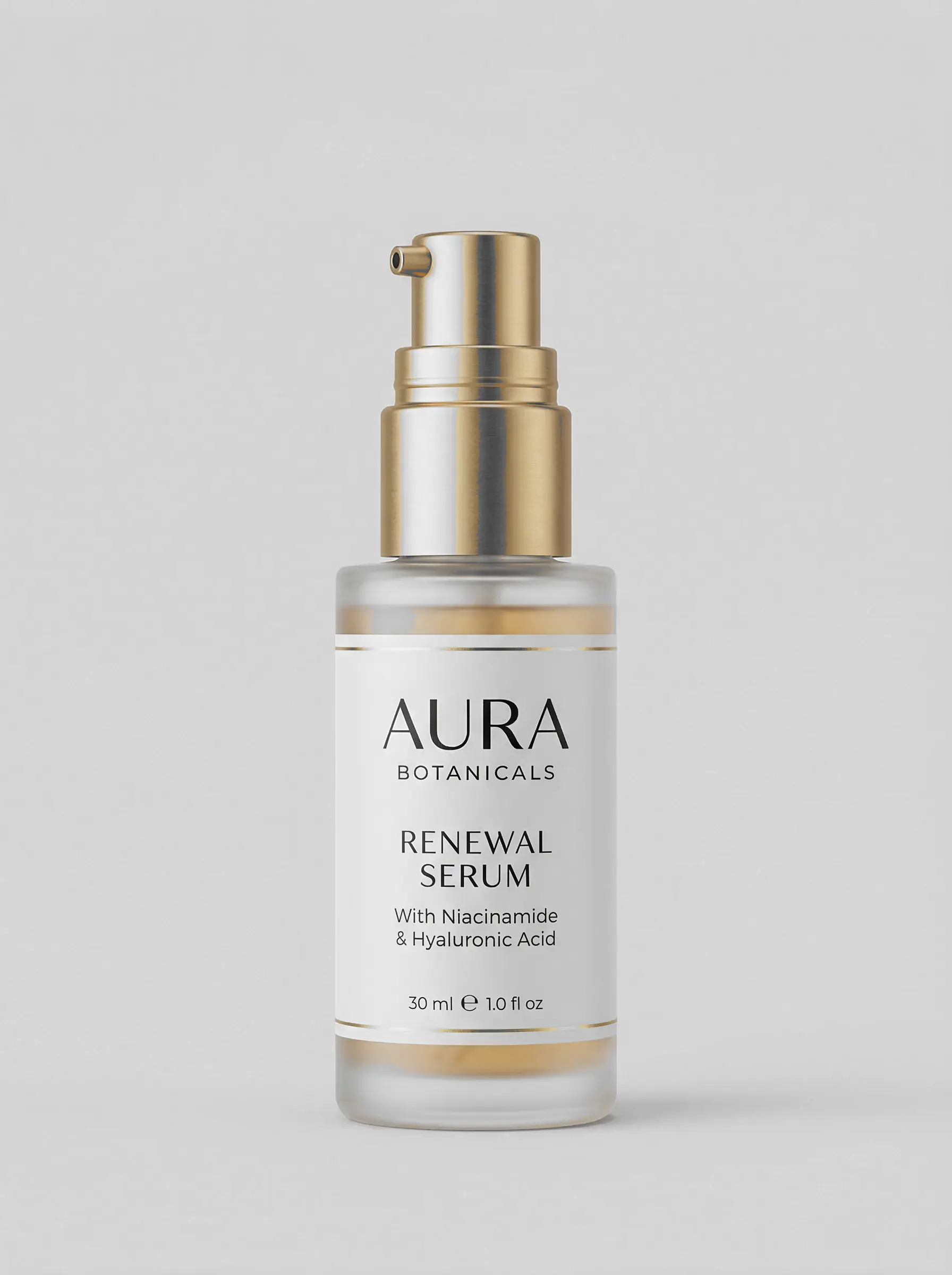
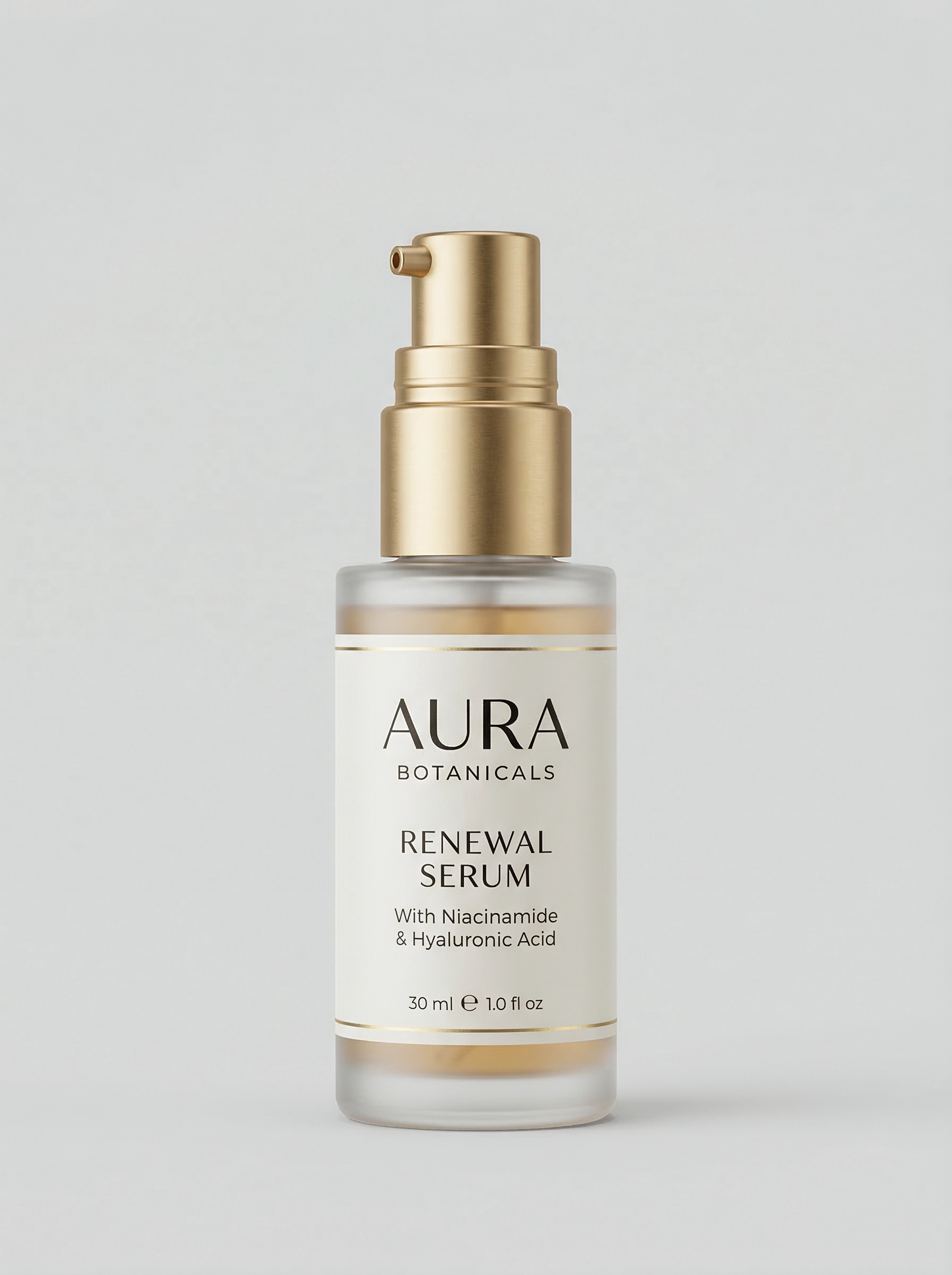
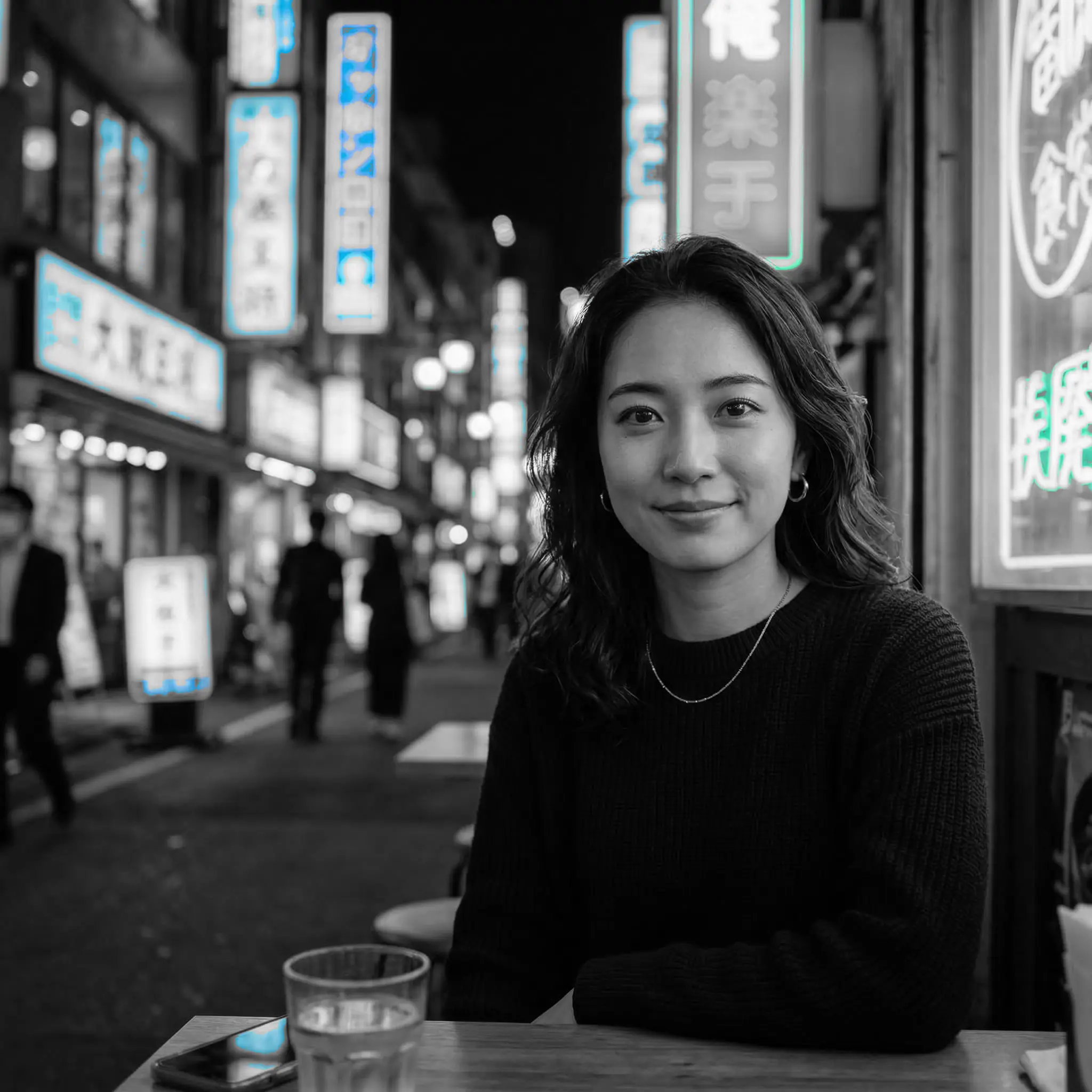
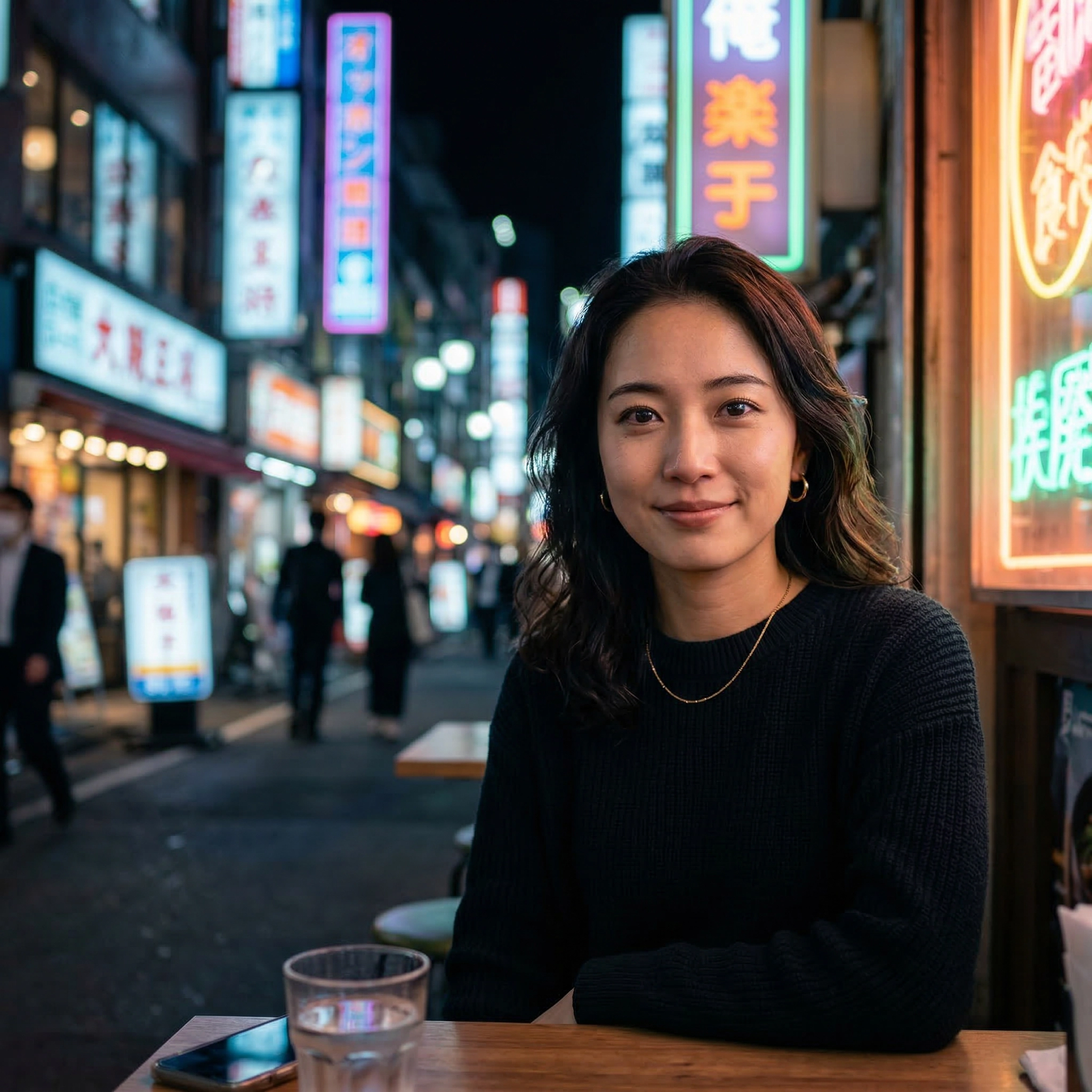
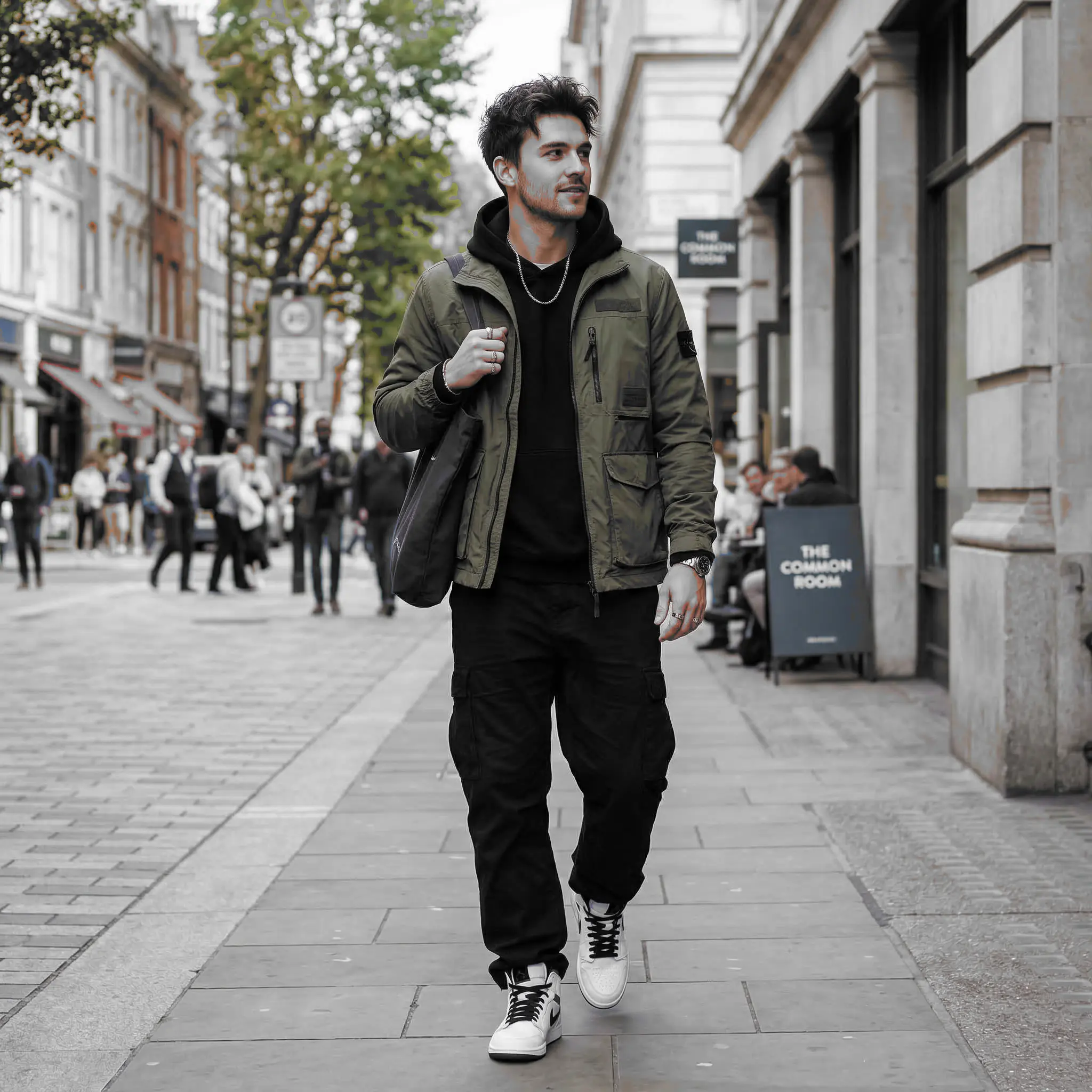
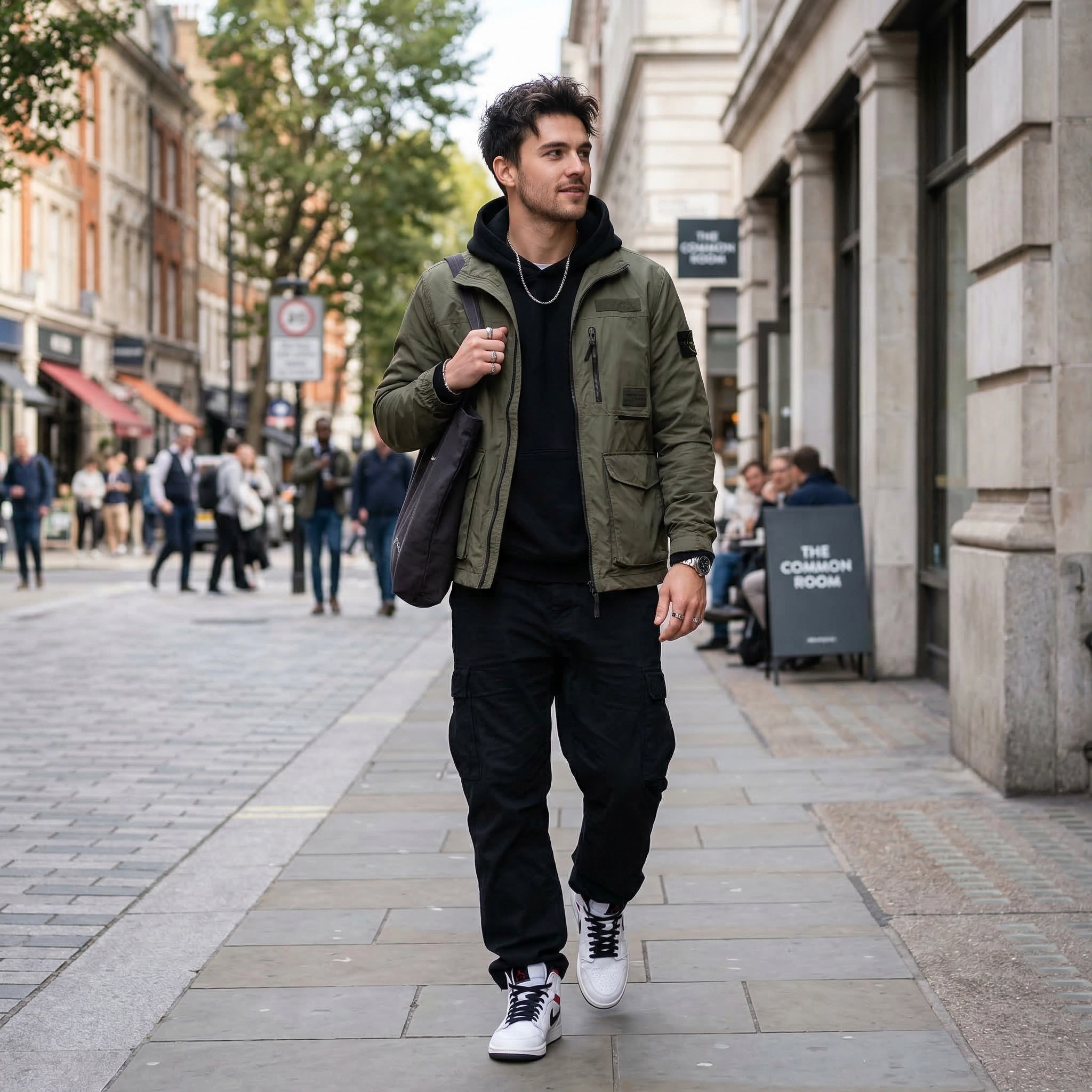

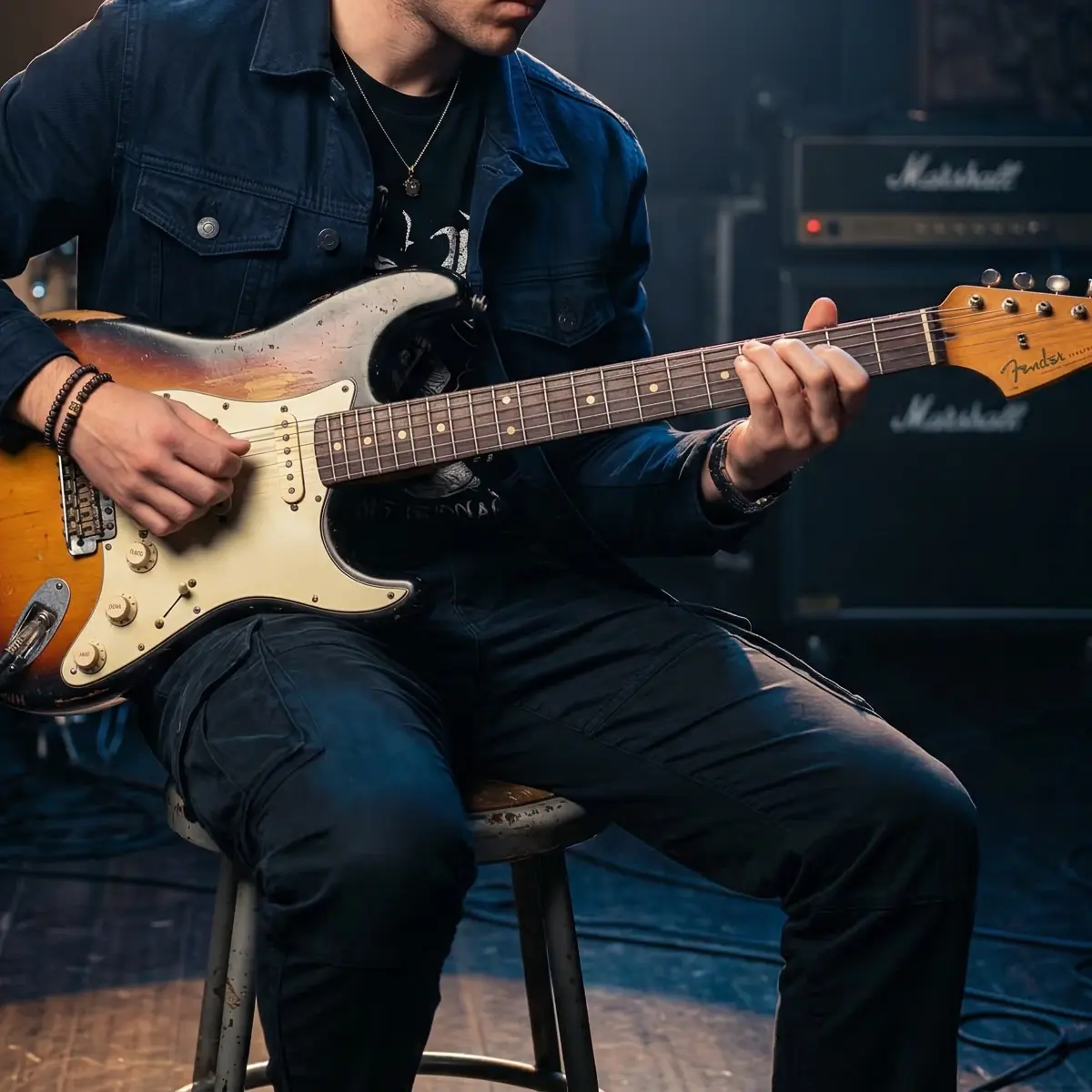
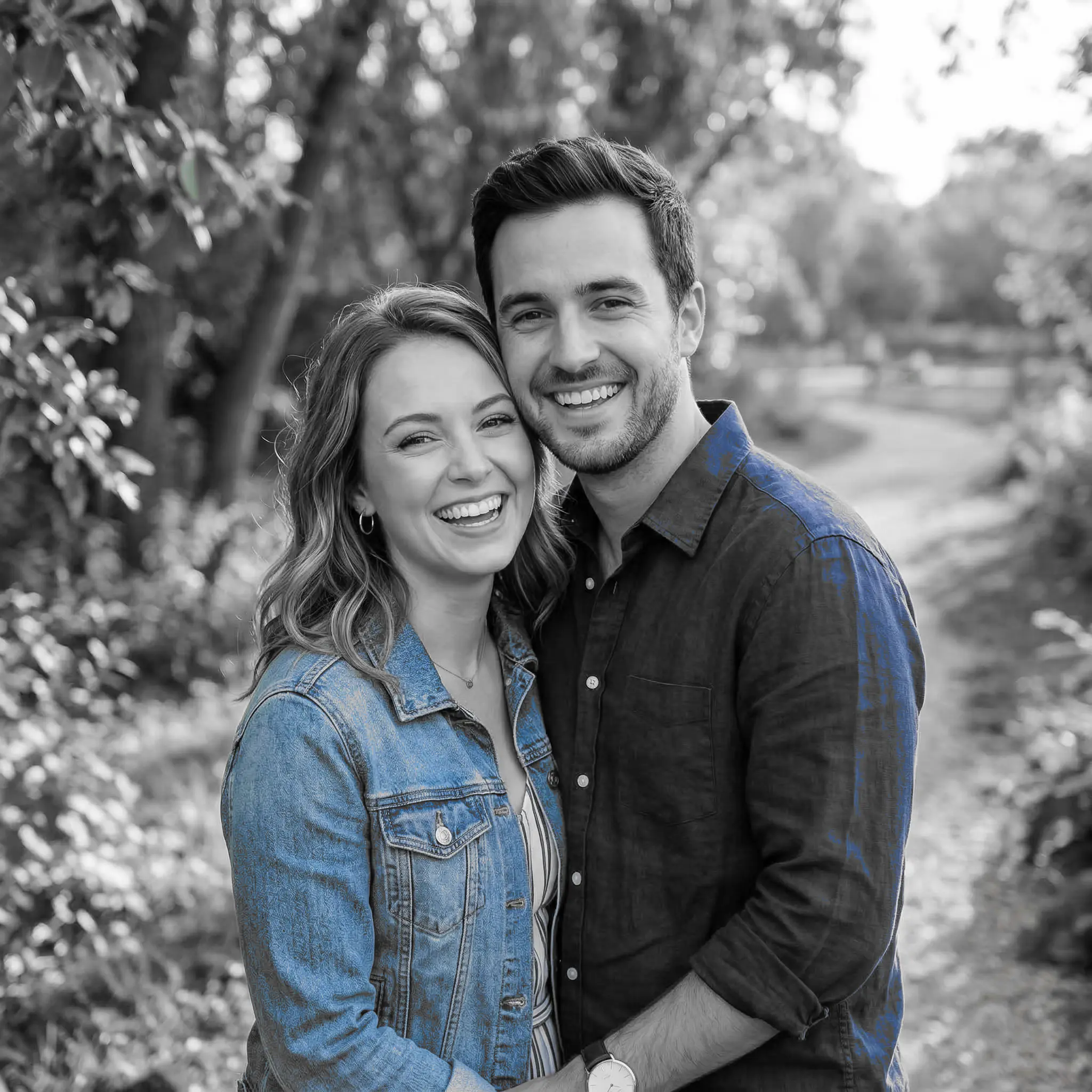

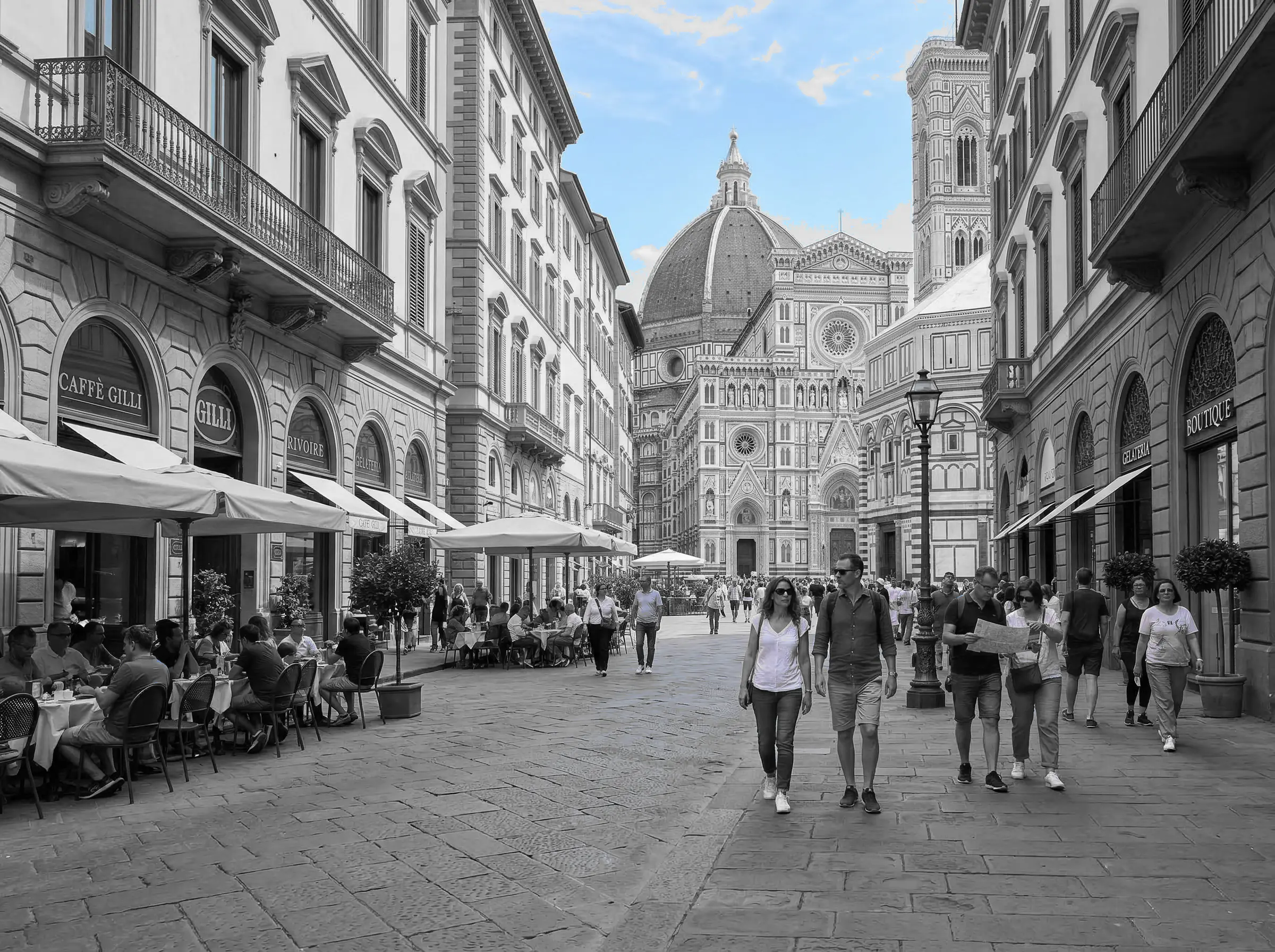
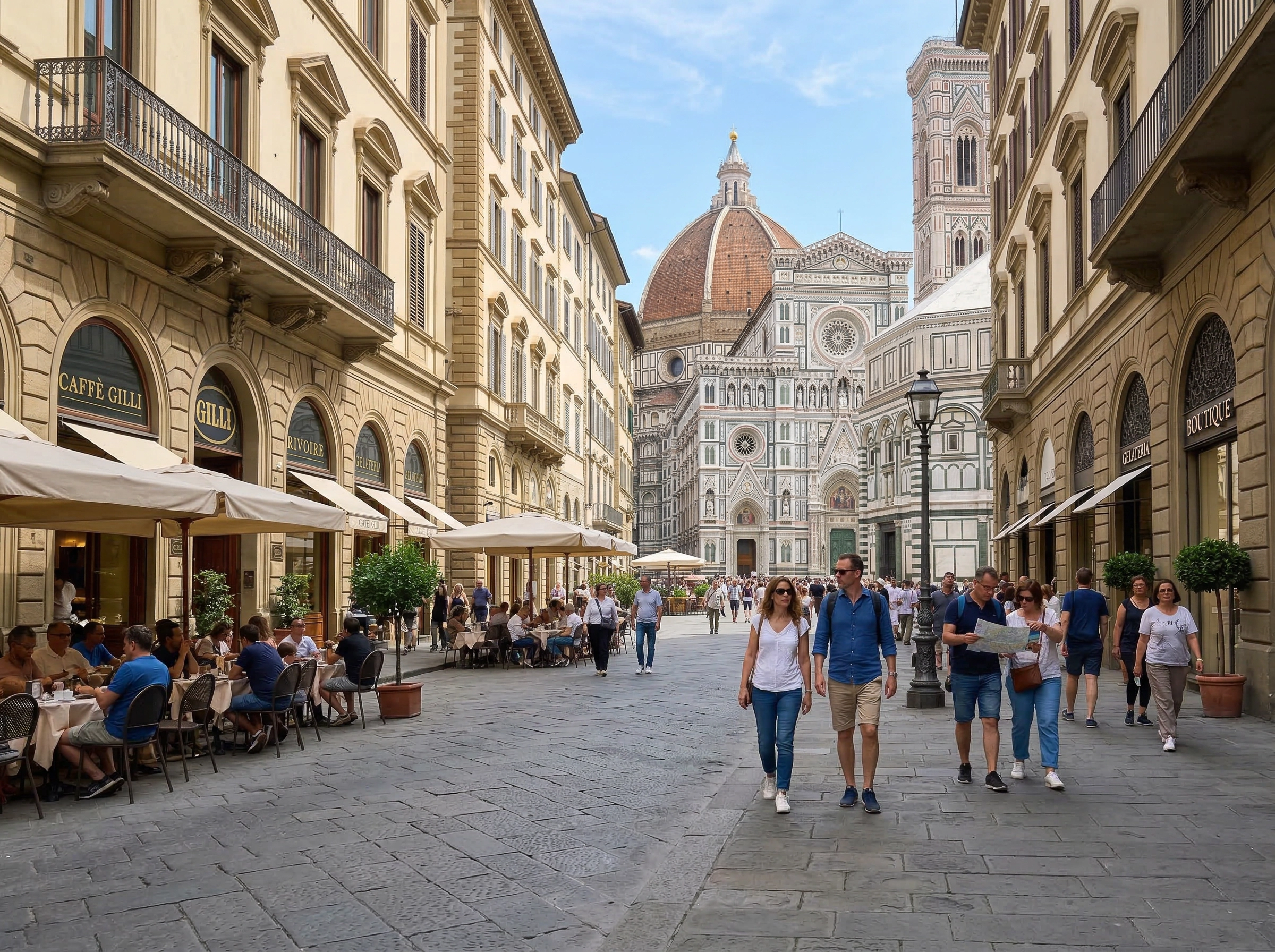
Color Splash is a single-purpose photo effect — it only touches one dimension of the image (color) and leaves composition, framing, and subject untouched. Most of the photo shifts to black and white while one focal color stays vivid: a red bus anchoring a street scene, blue denim popping in a portrait, a gold product bottle dominating a packshot.
That makes it different from a filter (one global LUT applied to every pixel) and from a style like Ghibli (a full visual language that redraws the whole frame). It's also why you don't need Photoshop or a hand-painted layer mask — the effect detects the accent hue automatically and renders the selective color result in seconds. For a different visual treatment, try Duotone Effect when the same idea should move into another style direction.
A high-saturation red on a desaturated city scene: red bus, brake lights, a phone-booth, a jacket. The classic editorial splash that signals movement and urgency.
A cool blue accent on a grayscale portrait — denim, a scarf, neon signage. Reads calm, modern, and works especially well for fashion and lifestyle frames.
A warm gold accent that isolates a serum bottle, label foil, or jewelry against a monochrome backdrop. Built for e-commerce hero shots and concept decks.
Tip: 01
Pick photos where one hue clearly dominates — the splash reads strongest.
Tip: 02
Avoid large background areas in the same family as the accent color.
Tip: 03
Keep the accent on objects, wardrobe, signage, or packaging instead of skin.
Tip: 04
Use a tighter preset when the first result keeps too many stray pixels.
Keep one wardrobe color — a red jacket, blue denim, gold earrings — vivid while the rest of a street or studio portrait turns monochrome for editorial weight.
Isolate one bottle, label, or packaging color and desaturate everything else so the branded detail dominates listings, launch pages, and concept decks.
Quick splash edits for thumbnails, Reels covers, and feed posts — the selective color look stops the scroll without rebuilding the photo.
Drop into lookbooks, posters, and small-batch print runs where one brand color needs to anchor a black-and-white scene.
About 45 seconds end-to-end. You'll need a photo with one obvious accent color and the Vofy Color Splash editor — no masking required.
Open the Color Splash editor and drop in a JPG, PNG or WebP. Photos with one obvious accent color — a red jacket, gold bottle, blue sign — work best, because Vofy uses that hue as the focal anchor instead of asking you to mask anything by hand.
Tip: cleaner backgrounds give cleaner splashes — busy scenes can pick up stray pixels.
Choose a preset that matches your subject — Red Accent, Orange Pop, Gold Highlight, Blue Focus, Cyan Neon, or Product Label. Vofy detects pixels close to that hue and keeps them vivid while everything else falls to silver-gelatin grayscale.
Tip: if your accent isn't in the presets, pick the closest one — the AI tolerates a wide hue range.
Hit Generate and Vofy renders the selective color edit in seconds. Compare it against the original with the slider, regenerate for a tighter mask if needed, then download a high-resolution version ready for thumbnails, lookbooks, product pages, or social posts.
Tip: send the result into Studio to layer a crop, caption, or background treatment.
“I use selective color for thumbnails all the time — preset-first drafts make this a perfect fit for fast social assets.”
“Dropping everything else to grayscale around one product color is a fast way to test poster and packaging concepts.”
“The color splash look still works when the accent is chosen carefully — umbrellas, cars, signage, skyline color.”

AI outpainting that expands your photo beyond its borders — fix aspect ratios without cropping.

Turn any photo into a Studio Ghibli–inspired hand-painted anime illustration in seconds.

Use an AI Barbie filter online to turn your selfie into a glossy Barbie-style doll photo.
No. The whole point of this AI Color Splash editor is to skip the layer-mask workflow — pick a preset hue and Vofy automatically detects pixels close to that color, so you don't need Photoshop, GIMP, or any selection tools.
A color splash effect keeps one part of a photo in color while most of the image becomes black and white or close to grayscale. It is also commonly called a selective color effect.
Photos with one obvious focal color work best. Good examples include a red vehicle, warm sneaker accent, gold product bottle, blue denim, olive jacket, neon sign, or blue sky against a more neutral environment.
The strongest Color Splash results usually preserve one small color family. Keeping too many colors tends to weaken the focal-point effect, so the app is positioned around one dominant accent.
Yes. Portraits, products, travel scenes, street photos, fashion details, and editorial crops are all good candidates as long as there is one clear color detail worth highlighting.
No. The goal of this app is to let users describe the selective color look through presets instead of manually masking and desaturating layers in a desktop editor.
New models, prompt notes, and a single piece of work worth lingering on — quietly delivered every Friday.