01
Packaging and product marks
Remove front logos, stamped symbols, or small wordmarks from bottles, boxes, cups, bags, and product mockups while keeping shape, shadows, label edges, and material texture believable.
Remove logos from images and photos with AI inpainting while keeping fabric, packaging, glass, and surface textures natural.
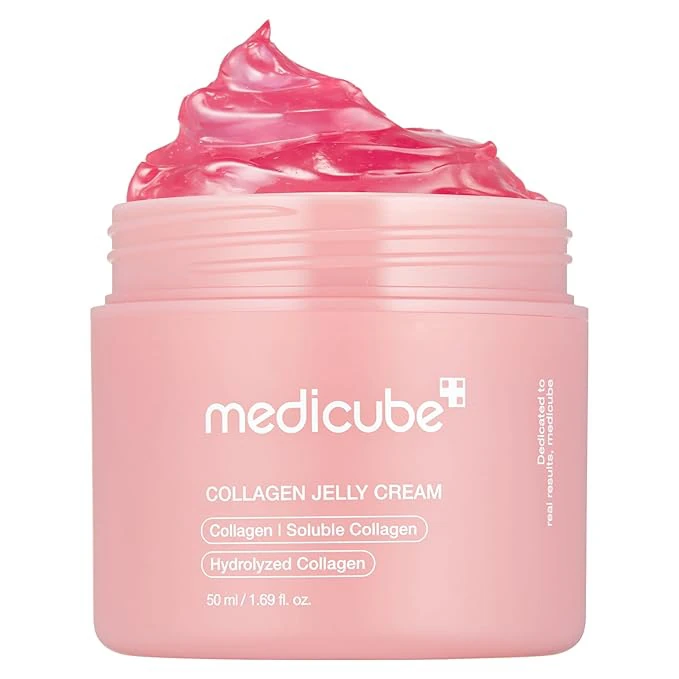 Before
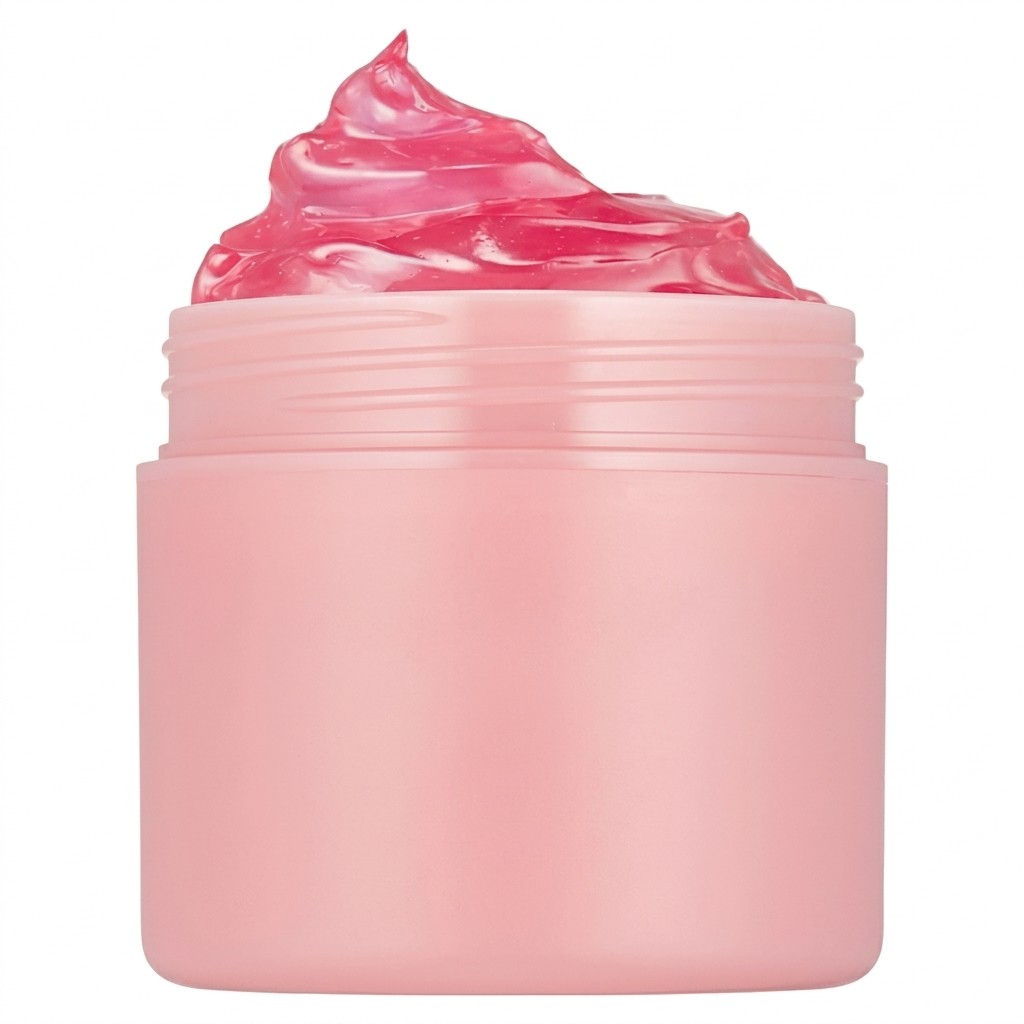 After
AfterA good logo removal should not announce itself. These product comparisons focus on repairing marked surfaces, keeping shadows, packaging edges, and material texture believable after visible brand marks are taken out.
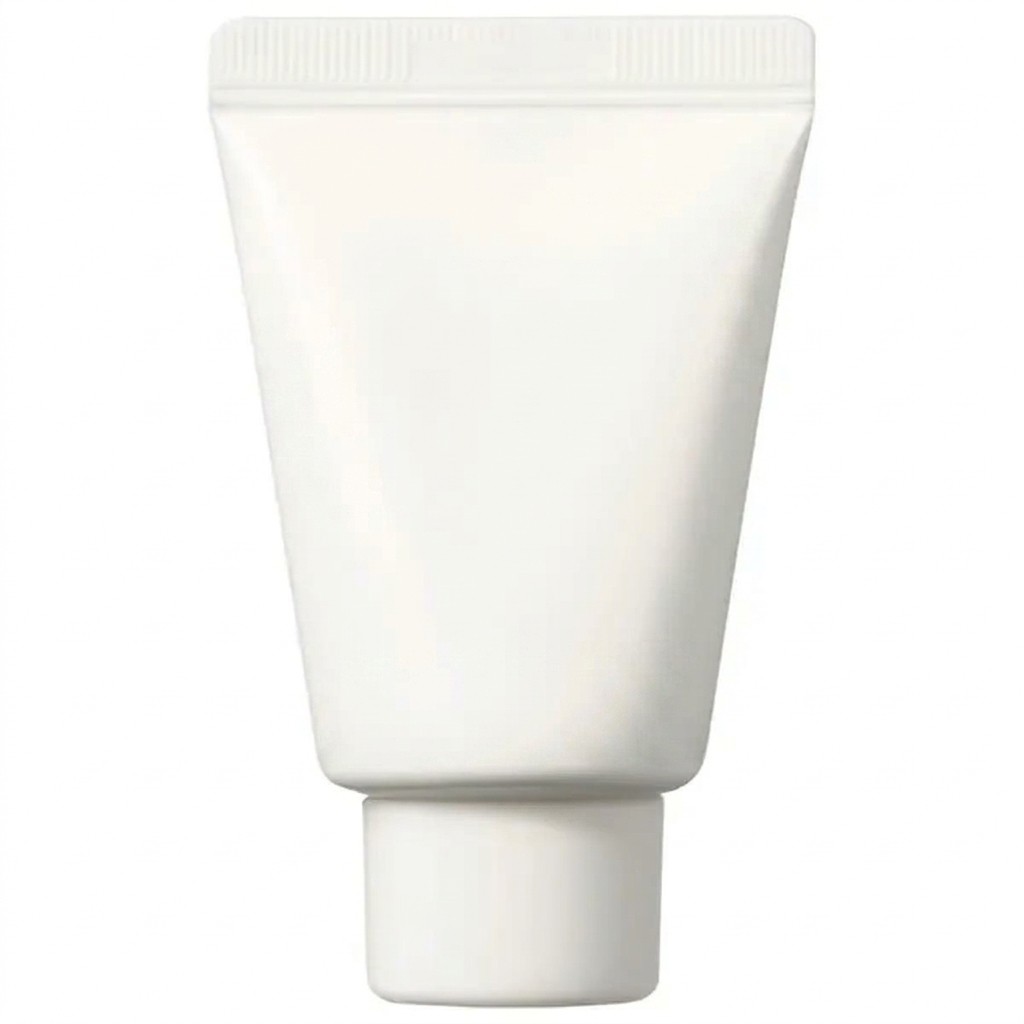
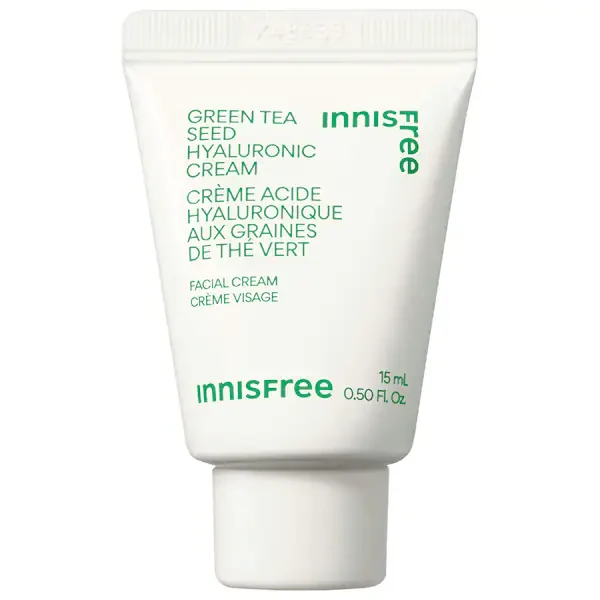
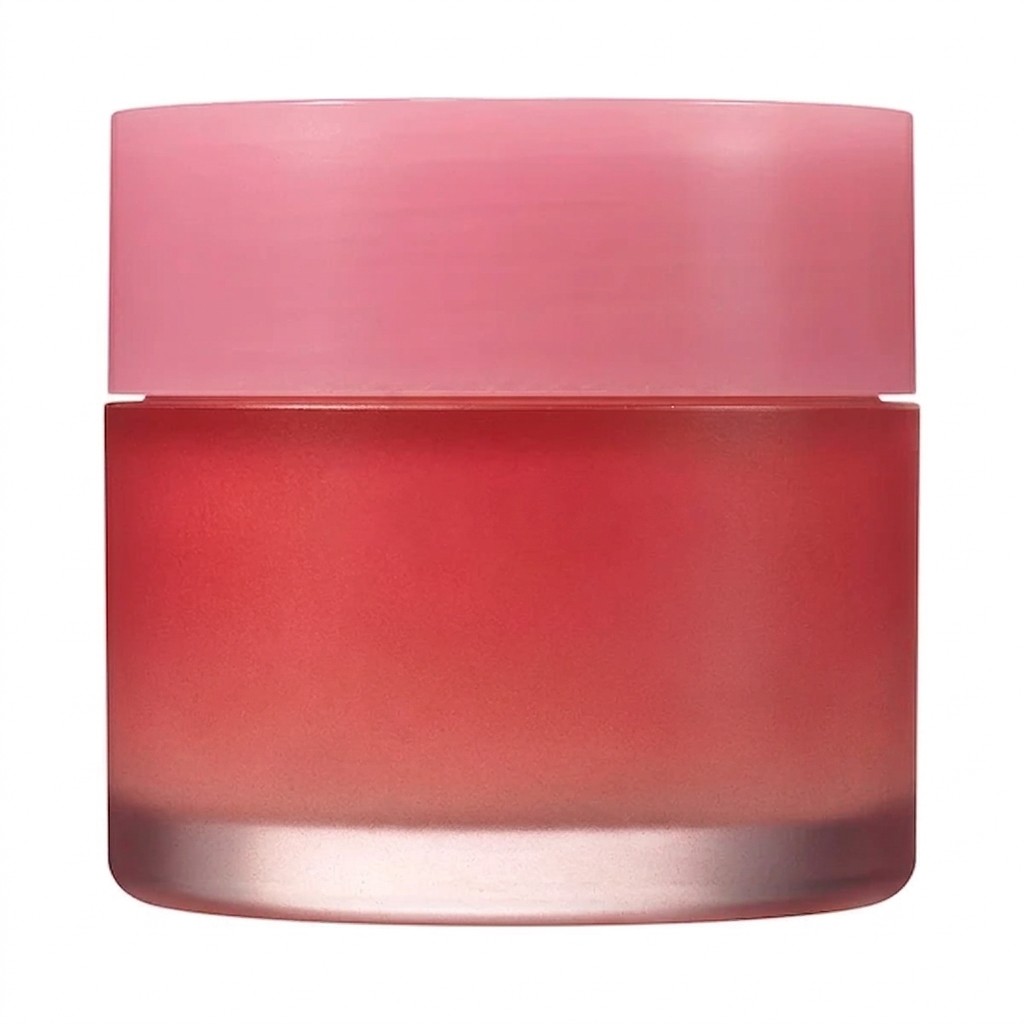
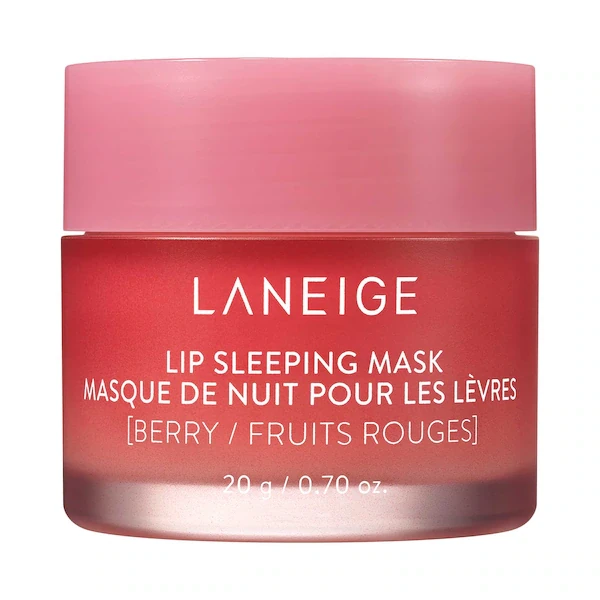
Logo Remover is a focused AI cleanup tool for images you own, licensed assets, internal drafts, or files you have permission to modify. It is built for pictures that are already usable but have a visible brand mark, product logo, corner logo, wordmark, stamp, decal, or watermark-style logo in the way. Instead of cropping the frame or blurring the mark, the tool treats logo removal as localized cleanup: it targets the marked area and uses nearby visual context to reconstruct fabric, paper, packaging, glass, metal, plastic, skin-safe background detail, or device finishes so the photo still feels like the same original image.
That makes Logo Remover closer to an AI eraser, inpainting workflow, and generative fill pass than a generic object remover. Use it when you need to remove a logo from an image, remove a logo from a photo, clean up image references for a deck, prepare a neutral mockup, or remove watermark/logo marks from assets you are allowed to edit. It is intended for responsible workflows such as owned product photos, licensed campaign material, approved client drafts, personal archives, marketplace images you control, and concept references where brand marks are distracting. It should not be used to bypass copyright, licensing, creator attribution, platform access controls, or another person's rights. When the edit becomes part of a larger project, send the cleaned result to Vofy Canvas to compare variants and continue the next generation step.
Remove front logos, stamped symbols, or small wordmarks from bottles, boxes, cups, bags, and product mockups while keeping shape, shadows, label edges, and material texture believable.
Clean chest marks, cap emblems, jersey prints, or patch-style branding with a prompt that protects folds, seams, stitching, wrinkles, and the original garment silhouette.
Clear small edge logos, storefront decals, device marks, poster stamps, and watermark-style brand marks from images you own or have permission to modify.
Tip: 01
Ask for only the logo or brand mark to be removed so fabric seams, bottle shape, stitching, and product geometry stay intact.
Tip: 02
For apparel, include the surface type: cotton hoodie, cap embroidery, jersey print, or leather patch each needs different texture repair.
Tip: 03
If the mark sits on glass or metal, expect reflections to need a quieter repair pass rather than a perfectly blank surface.
Tip: 04
Do not use cleanup to disguise ownership, authenticity, or required safety labels; keep legally necessary markings visible.
Prepare cleaner internal mockups, marketplace drafts, or campaign tests when the product shape matters but a visible brand mark distracts from the concept.
Neutralize permitted reference images for decks, moodboards, and creative direction without cropping away the useful composition.
Remove a logo from clothing photos when you need a blank-looking garment reference, while keeping folds, seams, fabric weight, and pose intact.
Clean small marks from approved drafts or older files you control so the image can be reused in a current layout or comparison board.
Most logo cleanup attempts take about a minute. Upload one product, apparel, cup, sign, or packaging photo you own or can edit, then let localized AI inpainting repair the marked area without manual masking or Photoshop clone work.
Start with an owned product photo, licensed apparel shot, bag, cup, sign, device photo, or saved reference where the logo is visible and the nearby fabric, cardboard, glass, metal, or plastic detail can guide the repair.
Tip: Small and medium logos, corner brand marks, and watermark/logo overlays on readable surfaces usually clean up more naturally than marks covering most of the object.
Choose by material and placement: apparel cleanup for folds and seams, packaging cleanup for flat boxes or bottles, corner logo cleanup for small marks, device cleanup for glossy hardware, or sign cleanup when the background needs rebuilding.
Tip: Use the optional note for one practical detail, such as remove logo from photo but preserve fabric folds, keep reflections, or rebuild the plain box face with generative fill.
Generate the cleaned image, then inspect the repaired area at normal viewing size for fabric folds, reflections, label edges, surface texture, shadows, repeated patterns, and any remaining logo fragments.
Tip: If the surface looks smeared, try a closer crop or a preset that better matches the object material, and confirm the edited asset is yours, licensed, or approved for modification.
“Sometimes I only need the product silhouette and material feel for a board. A logo-specific cleanup tool is more practical than rebuilding the whole image from scratch.”
“The useful case is cleaning a branded cup, bag, or box while keeping the packaging texture readable enough for an internal mockup.”
“Saved references often have one corner logo or obvious wordmark. Removing that distraction makes pitch decks cleaner without changing the composition I wanted to keep.”

Remove watermark, proof, export, and logo-style overlay marks from permitted images.

Erase unwanted objects, stickers, people, and small distractions with localized AI repair.

Clean unwanted text overlays from photos while preserving the surrounding image.
Upload an image you own or have permission to edit, choose the preset that best matches the surface, and run the generation. The model removes the visible logo or brand mark and uses localized inpainting to rebuild the hidden area so the image still looks usable afterward.
That is the goal. Logo Remover works like a focused AI eraser: it targets the logo area, then uses surrounding texture, lighting, edges, and perspective to clean up the image without repainting unrelated parts of the photo.
It is positioned for visible chest logos, cup and bottle marks, shopping-bag wordmarks, box stamps, cap emblems, hanging-sign logos, device-lid marks, and small corner logos or watermark-like brand marks.
There is overlap, especially for small corner logos, export marks, and simple watermark-style logos on images you are allowed to modify. This page stays focused on logo-removal intent rather than claiming to handle every kind of heavy overlay or full-frame watermark perfectly.
Yes, the cleanup is closer to inpainting and generative fill than to a blur tool. The AI removes the marked area and fills it with context from nearby fabric, packaging, glass, metal, plastic, lighting, and shadows.
That is the intended workflow. The default prompt asks the model to preserve the product shape, material texture, fabric folds, lighting, perspective, and overall composition while only cleaning the logo area.
Results are usually strongest when the logo sits on a readable surface with enough nearby texture to reconstruct, such as fabric, cardboard, paper, glass, metal, or smooth product fronts.
Large or complex marks are harder because the model has less nearby visual context to infer what should be underneath. This workflow is more reliable for small or medium logos than for branding that dominates the whole image.
Yes. You should only upload and edit images that you own, licensed assets where edits are allowed, approved client drafts, internal mockups, or files you otherwise have permission to modify and reuse. The tool is meant for cleanup workflows, not for bypassing copyright, licensing, attribution, or other people's rights.
Yes. You can open the tool and try the logo-removal workflow on your own image, while checking the current Vofy account or credit state before final generation.
New model notes, image-editing workflows, and practical prompt patterns worth saving — quietly delivered every Friday.