Best Kling 3.0 Settings on Vofy for More Realistic AI Videos
Learn which Kling 3.0 settings on Vofy actually matter for realistic AI videos, including mode, duration, resolution, aspect ratio, reference frames, and multi-shot setup.

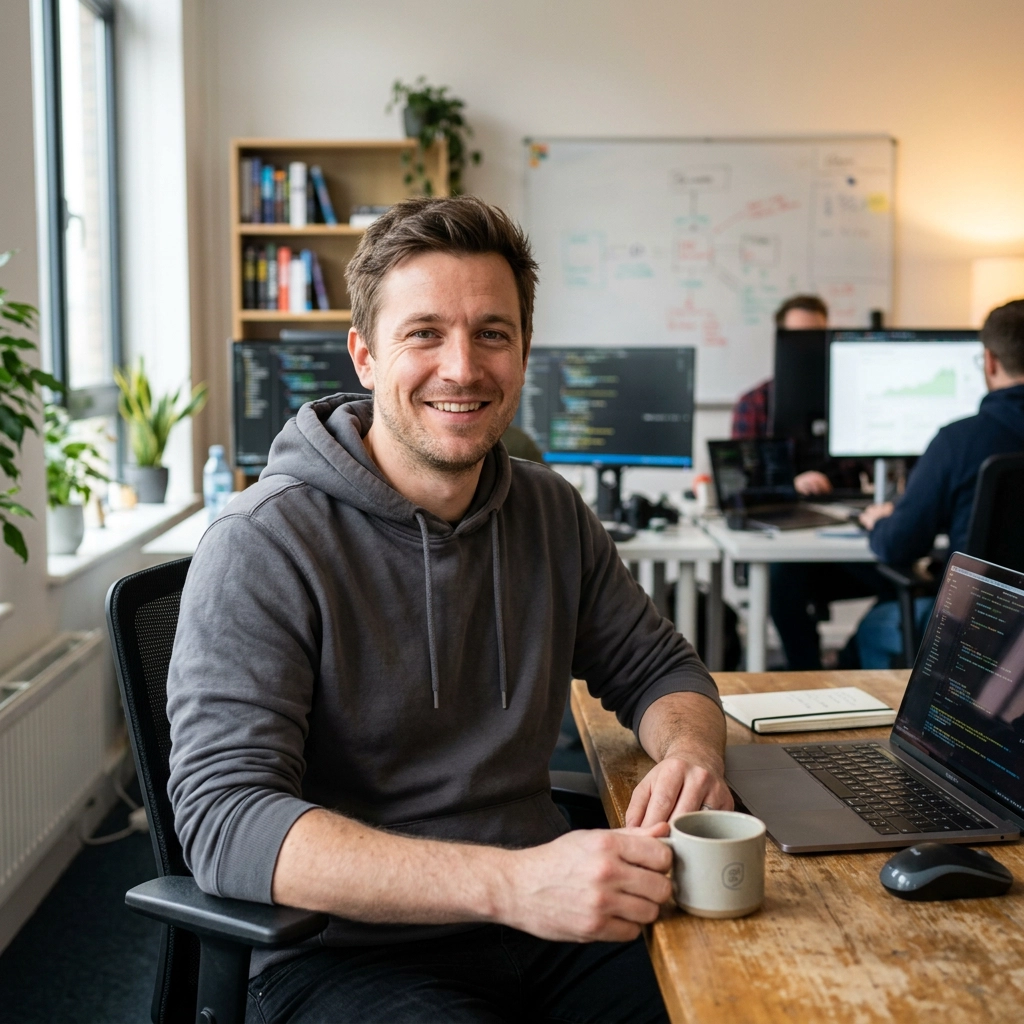
Kling 3.0 can produce very realistic video, but realism usually comes from the right setup rather than a longer prompt.
On Vofy, the most important settings are not hidden technical sliders. They are the practical choices you make before generation: the workflow, duration, resolution, aspect ratio, input frames, reference images, and whether the shot should stay simple or become multi-shot.
This guide focuses on the Kling 3.0 settings that are actually available on Vofy, and how to combine them for cleaner motion, more stable subjects, and more believable results.
Why Settings Matter More Than Prompts
A strong prompt still fails if the setup is wrong. Most bad Kling outputs come from one of these mistakes:
- Wrong workflow: Using text-to-video when you really need a reference image often makes identity, product shape, or framing drift.
- Overlong clips: Asking for too much over a longer duration increases the chance of motion instability and subject changes.
- Premature 1080p renders: Starting every test at full resolution wastes time before you know whether the motion works.
- Mismatched aspect ratio: A prompt written for a cinematic wide shot usually breaks when forced into a vertical composition.
- Weak reference setup: If the first frame or reference images are unclear, the model has less to anchor to.

The practical goal is simple: choose the right workflow first, keep the shot focused, and only increase complexity once the base result is stable.
Core Kling 3.0 Settings Overview
On Vofy, Kling 3.0 realism usually comes down to six real setting groups:
- Mode / workflow: text-to-video, image-to-video, interpolation, or motion control
- Duration: from 3 to 15 seconds
- Resolution: 720p or 1080p
- Aspect ratio: 16:9, 9:16, or 1:1 for text-to-video
- Frame and reference inputs: first frame, last frame, or extra reference images
- Multi-shot and audio options: when to manually expand one shot into a storyboard sequence
One important constraint: Kling 3.0 on Vofy does not expose separate user-facing sliders for things like frame rate, motion strength, or camera speed. Those creative choices should be described in the prompt and supported with strong references.
1. Workflow Settings
Choosing the correct workflow matters more than fine-tuning anything else.
Text-to-Video
Best when you want Kling to invent the entire scene from scratch.
- Use it for: cinematic environments, abstract visuals, wide shots, concept scenes
- Avoid it for: precise products, face-sensitive portraits, or shots that must match a real input image
- Best practice: keep the request to one main subject, one main action, and one clear camera instruction
Image-to-Video
Best when you want the output to stay close to a given first frame.
- Use it for: portraits, product videos, fashion, beauty, branded scenes
- Avoid it for: shots where you want the model to redesign the whole composition
- Best practice: start with a strong first frame that already matches the final look you want
Interpolation
Best when you already know both the beginning and ending frame and want smoother transition between them.
- Use it for: before/after reveals, product transformations, controlled visual transitions
- Avoid it for: open-ended motion where the middle action is not obvious
- Best practice: make sure the first and last frame feel visually related, or the motion can become strange
Motion Control
Best when you want movement to follow a supplied motion source more closely.
- Use it for: matching a gesture pattern, controlled body movement, or reference-driven motion
- Avoid it for: very complex scenes with multiple competing subjects
- Best practice: pair the source motion with a clean first frame and keep the action simple

Multi-Shot
On Vofy, multi-shot is a manual Kling 3.0 option you turn on when one clip needs multiple connected shots rather than one uninterrupted take. It is not the same thing as interpolation, and it is not triggered automatically by adding an end frame.
- Use it for: short narratives, ad sequences, hero videos with a few distinct beats
- Avoid it for: prompts that are already struggling in a single shot
- Modes:
intelligencefor a more guided automatic storyboard flow,customizefor shot-by-shot control - Important constraint: Kling 3.0 multi-shot on Vofy supports a start frame, but not an end frame
- Best practice: stabilize one strong shot first, then manually expand into multi-shot if needed

2. Duration Settings
On Vofy, Kling 3.0 supports 3 to 15 seconds. Duration is not just a length choice. It changes how ambitious your shot can be.
3 to 5 seconds
Best for a single action or one clean reveal.
- Good for: portraits, product turns, short hero shots, simple cinematic beats
- Why it works: shorter clips are easier to keep stable
- Starting point: 5 seconds is the safest default for most tests
6 to 10 seconds
Best for a subject action plus a simple camera move.
- Good for: walking shots, gentle environment motion, product lifestyle clips
- Why it works: enough room for pacing without making the scene overly complex
- Watch for: identity drift and background instability if too many things move at once
11 to 15 seconds
Best for slower, more controlled sequences.
- Good for: scenic landscapes, measured reveals, mood-driven multi-shot clips
- Why it works: the extra time helps only when the scene stays disciplined
- Watch for: overstuffed prompts and long-action failures
Best default: start at 5s, validate the motion, then extend only if the scene clearly needs more time.

3. Resolution Settings
Vofy currently exposes 720p and 1080p for Kling 3.0.
720p
Best for testing and iteration.
- Use it when: you are still adjusting prompt wording, framing, or motion logic
- Advantage: faster feedback and cheaper iteration
- Recommendation: do most early testing here
1080p
Best for final output once the shot already works.
- Use it when: composition, motion, and subject stability are already correct
- Advantage: better presentation for final exports and client-facing work
- Recommendation: upscale your winning setup, not your first draft
Best default: generate the first working version at 720p, then rerun the same idea at 1080p only after the motion looks right.

4. Aspect Ratio Settings
For text-to-video on Vofy, Kling 3.0 supports 16:9, 9:16, and 1:1. This choice should match both the platform and the composition.
16:9
Best for widescreen, cinematic scenes, and desktop-first layouts.
- Use it for: landscapes, automotive, travel, ads, site hero videos
- Avoid it when: the subject is tall and needs vertical framing
9:16
Best for vertical social content.
- Use it for: talking-head clips, fashion, beauty, UGC, mobile-first ads
- Avoid it when: the scene depends on horizontal geography or multiple wide elements
1:1
Best for centered compositions and square placements.
- Use it for: products, simple lifestyle scenes, feed placements
- Avoid it when: the action needs strong vertical or horizontal travel
For image-to-video and interpolation, framing is driven by the uploaded frame inputs. In practice, that means your first frame matters more than trying to force a different ratio later.

5. Frame, Reference, and Multi-Shot Setup
Kling 3.0 gets more reliable when you give it better anchors.
First Frame
Use a first frame when identity, styling, or product shape needs to stay consistent.
- Best for: faces, branded products, fashion looks, controlled compositions
- Avoid weak inputs: low-resolution, cluttered, badly cropped, or ambiguous images
First and Last Frame
Use both when the beginning and end state matter more than freeform creativity.
- Best for: transformation clips, transition design, structured reveals
- Watch for: frames that are too different in angle, scale, or lighting
- Important constraint: this is for
interpolation, not Kling 3.0 multi-shot
Reference Images
Use extra references when wardrobe, color palette, product design, or environment consistency matters.
- Best for: commercial work, brand-sensitive scenes, repeated character styling
- Best practice: keep references visually aligned instead of mixing very different looks
Multi-Shot Structure
Use multi-shot only when one idea truly needs multiple beats, and turn it on manually in the Kling 3.0 controls.
- Best for: ad pacing, short storytelling, intro-middle-end sequences
- Modes:
intelligencefor higher-level sequencing,customizewhen you want to define each shot more explicitly - Avoid it for: unstable prompts that cannot hold one clean shot yet
- Important constraint: once Kling 3.0 multi-shot is enabled on Vofy, the end frame is unavailable
- Best practice: keep each shot narrowly defined instead of describing a whole film

6. Audio and Prompt-Led Camera Direction
Audio can add value, but it should be intentional rather than automatic.
- Turn audio on when: the clip benefits from ambience, voice, or music-driven presentation
- Leave audio off when: you are mainly testing motion, composition, or visual consistency
For camera behavior, lighting, and pacing, use the prompt itself. On Vofy, Kling 3.0 is better guided by prompt language such as:
single slow dolly in, soft natural window light, subject turns slightly toward camera, shallow depth of field, realistic movement
That approach is more accurate than writing about nonexistent standalone settings like frame-rate sliders, motion-strength values, or camera-speed controls.
Optimal Settings by Use Case
These are practical starting points for common realistic video goals on Vofy.
Portrait Video
- Mode: image-to-video when identity matters, otherwise text-to-video
- Duration: 5 seconds
- Resolution: 720p first, then 1080p for final
- Aspect ratio: 9:16 or 1:1
- Best extra input: strong first frame
Why it works: short duration and a strong anchor help preserve facial consistency.
Walking Scene
- Mode: text-to-video
- Duration: 6 to 10 seconds
- Resolution: 720p
- Aspect ratio: 16:9
- Best extra input: simple side or front three-quarter composition
Why it works: the clip has enough room for motion without becoming overcomplicated.
Product Showcase
- Mode: image-to-video
- Duration: 5 seconds
- Resolution: 1080p for final output
- Aspect ratio: 1:1 or 16:9
- Best extra input: clean first frame and matching references
Why it works: product videos benefit from stable shape, stable lighting, and tight composition.

Nature or Landscape Scene
- Mode: text-to-video
- Duration: 8 to 12 seconds
- Resolution: 720p first, then 1080p if needed
- Aspect ratio: 16:9
- Best extra input: restrained prompt with only one or two moving environment elements
Why it works: slower scenes can take advantage of longer duration without stressing subject consistency.
Action Clip
- Mode: text-to-video or motion control
- Duration: 5 seconds
- Resolution: 720p
- Aspect ratio: 16:9
- Best extra input: motion reference if the movement pattern is important
Why it works: fast scenes usually perform better when the duration stays short and the action stays focused.
Best Starting Defaults
If you want one reliable Kling 3.0 starting setup on Vofy, use this:
- Mode: text-to-video for open creativity, image-to-video for consistency
- Duration: 5 seconds
- Resolution: 720p
- Aspect ratio: 16:9 for cinematic scenes or 9:16 for mobile content
- Prompt structure: one subject, one action, one camera direction, one lighting direction
That combination is usually the fastest path to a realistic result. Once the shot works, then increase duration, switch to 1080p, or expand into multi-shot.
Want to test these settings yourself? Try Kling 3.0 on Vofy.

Try it yourself on Vofy
Generate AI images and videos with the best models - all in one studio.
Discover More

 Priya Sharma•
Photo to 3D Model with AI: A Practical Guide
Turn a photo into a polished 3D-style model image with Vofy. Learn which photos work best, how to generate, and how to fix common results.

 Alex Harper•
How to Make AI Football Fan Videos From One Photo
Make AI football fan videos from one photo with a fictional Spain goal celebration and an optional Japanese street-interview companion clip.

 Lucas Andersson•
How to Make a Printable Coloring Page From a Photo
Make a printable coloring page from a photo with open fill areas, age-appropriate detail, and lines that stay clear after a real test print.