How to Use Kling 3.0 Image-to-Video on Vofy
Learn how to get better Kling 3.0 image-to-video results on Vofy by choosing stronger source images, writing motion prompts that fit the frame, and knowing when to use interpolation or motion control.

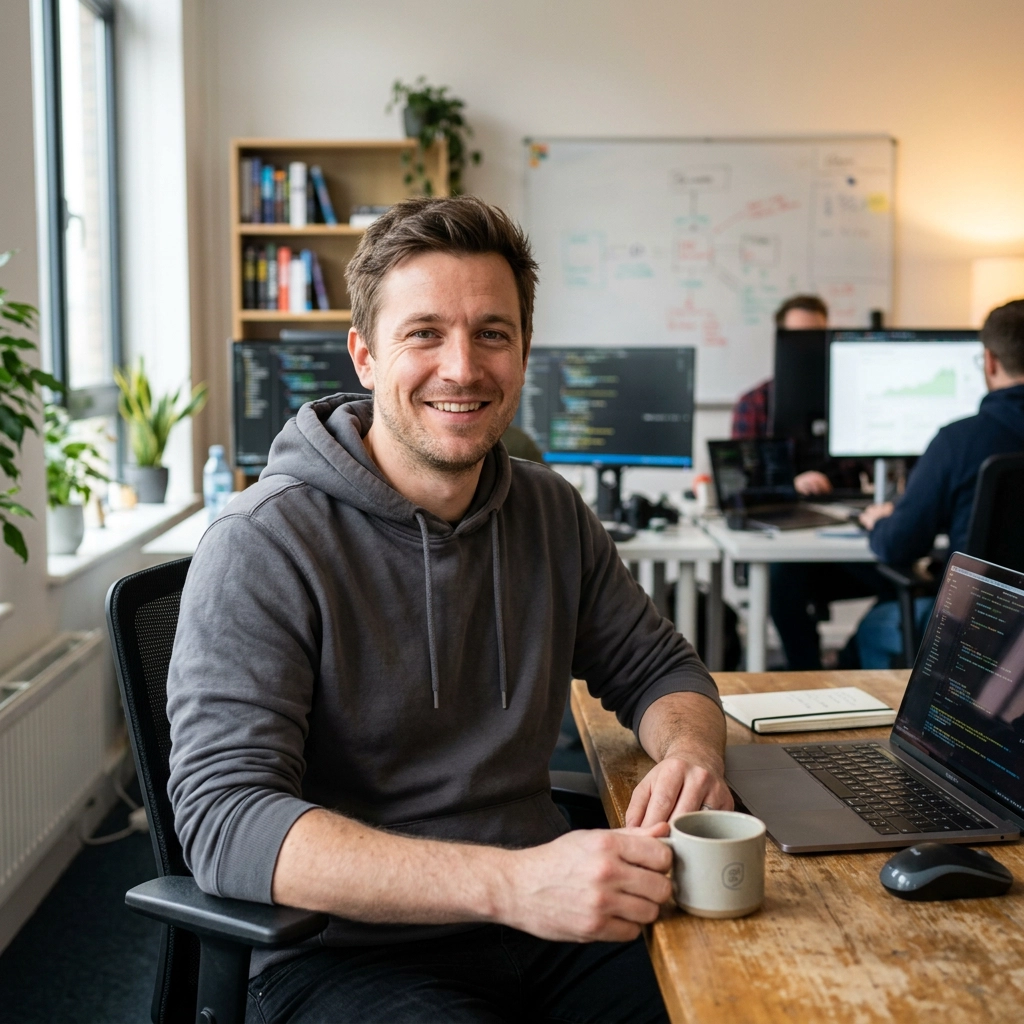
Kling 3.0 image-to-video is one of the fastest ways to get believable motion from a single still image, but it works best when you treat the uploaded frame as the foundation of the shot rather than just a loose reference.
This guide focuses on the parts that matter specifically for image-to-video on Vofy: choosing a strong first frame, describing motion that fits the image, and knowing when a single source image is enough versus when you should switch to interpolation or motion control. Try it now →
One distinction matters up front: on Vofy, image-to-video means you animate from one uploaded start frame, while interpolation means you provide both a start frame and an end frame so Kling can generate the motion between them.
What Kling 3.0 Image-to-Video Does Best
Image-to-video is the right choice when you already have a frame you want to preserve.
That could be:
- a portrait where identity matters
- a product image that already has the right styling
- a fashion photo with a strong pose
- a scenic shot with composition you do not want the model to reinvent
On Vofy, Kling 3.0 image-to-video starts from your uploaded first frame and builds motion outward from it. That makes it much better than text-to-video when you care about subject consistency, exact framing, or keeping the original visual direction.
It is less effective when you expect the model to redesign the whole scene. If the goal is “same subject, but in a completely different composition,” text-to-video or a different workflow is usually a better fit.
Best Source Images for Image-to-Video
The first frame is the biggest lever in image-to-video quality.
Best photos
- clear subject separation from the background
- good lighting with visible depth
- clean silhouette and readable pose
- enough natural motion cues like hair, fabric, water, smoke, trees, or reflections
- already close to the look you want in the final clip
Avoid these photos
- low-resolution or overcompressed images
- cluttered scenes with too many small elements
- awkward crops that cut off important body parts or product edges
- flat flash lighting with no depth
- source images that already look unnatural or heavily distorted

One practical rule: if the still image already looks like the first frame of a good video, Kling usually has a much easier job.
How Kling Reads a Still Image
Kling 3.0 does not simply apply a generic animation filter. In image-to-video mode, it tries to preserve the source frame while introducing plausible motion, camera movement, and depth changes over time.
That means three things matter:
-
The frame composition stays important.
For image-to-video, the original framing drives the result much more than in text-to-video. -
Motion should grow naturally from the scene.
Hair can move, fabric can shift, a camera can push in, clouds can drift. Asking for a seated subject to suddenly run usually breaks the shot. -
Prompt language should support the image, not fight it.
The best prompts describe believable changes around the existing frame instead of trying to replace the scene.
A Better Prompt Formula for Image-to-Video
For image-to-video, prompt writing should be narrower than text-to-video prompt writing.
Use this structure:
[existing subject] + [small believable motion] + [simple camera behavior] + [lighting or mood]
A strong example:
woman in profile, hair moving gently in the breeze, slight head turn toward camera, slow push-in, soft natural window light, shallow depth of field, realistic motion
This works because every instruction fits a still portrait.
Good motion verbs
- drifting
- swaying
- rippling
- flowing
- turning slightly
- pushing in
- slowly orbiting
- gliding
Motion requests to avoid
- multiple actions at the same time
- full-body movement that contradicts the pose
- fast action from a static close-up
- dramatic scene rewrites
- camera movement that would require a completely different composition
The Safest Types of Motion
When image-to-video looks natural, it usually comes from restrained motion rather than big action.
Portraits
Safest motions
- slight head turn
- blinking or subtle expression change
- hair moving in a light breeze
- gentle camera push-in
Avoid
- exaggerated facial movement
- rapid body turns
- hands suddenly entering or crossing the frame
Products
Safest motions
- slow orbit around the object
- subtle push-in
- small lighting shimmer or reflection shift
Avoid
- product shape changes
- fast spins
- cluttered moving backgrounds
Landscapes
Safest motions
- cloud drift
- tree movement
- water ripple
- slow pan or reveal
Avoid
- too many environmental effects at once
- heavy weather plus strong camera motion plus subject movement in one clip
Fashion and Lifestyle
Safest motions
- fabric movement
- natural body sway
- one clean camera move
- background depth movement
Avoid
- dramatic pose changes
- multiple people moving independently unless the frame already supports it
Four Prompt Examples That Fit the Frame
Portrait

Prompt:
soft head turn toward camera, hair moving gently in the breeze, subtle blink, slow push-in, warm natural light, cinematic depth of field, realistic motion
Best for: beauty, editorial portraits, creator profile visuals
Avoid: asking for walking, strong hand gestures, or large pose changes
Product

Prompt:
camera slowly orbiting around the product, gentle reflection changes on the surface, soft studio lighting, clean background, premium commercial look, realistic movement
Best for: ecommerce hero clips, luxury product visuals, landing page media
Avoid: adding extra props or asking the product to transform shape mid-shot
Landscape

Prompt:
clouds drifting across the sky, water rippling gently, trees swaying slightly, slow pan to the right, golden hour atmosphere, realistic natural motion
Best for: travel, nature, cinematic establishing shots
Avoid: combining storms, dramatic zooms, and many moving elements in one prompt
Fashion / Social Clip

Prompt:
clothing moving lightly with the wind, subtle body sway, background depth shifting gently, slow lateral camera move, polished editorial style, realistic motion
Best for: vertical social content, lookbooks, lifestyle promos
Avoid: full-body choreography or crowded multi-character movement
Image-to-Video vs Interpolation
These two workflows are easy to mix up, but they are not the same.
| Feature | Image-to-Video | Interpolation |
|---|---|---|
| Input Required | One start frame | Both start frame and end frame |
| Best For | Preserving a portrait, product, or composition | Controlled transitions between two specific frames |
| Motion Control | Kling invents natural movement from the single image | Kling connects the exact start and end you define |
| Use When | One first frame is enough to anchor the scene | You know the exact starting and ending frame |
| Vofy Upload | Upload only Start frame | Upload both Start frame and End frame |
| Output Style | Natural animated shot | Precise transition between frames |
When to Use Motion Control Instead
Switch to motion control when the movement pattern matters more than the still image alone can describe.
That usually means:
- a specific body movement
- a particular gesture rhythm
- motion that should follow a source clip more closely
If you keep failing with prompts like “walk naturally toward camera” or “perform a clean dance move” from a single still image, that is often a sign you need motion control rather than a stronger prompt.
Quick Workflow on Vofy
If you want a simple process that avoids most mistakes, start here:
- Upload a first frame that already looks close to the final shot.
- Keep the motion request small and believable.
- Start with a short duration and a single clean camera move.
- Compare a couple of prompt variants instead of stuffing every idea into one generation.
- If the shot needs a defined ending frame, switch to interpolation.
- If the shot needs reference-driven movement, switch to motion control.
Common Failure Patterns
The face changes too much
- Use a stronger portrait source image
- reduce the amount of requested motion
- avoid asking for large head turns or strong expression changes
The product warps
- simplify the prompt to one clean camera move
- remove unnecessary background activity
- use a clearer first frame with clean edges
The scene feels chaotic
- cut the prompt down to one subject and one motion idea
- remove extra atmospheric effects
- avoid combining pan, zoom, orbit, and environmental motion together
The clip looks fake
- choose a more realistic source image
- ask for subtler movement
- keep lighting language natural instead of overly dramatic
FAQ
What is Kling 3.0 image-to-video?
It is a frame-driven workflow that starts from one uploaded first image and generates motion outward from that still frame.
Is image-to-video better than text-to-video?
It is better when consistency matters. If you want the output to stay close to a portrait, product shot, or existing composition, image-to-video is usually the better choice.
What kinds of photos work best?
Photos with clear subjects, good lighting, and some natural motion cues usually perform best.
Can I choose a different aspect ratio after uploading the image?
For image-to-video, the uploaded frame is the main compositional anchor. In practice, your source image framing matters more than trying to force a different look later.
When should I use interpolation instead?
Use interpolation when you need both a defined start frame and a defined end frame. If you only upload one start frame and want Kling to invent the in-between motion, that is image-to-video, not interpolation.
Why does my image-to-video output look unstable?
The most common causes are weak source images, overly ambitious motion prompts, and asking the model to do actions that do not fit the original pose or composition.
Start with One Strong Frame
The best Kling 3.0 image-to-video results usually come from restraint. Start with a strong still image, animate what already belongs in that frame, and escalate to interpolation or motion control only when the shot truly needs more structure.
That approach gives you cleaner motion, better subject consistency, and less time wasted fighting the model.
Try Kling 3.0 image-to-video and build from one strong first frame.
Try it yourself on Vofy
Generate AI images and videos with the best models - all in one studio.
Discover More

 Priya Sharma•
Photo to 3D Model with AI: A Practical Guide
Turn a photo into a polished 3D-style model image with Vofy. Learn which photos work best, how to generate, and how to fix common results.

 Alex Harper•
How to Make AI Football Fan Videos From One Photo
Make AI football fan videos from one photo with a fictional Spain goal celebration and an optional Japanese street-interview companion clip.

 Lucas Andersson•
How to Make a Printable Coloring Page From a Photo
Make a printable coloring page from a photo with open fill areas, age-appropriate detail, and lines that stay clear after a real test print.