AI Skin Enhancer: One-Click Portrait Retouching in 2026
Transform portraits with AI skin enhancement in one click. Choose Soft, Realistic, or Imperfect styles for professional retouching without Photoshop. Perfect for photographers, content creators, and social media.

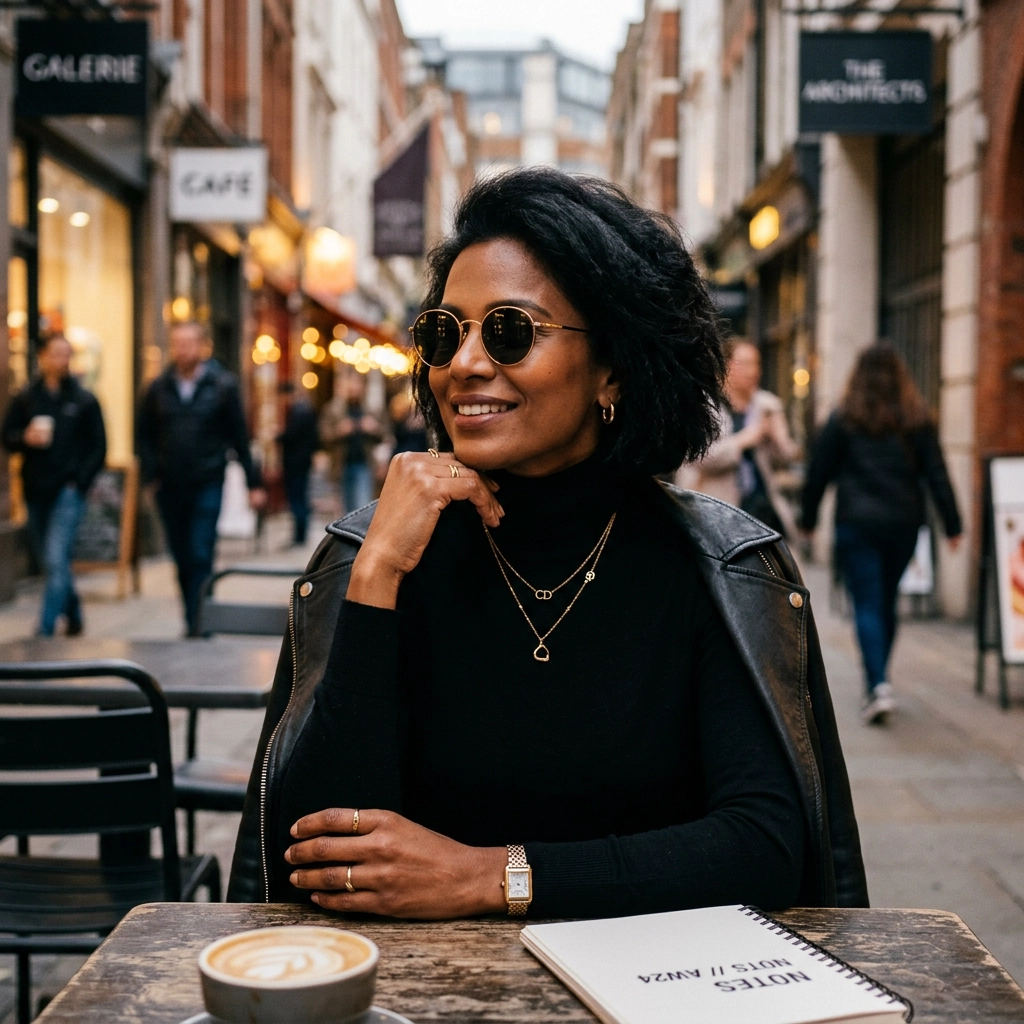
Professional portrait retouching traditionally requires hours of manual work in Photoshop using frequency separation, dodge and burn techniques, and careful layer masking. According to industry surveys, professional photographers spend an average of 15-30 minutes per portrait on skin retouching alone, and 68% of freelance photographers cite post-processing as their biggest time bottleneck.
An AI skin enhancer eliminates this complexity by automatically smoothing, evening, and refining skin texture in one click—no frequency separation, no manual masking, no Photoshop expertise required. Choose from three distinct styles (Soft, Realistic, or Imperfect) and get professional results in seconds.
What Is an AI Skin Enhancer?
An AI skin enhancer is a specialized portrait retouching tool that automatically improves skin appearance using advanced computer vision. You upload a portrait photo, select your preferred enhancement style, and the AI refines skin texture and tone while preserving natural facial features, eye color, and overall structure.
Unlike basic beauty filters that create an artificial, over-processed look, AI skin enhancers use machine learning models trained on professional retouching techniques to deliver natural, editorial-quality results that maintain authentic skin detail.
Why Use an AI Skin Enhancer?
AI skin enhancement tools solve several critical challenges for photographers and content creators:
- Time Efficiency - Retouch portraits in seconds instead of spending 15-30 minutes per photo
- No Photoshop Required - Skip expensive software subscriptions and complex techniques
- Consistent Results - Apply the same professional style across entire photo shoots
- Multiple Style Options - Choose between polished editorial, natural realistic, or raw authentic looks
- Preserve Authenticity - Enhance skin without altering facial features or creating uncanny valley effects

For professional photographers, time is money. Wedding photographers shooting 500+ portraits per event can't spend 30 minutes retouching each image. An AI skin enhancer delivers consistent, professional results across entire albums in minutes, not days.
Understanding the Three Enhancement Styles
Soft Skin: Polished Editorial Finish
Soft Skin creates a flawless, magazine-ready look by smoothing blemishes, evening skin tone, and minimizing pores. This style is ideal for:
- Fashion and beauty photography
- Corporate headshots and LinkedIn profiles
- Wedding portraits and formal events
- Editorial magazine shoots
- Commercial advertising campaigns
Result: Clean, polished appearance with smooth texture and even tone—the classic "retouched" look clients expect from professional photography.
Realistic Skin: Natural Texture Preservation
Realistic Skin evens out discoloration and reduces blemishes while preserving natural pores and skin texture. This balanced approach works for:
- Professional headshots that need to look authentic
- Dating profile photos and social media
- Personal branding and influencer content
- Corporate team photos
- Everyday portrait photography
Result: Natural, believable enhancement that looks professionally shot but not over-edited.
Imperfect Skin: Raw Authentic Aesthetic
Imperfect Skin adds intentional texture and character, creating the raw, authentic look popular in street photography and documentary work. This style suits:
- Street and documentary photography
- Editorial work emphasizing authenticity
- Alternative fashion and artistic portraits
- Personal projects with a raw aesthetic
- Anti-retouching movement photography
Result: Intentional imperfection that adds character and authenticity—the opposite of over-polished commercial work.

Best Use Cases for AI Skin Enhancement
Wedding Photography Retouching
Wedding photographers shoot hundreds of portraits per event—bride, groom, family, guests. Manual retouching would take weeks. AI skin enhancers let you apply consistent Soft Skin enhancement across entire albums in minutes.
Scenario: You've shot a 500-photo wedding and need to deliver retouched portraits within 2 weeks. Use the AI Skin Enhancer with Soft Skin style to batch process all portraits, delivering polished results without spending 250+ hours on manual retouching.

Social Media and Dating Profile Photos
Content creators and individuals need polished profile photos for LinkedIn, Instagram, dating apps, and personal branding. Realistic Skin enhancement creates professional-looking photos without obvious over-editing.
Scenario: You need an updated LinkedIn headshot but don't want to pay $200 for professional photography. Take a well-lit selfie, then use the skin enhancer tool with Realistic Skin to create a polished, natural-looking professional photo.

Professional Headshot Photography
Corporate headshot photographers shooting 20-50 employees per session need consistent, professional results. AI skin enhancement ensures every subject looks their best with uniform retouching quality.
Scenario: You're shooting corporate headshots for a 100-person company. Instead of spending days on manual retouching, use the AI skin enhancer to apply consistent Soft Skin enhancement across all portraits, delivering uniform professional results.

Fashion and Beauty Editorial Photography
Fashion photographers and beauty brands need flawless skin for editorial campaigns and lookbooks. Soft Skin enhancement delivers magazine-quality retouching without hours of manual frequency separation work.
Scenario: You're shooting a beauty campaign with 50 model portraits. Use the skin enhancement tool with Soft Skin to create consistent, polished editorial results across the entire campaign.

Freelance Photographer Client Delivery
Freelance photographers need fast turnaround times to stay competitive. AI skin enhancement lets you deliver professionally retouched proofs to clients within hours instead of days.
Scenario: A client needs retouched portraits by tomorrow morning. Instead of pulling an all-nighter with Photoshop, use the AI skin enhancer to process all portraits in minutes, meeting the deadline with professional results.

How to Use an AI Skin Enhancer (Step-by-Step)
Using an AI skin enhancer requires no technical expertise. Here's how to retouch portraits in seconds:
Step 1: Upload Your Portrait Photo
Navigate to the AI Skin Enhancer tool and upload your portrait. Supported formats include JPEG, PNG, and WebP up to 10 MB.
Pro Tip: For best results, upload high-resolution images (at least 1024×1024 pixels). The output matches your input resolution, so higher quality input produces better results.
Step 2: Choose Your Enhancement Style
Select from three retouching styles based on your creative vision:
- Soft Skin - Polished editorial finish for fashion, beauty, and formal portraits
- Realistic Skin - Natural enhancement for headshots, social media, and everyday portraits
- Imperfect Skin - Raw authentic aesthetic for street and documentary photography
Step 3: Compare and Download
Use the built-in before/after comparison slider to preview results. Zoom in to inspect skin texture detail, then download the enhanced portrait in high resolution.
Pro Tip: The comparison slider lets you verify that the enhancement matches your vision before downloading. Zoom to 100% to check fine details like eye sharpness and skin texture.
Tips for Best AI Skin Enhancement Results
Start with Quality Source Photos
AI skin enhancers work best with well-lit, properly exposed portraits. Poor lighting or low-resolution images limit enhancement quality.
Lighting Tips:
- Use soft, diffused natural light or studio lighting
- Avoid harsh shadows and extreme highlights
- Ensure even lighting across the face
- Shoot in RAW format when possible for maximum detail
Choose the Right Style for Your Subject
Different portrait types benefit from different enhancement styles:
- Corporate/Professional: Realistic Skin for authentic but polished results
- Fashion/Beauty: Soft Skin for editorial magazine quality
- Personal Branding: Realistic Skin to maintain authenticity
- Artistic Projects: Imperfect Skin for raw, documentary aesthetic
Maintain High Resolution Throughout
Upload the highest resolution version of your portrait. The AI preserves input resolution, so a 4000×3000 pixel input produces a 4000×3000 pixel output with enhanced skin.
Resolution Guidelines:
- Minimum: 1024×1024 pixels
- Recommended: 2000×2000 pixels or higher
- Professional: 4000×3000 pixels (12MP) or higher
Use the Comparison Slider Effectively
The built-in before/after slider is your quality control tool. Always review at 100% zoom to ensure:
- Skin texture looks natural (not over-smoothed)
- Eyes remain sharp and detailed
- Facial features are preserved
- Enhancement matches your creative vision
AI Skin Enhancer vs Manual Photoshop Retouching
| Aspect | AI Skin Enhancer | Manual Photoshop | |--------|------------------|------------------| | Time per photo | 10-30 seconds | 15-30 minutes | | Technical skill | None required | Advanced techniques needed | | Consistency | Uniform across all photos | Varies by editor skill/fatigue | | Cost | Free or low-cost | $20-50/month software + labor | | Learning curve | Instant | Weeks to months of practice | | Best for | High-volume work, fast turnaround | Fine-tuned custom retouching |

Common Mistakes to Avoid
Over-Smoothing with Soft Skin
While Soft Skin creates a polished look, overuse can create an artificial, plastic appearance. For most portraits, Realistic Skin provides better balance between enhancement and authenticity.
Solution: Start with Realistic Skin for most work. Reserve Soft Skin for fashion, beauty, and editorial projects where a polished finish is expected.
Using Low-Resolution Source Images
Uploading low-resolution photos (under 1024×1024 pixels) limits enhancement quality. The AI can't add detail that doesn't exist in the source image.
Solution: Always shoot and upload the highest resolution available. If working with existing photos, use the original full-resolution files, not social media exports.
Ignoring the Before/After Comparison
Downloading without reviewing the comparison slider can result in enhancement that doesn't match your vision or over-processed results.
Solution: Always use the comparison slider at 100% zoom to verify skin texture, eye sharpness, and overall quality before downloading.
Advanced Use Cases
Batch Processing Wedding Albums
Wedding photographers can process entire albums by uploading portraits sequentially with the same style setting, creating consistent results across 500+ photos.
Creating Style Variations
Generate multiple versions of the same portrait using different styles (Soft, Realistic, Imperfect) to give clients options or match different publication requirements.
Combining with Other Enhancements
After skin enhancement, use complementary tools like the AI LinkedIn Headshot Generator for professional profile photos or explore other AI-powered image tools for complete portrait workflows.
Frequently Asked Questions
Does AI skin enhancement change facial features?
No. AI skin enhancers only adjust skin texture and tone. Facial structure, eye color, nose shape, and other features remain unchanged. The tool enhances skin appearance while preserving your natural identity.
What's the difference between Soft, Realistic, and Imperfect styles?
Soft Skin creates a polished, magazine-ready finish by smoothing blemishes and minimizing pores. Realistic Skin evens tone while preserving natural texture and pores for authentic results. Imperfect Skin adds raw, textured character popular in documentary and street photography.
Can I use enhanced photos commercially?
Yes. All images enhanced with the AI Skin Enhancer can be used for commercial purposes including portfolios, advertising, social media, and client delivery.
What resolution does the AI output?
The output matches your input resolution. Upload a 4000×3000 pixel portrait, get a 4000×3000 pixel enhanced result. For best quality, upload high-resolution images (at least 1024×1024 pixels).
Does it work on group photos?
The AI skin enhancer is optimized for single-subject portraits. For best results, upload photos with one clearly visible face. Group photos may produce inconsistent results.
How long does processing take?
Processing typically takes 10-30 seconds depending on image resolution and server load. Most portraits are enhanced in under 15 seconds.
Is the AI skin enhancer free to use?
The AI Skin Enhancer is available on all Vofy plans. Sign up to start enhancing your portraits with professional retouching.
Can I compare before and after results?
Yes. The tool includes a built-in comparison slider that lets you see original and enhanced versions side by side. Zoom in to inspect fine details before downloading.
Conclusion
AI skin enhancers have transformed portrait retouching from a time-intensive manual process into an instant, accessible workflow. Whether you're a wedding photographer processing 500 portraits, a freelancer meeting tight deadlines, or an individual creating polished social media content, AI-powered skin enhancement delivers professional results without Photoshop expertise or hours of manual work.
The three enhancement styles—Soft, Realistic, and Imperfect—provide creative flexibility for every portrait type, from polished editorial fashion to authentic documentary photography. With processing times under 30 seconds and output quality matching professional manual retouching, AI skin enhancement removes all barriers to professional portrait delivery.
Ready to transform your portrait workflow? Try Vofy's AI Skin Enhancer and experience one-click professional retouching. Choose your style, compare results with the built-in slider, and download high-resolution enhanced portraits in seconds.
Key Takeaways:
- AI skin enhancement processes portraits in 10-30 seconds vs 15-30 minutes with manual Photoshop
- Three styles (Soft, Realistic, Imperfect) cover all portrait types from editorial to documentary
- No technical expertise required—just upload, choose style, and download
- Output matches input resolution for professional-quality results
- Perfect for wedding photographers, freelancers, content creators, and social media users
Start creating professionally retouched portraits today with the AI Skin Enhancer tool.
Try it yourself on Vofy
Generate AI images and videos with the best models - all in one studio.
Discover More
 Priya Sharma•
Remove Watermark from Image with AI: A Careful Guide
Remove watermark from image files you own with localized AI repair, then inspect texture, edges, and detail before downloading the clean result.
 Priya Sharma•
Remove People from Photo with AI: Keep the Scene
Remove people from photo backgrounds with localized AI inpainting while preserving the main subject, landmark, lighting, perspective, and composition.
 Priya Sharma•
Remove Text from Photo with AI: A Clean Repair Guide
Remove text from a photo with AI, rebuild the covered area, and check the result for clean edges, consistent texture, and preserved details.