Remove Text from Photo with AI: A Clean Repair Guide
Remove text from a photo with AI, rebuild the covered area, and check the result for clean edges, consistent texture, and preserved details.


Disclosure: This tutorial uses Vofy, an all-in-one AI creative studio, as the demonstration tool. The workflow reflects the app as available in July 2026, and its interface may evolve.
An old travel photo may have a date stamp, a product image an expired sale badge, or a social frame a caption baked into the pixels. The Remove Text from Photo removes these overlays and uses AI inpainting to rebuild the covered area.
Use only files you own or have permission to modify. Do not remove creator credits, ownership marks, legal notices, or watermarks from someone else's work without authorization. See the Creative Commons license descriptions or the U.S. Copyright Office overview when usage rights are unclear.
TL;DR
- Upload an owned or permitted photo and identify the exact text to remove.
- Choose the closest preset, then name any labels, faces, or edges that must stay unchanged.
- Compare the result with the original at full size before downloading or publishing it.
1. What AI Text Removal Can and Cannot Do
AI text removal is targeted inpainting. It removes words baked into an image, then estimates the hidden background from nearby color, lighting, texture, perspective, and edges. A date stamp over open sky is usually easier to repair than a caption crossing a face, product edge, or patterned fabric.
The model does not recover the original hidden pixels. It creates a plausible replacement, so do not use generated repair for documents, evidence, regulated labels, serial numbers, or other records where exact accuracy matters. For ordinary photo cleanup, keep an untouched copy and judge the repair against the source.
Text removal is narrower than a style edit. Use the photo-to-line-drawing guide for illustration changes, or remove color from an image when the goal is a new palette.
2. How to Remove Text from a Photo in 3 Steps
Start with the highest-quality permitted file. Compression and small screenshots leave less visual information for rebuilding the background.
2.1 Upload the Original Photo
Open Remove Text from Photo and upload the image. Before editing, note where the unwanted text touches faces, hands, labels, horizons, buildings, or other details that need to remain intact.
2.2 Choose a Preset and Define the Target
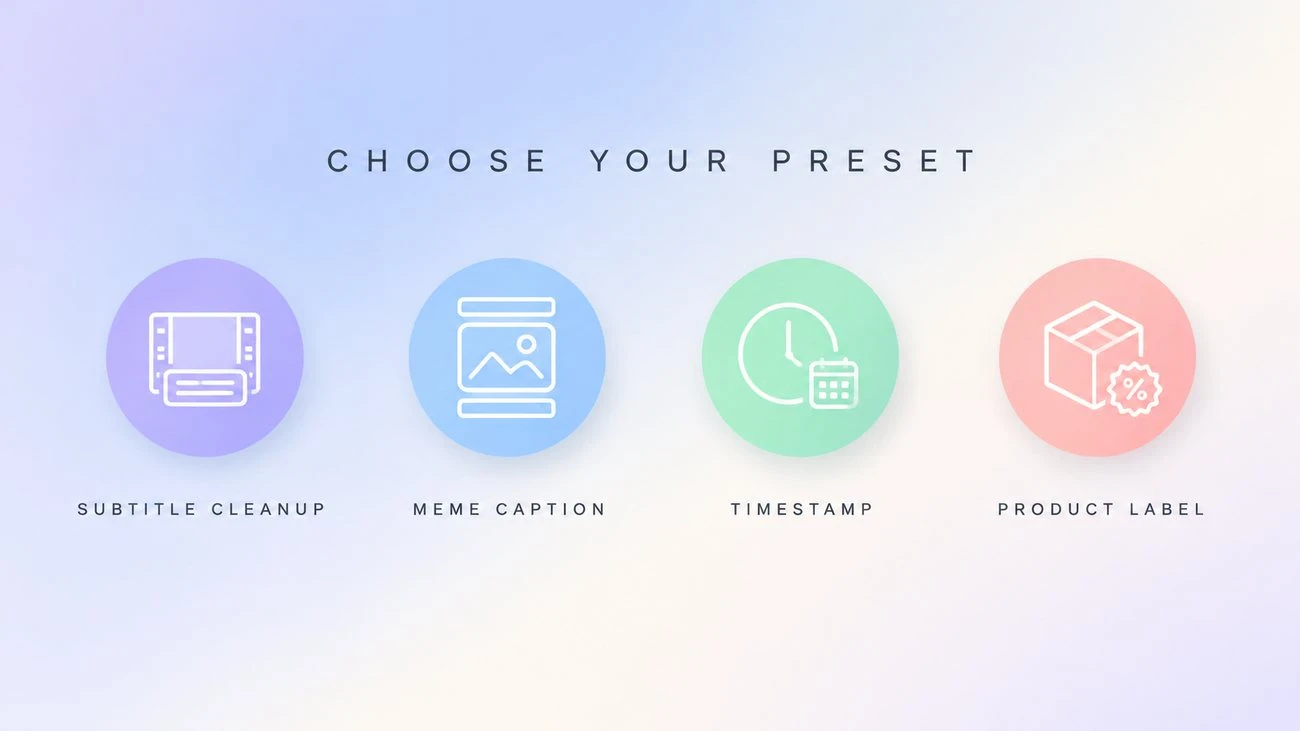
Choose Subtitle Cleanup for a line across a frame, Meme Caption for top or bottom social copy, Timestamp for camera dates, times, or locations near an edge, and Product Label for an added promotion or badge. Watermark Cleanup covers simple text watermarks, corner branding, and export stamps on assets you own or may edit. These directions tell the model what kind of overlay it should target.
Add a note when the image contains text that must stay. For example: "Remove the white subtitle along the bottom, rebuild the wooden table, and preserve the printed menu at left." Avoid "remove all text" unless every word is unwanted.
2.3 Generate and Compare
Run the edit and compare both versions at the same scale. Check the former text area first, then scan the entire frame for unintended changes.


3. A Fast Quality Check
Review the result at 100 percent, not only as a thumbnail:
- Look for ghost letters, repeated texture, blurred patches, and warped edges.
- Check faces, hands, product shapes, labels, signs, horizons, and straight lines near the repair.
- Confirm that original text you wanted to keep is still present and legible.
- Return to the untouched original for another attempt instead of editing an already altered result.
If the overlay crosses several surfaces, remove it in smaller regions. Describe the expected surface as well as the deletion: "rebuild the blue sky and preserve the mountain ridge" gives the model more useful guidance than "delete caption." For more inspection tips, see why AI images look fake and how to fix them.
4. Conclusion
Good text removal depends on a narrow target and a careful comparison. Remove Text from Photo, protect any meaningful text in your instruction, and remember that a natural-looking repair is still an AI estimate.
FAQ
What kinds of text can AI remove from a photo?
It can remove overlay text such as subtitles, meme captions, timestamps, promotional badges, export marks, corner branding, and simple watermark-style text on permitted files.
Can it remove a date stamp from an old travel photo?
Yes. Small edge stamps work well when nearby sky, wall, ground, or other texture gives the model enough context.
Will the rest of the image stay unchanged?
That is the goal, but generative editing can affect nearby details. Compare the full result with the source and inspect faces, edges, labels, texture, lighting, and protected text.
Can I remove a watermark with this tool?
Only on images you own or have permission to edit. Do not use it to bypass ownership, licensing, or attribution requirements.
Related Reading
Try it yourself on Vofy
Generate AI images and videos with the best models - all in one studio.
Discover More

 Ryan Mitchell•
How to Remove Color From Image: Complete Guide (2026)
Remove color from image files instantly with AI. Convert photos to black and white, create monochrome designs, and desaturate images for professional results without Photoshop.

 Alex Harper•
Transform Any Photo into Stunning Line Art in Seconds (Free AI Tool)
Turn photos into professional line drawings instantly—perfect for coloring books, tattoo stencils, and print-on-demand products. No design skills needed, just upload and download.
 Ryan Mitchell•
Why AI Images Still Look Fake — and How to Fix It
Master advanced Nano Banana 2 techniques to fix fake-looking AI images. Learn the technical reasons behind common artifacts, physics-based solutions, and edge cases that separate amateur from professional photorealistic results.