How to Remove Color From Image: Complete Guide (2026)
Remove color from image files instantly with AI. Convert photos to black and white, create monochrome designs, and desaturate images for professional results without Photoshop.


Color can be distracting. Whether you're creating a cohesive brand aesthetic, building a professional portfolio, or designing editorial content, removing color from images creates visual consistency and draws attention to composition, texture, and contrast. But traditional photo editing software like Photoshop requires multiple adjustment layers, manual masking, and technical expertise to achieve clean monochrome results.
An AI-powered color removal tool eliminates this complexity by automatically converting any image to black and white while preserving fine details, texture, and tonal separation—in seconds and without any manual editing.
What Does It Mean to Remove Color From an Image?
Removing color from an image means converting a full-color photograph into a grayscale or black-and-white version where all color information is stripped away, leaving only luminance values (brightness levels). This process is also called desaturation, grayscale conversion, or monochrome transformation.

Unlike simple desaturation filters that flatten images and lose detail, AI color removal intelligently analyzes the image to maintain texture, edge definition, and contrast while removing color information. The result is a polished monochrome image that retains the visual impact of the original.
Why Remove Color From Images?
Removing color from images solves several creative and practical challenges:
- Visual Consistency - Create cohesive brand aesthetics across mixed-source photography
- Focus on Composition - Eliminate color distractions and emphasize form, texture, and lighting
- Professional Aesthetic - Black-and-white photography conveys timelessness and sophistication
- Design Flexibility - Monochrome images work better as backgrounds for text and graphics
- Print-Ready Assets - Grayscale images are ideal for print materials and reduce printing costs

For designers and content creators, monochrome imagery provides a neutral foundation that doesn't compete with brand colors, typography, or other design elements.
AI Color Removal vs Manual Photoshop Editing
| Feature | Manual Photoshop Editing | AI Color Removal |
|---|---|---|
| Speed | 5-15 minutes per image adjusting black-and-white adjustment layers, channel mixer, and contrast curves | 5-10 seconds with automatic processing and no manual adjustments |
| Technical Expertise | Requires understanding of adjustment layers, channel mixing, and tonal curve manipulation | No technical knowledge needed—upload, process, download |
| Cost | $54.99/month for Adobe Creative Cloud Photography plan | Free or low-cost per-use pricing without ongoing subscriptions |
| Quality | Excellent quality with full control over tonal adjustments, but requires expertise and time | Consistently high quality with automatic detail preservation and balanced grayscale conversion |
| Batch Processing | Requires creating and applying actions for batch processing, still time-intensive | Process multiple images quickly without setup or configuration |
Best Use Cases for Removing Color From Images
1. Portrait Photography and Headshots
Black-and-white portraits eliminate skin tone distractions and focus attention on facial expressions, lighting, and composition. Professional photographers use monochrome conversion to create timeless, editorial-quality headshots.
Scenario: You're a photographer building a portfolio website and want a cohesive aesthetic across client portraits shot in different lighting conditions and locations. Use an AI color removal tool to convert all portraits to black and white, creating visual consistency regardless of the original color palette.
2. Product Photography for Ecommerce
Ecommerce brands remove color from product images to create neutral backgrounds, compare product shapes and textures, or build minimalist product catalogs that emphasize form over color.

Scenario: You're launching a minimalist fashion brand and want product photos that emphasize texture and silhouette rather than color. Convert all product shots to black and white using the color removal tool to create a sophisticated, gallery-like shopping experience.
3. Social Media Content and Branding
Social media managers remove color from images to maintain consistent brand aesthetics across Instagram feeds, Pinterest boards, and LinkedIn posts. Monochrome content stands out in colorful social feeds.

Scenario: You're a lifestyle influencer who wants a cohesive black-and-white Instagram aesthetic. Instead of manually editing each photo in Lightroom, use the remove color from image tool to batch-convert your content library, ensuring consistent monochrome tones across all posts.
4. Editorial and Magazine Layouts
Publishers and editorial designers use monochrome imagery to create sophisticated magazine spreads, article headers, and feature layouts that emphasize typography and content.
Scenario: You're designing a digital magazine and need hero images that don't compete with article headlines and body text. Use the remove color from image tool to convert feature photos to black and white, creating elegant layouts where text remains the primary focus.
5. Moodboards and Creative Direction
Creative directors and designers build moodboards with monochrome imagery to focus on composition, lighting, and mood rather than color palettes. This helps clients evaluate concepts without color bias.

Scenario: You're pitching a brand campaign and need to present visual direction without committing to a color palette. Use the color removal tool to convert reference images to black and white, allowing stakeholders to focus on composition and mood.
How to Remove Color From an Image (Step-by-Step)
Removing color from images with AI is straightforward and requires no photo editing experience. Here's how to convert any photo to black and white in seconds:
Step 1: Upload Your Image
Navigate to the Remove Color From Image tool and upload your photo. The tool supports common formats including JPG, PNG, and WebP.
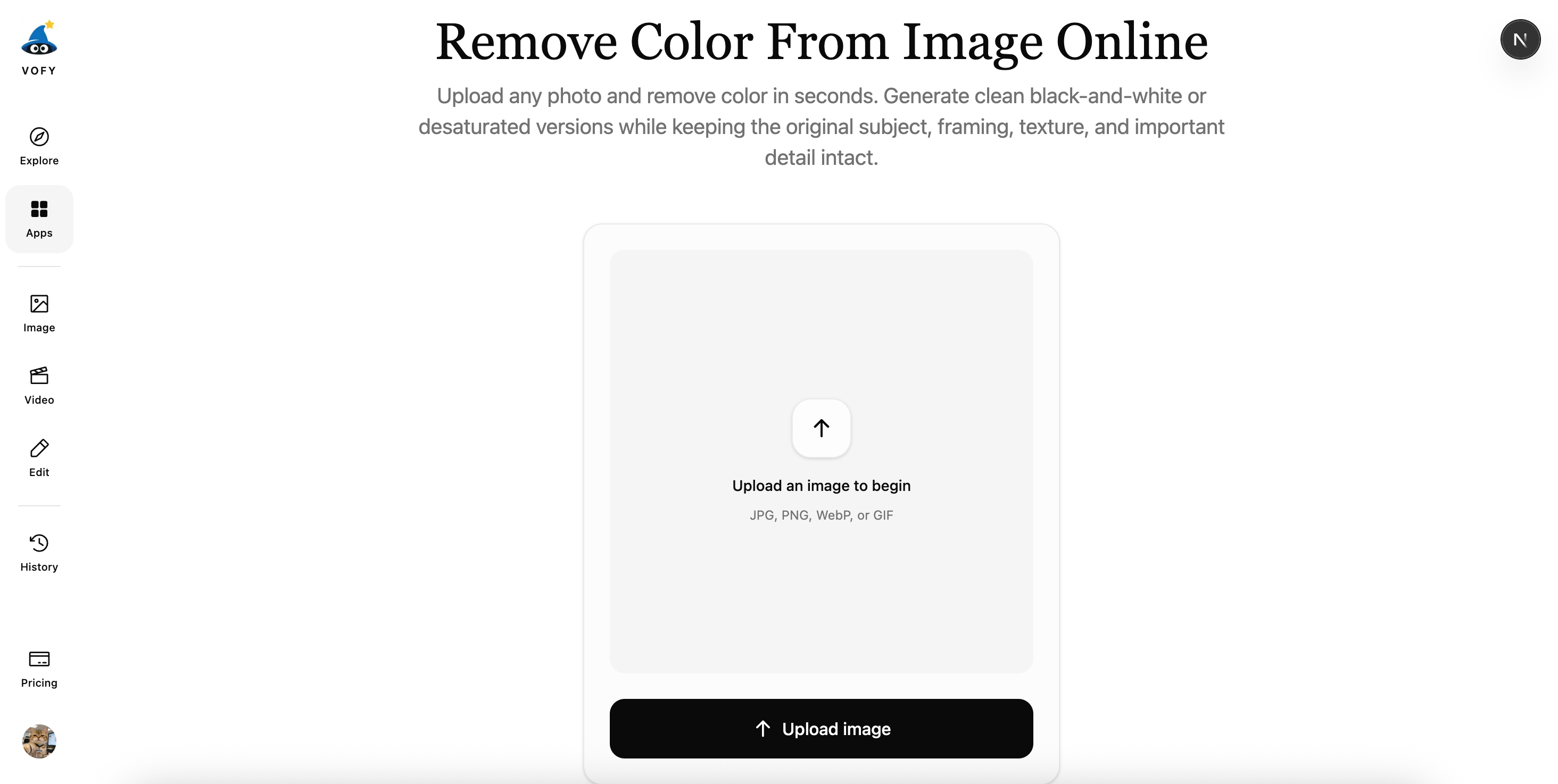
Pro Tip: Higher resolution images (1080p or higher) produce better results with more detail preservation and smoother tonal transitions.
Step 2: AI Processes Your Image
The AI automatically analyzes your image and removes all color information while preserving texture, contrast, and detail. Processing typically takes 5-10 seconds.
The AI uses advanced algorithms to maintain tonal separation—ensuring that colors with similar brightness levels (like red and green) remain distinguishable in the grayscale output.
Step 3: Download Your Black-and-White Image
Once processing completes, download your monochrome image. The output maintains the original resolution and includes balanced grayscale tones with preserved detail.
Pro Tip: If you want a softer desaturated look instead of full black-and-white, you can adjust the prompt to request "subtle desaturation" or "muted monochrome tones."
Tips for Best Color Removal Results
1. Start With High-Quality Source Images
The quality of your monochrome output depends on your source image. Use high-resolution photos with good lighting and sharp focus for best results.

Image Quality Checklist:
- Resolution: 1080p minimum, 4K preferred
- Focus: Sharp focus on main subject
- Lighting: Well-lit with visible detail in shadows and highlights
- Noise: Minimal digital noise or grain
2. Choose Images With Strong Contrast
Images with good tonal range (bright highlights and deep shadows) produce more dramatic black-and-white results. Flat, low-contrast images may appear washed out after color removal.
Contrast Tips: Look for images with varied lighting, textured surfaces, and clear subject separation from the background.
3. Consider the Original Color Palette
Colors with similar brightness levels may blend together in grayscale. For example, red and green objects with similar luminance will appear as similar gray tones after color removal.
Color-to-Grayscale Conversion:
- Red → Medium gray
- Blue → Dark gray
- Yellow → Light gray
- Green → Medium-light gray
4. Preserve Detail in Portraits
For portrait photography, ensure the original image has good skin texture detail and catchlights in the eyes. These details become even more important in black-and-white portraits.
5. Test Different Monochrome Styles
Experiment with different prompts to achieve various monochrome aesthetics: high-contrast dramatic black and white, soft matte desaturation, or editorial-style grayscale.
Common Mistakes to Avoid
1. Using Low-Resolution Source Images
Low-resolution images lose detail during color removal, resulting in pixelated or blurry monochrome outputs. Always start with high-resolution source files.
Solution: Use images with at least 1080p resolution. For print applications, use 300 DPI or higher.
2. Converting Flat, Low-Contrast Images
Images without tonal variation produce flat, uninteresting black-and-white results. Choose images with strong lighting and contrast for best results.
Solution: Select images with varied lighting, textured surfaces, and clear highlights and shadows.
3. Ignoring Composition After Color Removal
Color can hide compositional weaknesses. Once color is removed, issues like cluttered backgrounds, poor framing, or distracting elements become more obvious.
Solution: Review composition before converting to black and white. Crop or clean up the image first if needed.
4. Over-Processing With Multiple Filters
Applying multiple filters or adjustments after AI color removal can degrade image quality and introduce artifacts.
Solution: Let the AI handle the conversion in one step. If you need adjustments, make them to the original color image first.
Frequently Asked Questions
How do I remove color from an image without Photoshop?
Use an AI-powered color removal tool like Remove Color From Image. Upload your photo, and the AI automatically converts it to black and white while preserving detail and contrast—no software installation required.
Will removing color reduce image quality?
No, AI color removal maintains the original resolution and detail. The process only affects color information, not image sharpness or clarity.
Can I partially remove color instead of full black and white?
Yes, you can create partially desaturated images by adjusting the prompt to request "subtle desaturation," "muted colors," or "low saturation" instead of full color removal.
What image formats are supported?
Most AI color removal tools support common formats including JPG, PNG, WebP, and TIFF for both input and output.
Can I use monochrome images commercially?
Yes, images you convert using AI tools can be used for commercial purposes including ecommerce, marketing, social media, and print materials, subject to your plan terms.
Get Started With AI Color Removal Today
Ready to transform your images? Try the Remove Color From Image tool and experience instant, professional monochrome conversion.
Key Takeaways:
- AI color removal converts images in 5-10 seconds vs 5-15 minutes with manual editing
- No photo editing expertise required—just upload, process, and download
- Preserves texture, detail, and contrast automatically
- Cost-effective alternative to expensive Photoshop subscriptions
- Perfect for photographers, designers, social media creators, and ecommerce brands
Try it yourself on Vofy
Generate AI images and videos with the best models - all in one studio.
Discover More

 Priya Sharma•
Photo to 3D Model with AI: A Practical Guide
Turn a photo into a polished 3D-style model image with Vofy. Learn which photos work best, how to generate, and how to fix common results.

 Alex Harper•
How to Make AI Football Fan Videos From One Photo
Make AI football fan videos from one photo with a fictional Spain goal celebration and an optional Japanese street-interview companion clip.

 Lucas Andersson•
How to Make a Printable Coloring Page From a Photo
Make a printable coloring page from a photo with open fill areas, age-appropriate detail, and lines that stay clear after a real test print.