Better Camera Direction for Seedance 2.0 Mini
Write better Seedance 2.0 Mini camera control prompts with push-ins, pans, orbits, rack focus, shot size, and motion constraints.


Camera direction is where Seedance 2.0 Mini prompts start to feel professional. A prompt that says "cinematic product video" asks the model for style. A prompt that says "slow low-angle push-in toward the bottle, background stays soft, label remains centered" gives it a shot. That difference matters because short AI video has only a few seconds to make motion understandable.
This tutorial focuses on camera control language for Seedance 2.0 Mini on Vofy as of July 2026. For the broader prompt framework, read the Seedance 2.0 Mini prompt guide. To generate directly, open Vofy Video Studio or review the Seedance 2.0 Mini model page.
ByteDance describes the Seedance 2.0 family as supporting reference-driven visual control, including camera movement, on the official model page. The official launch note also emphasizes controllability and multimodal reference workflows. Mini works best when you apply that idea to compact, single-shot prompts.
TL;DR
- Write camera direction as a physical shot, not a mood word.
- Choose one primary move: push-in, pull-back, pan, tilt, orbit, tracking, handheld drift, or rack focus.
- Match camera movement to the source image. A static close-up usually wants subtle motion, not a complex action sequence.
- Include shot size and angle when they matter: macro close-up, medium shot, low angle, overhead, eye-level, or wide establishing shot.
- Use constraints like "keep product centered," "preserve face stability," or "no sudden scene change" to protect the clip.
1. Why Camera Direction Changes the Output
Camera language gives AI video a sense of intention. Without it, the model may create motion, but that motion can feel like a random drift through the scene. With a clear camera move, the clip has a visual job: reveal the product, create intimacy with a portrait, show depth in a room, make food feel appetizing, or turn a still image into a social hook.
The most useful camera directions are concrete and limited. "Slow push-in" is clear. "Dynamic cinematic camera movement" is vague. "Low-angle orbit around the sneaker" gives the model a path. "Make it epic" does not. Seedance 2.0 Mini is a short-form model, so every camera instruction should be easy to imagine inside a 4 to 15 second clip.
Camera direction also protects the edit. A vertical ad opener may need negative space for captions. A product clip may need the label to remain centered. A portrait may need subtle movement so the face stays stable. When you define the camera, you are also defining what the viewer should ignore.
2. The Core Camera Prompt Formula
Use this structure:
[shot size and angle] + [subject] + [primary camera move] + [subject or environment motion] + [focus/lighting] + [constraints]
Example:
Macro close-up of a glass perfume bottle on wet stone, slow low-angle push-in, tiny water droplets move on the surface, soft side light, shallow depth of field, keep label area centered, no extra text.
The order matters less than clarity, but this sequence keeps your prompt grounded. Shot size tells the model how close the camera feels. Angle tells it where the camera is. The primary move creates the path. Subject or environment motion gives the clip life. Focus and lighting shape the image. Constraints protect the output from common failures.
If you are starting from a still image, add preservation language:
Use the uploaded image as the first frame, preserve the product shape and color, add only a slow push-in and subtle light movement.
That sentence keeps the camera move from becoming a scene rewrite.
3. Camera Moves That Work Well
Seedance 2.0 Mini responds best to camera moves that can be expressed as one simple physical action. Start with the safest move for the source material, then test a more ambitious version if the subject stays stable.
| Camera move | Best for | Prompt phrase |
|---|---|---|
| Slow push-in | Products, portraits, food, hero shots | slow push-in camera toward the subject |
| Pull-back reveal | Room scenes, landscapes, reveals | slow pull-back revealing the surrounding scene |
| Gentle pan | Environments, desks, shelves, moodboards | gentle left-to-right pan across the scene |
| Slow tilt | Tall products, outfits, architecture | slow upward tilt from base to top |
| Low-angle orbit | Sneakers, gadgets, hero products | subtle low-angle orbit around the product |
| Handheld drift | Creator-style posts, lifestyle scenes | subtle handheld camera drift, natural phone feel |
| Rack focus | Product detail, food, foreground objects | rack focus from foreground detail to the product |
Do not stack several moves in one prompt unless you are deliberately testing complexity. "Slow push-in with slight handheld drift" can work. "Push-in, orbit, tilt up, rack focus, and fast zoom" usually creates confused motion. For short-form clips, one move with one supporting environmental motion is often enough.
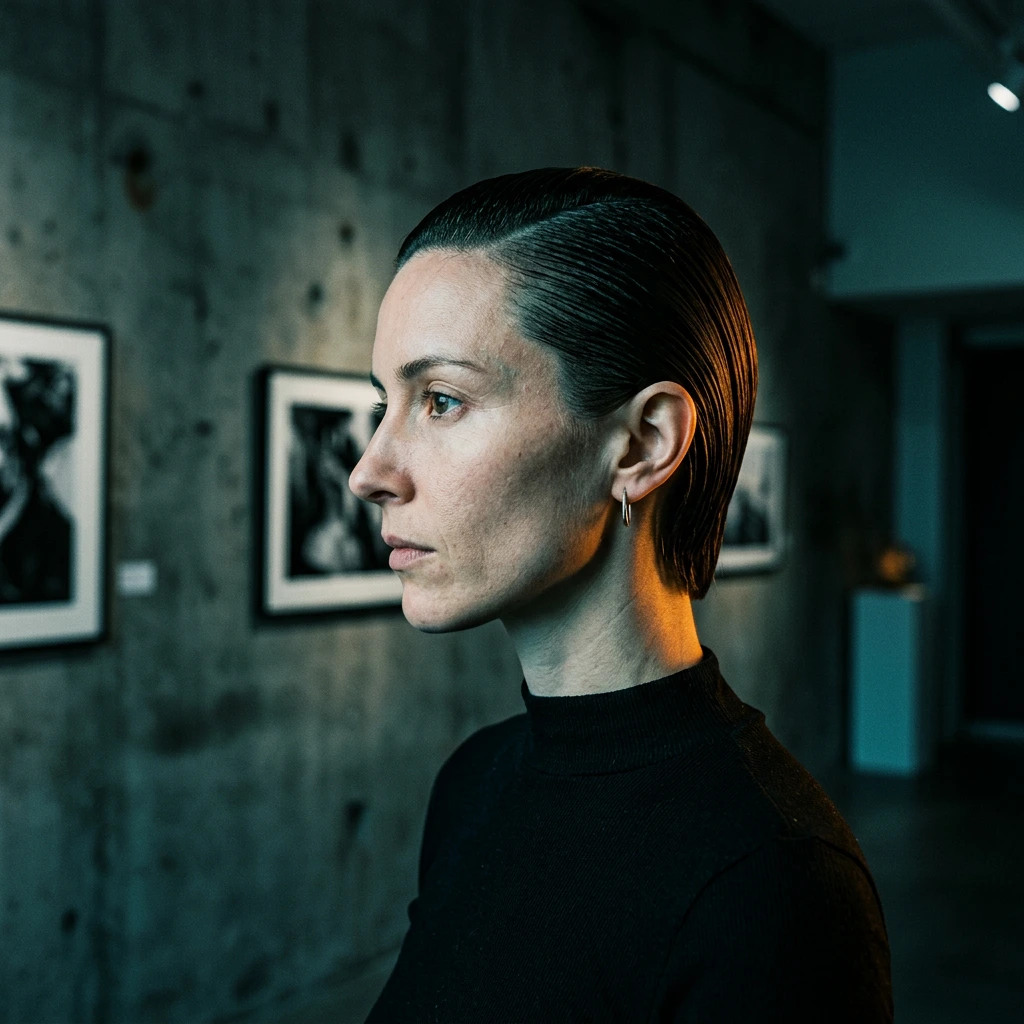
AI-generated cinematic draft sample. Camera-control prompts should make the viewer feel a clear path through the shot.
4. Shot Size and Angle
Camera control is not only movement. Shot size and angle tell the model how the subject should occupy the frame. A macro close-up makes texture and material important. A medium shot balances subject and environment. A wide establishing shot gives the scene room, but can make small products harder to read in vertical video.
Use these phrases when you need more control:
macro close-upfor food, cosmetics, jewelry, gadgets, fabric, and product textures.medium shotfor creator portraits, outfits, desk setups, and lifestyle scenes.wide establishing shotfor rooms, landscapes, storefronts, and moodboard scenes.low anglefor products that should feel powerful, tall, or premium.overhead shotfor flat lays, desk setups, food spreads, and process clips.eye-level camerafor natural creator-style or documentary-style scenes.
Angle changes meaning. A low-angle sneaker shot can feel bold and commercial. An overhead skincare flat lay can feel clean and editorial. An eye-level kitchen clip can feel like casual UGC. Pick the angle for the audience and placement, not for visual novelty alone.
5. Image-to-Video Camera Direction
Image-to-video needs narrower camera language because the uploaded frame already defines composition. If the source image is a close-up portrait, do not ask for a wide tracking shot through a city. If the source is a product flat lay, do not ask for a dramatic low-angle orbit unless the model has enough visual information to infer the product's sides.
For uploaded images, use this pattern:
Use the uploaded image as the first frame, preserve [subject], add [small camera move], add [small environmental motion], keep [critical detail] stable.
Examples:
Use the uploaded perfume bottle as the first frame, preserve bottle shape and label area, slow push-in camera, tiny sparkle on glass edges, soft studio light, no extra text.
Use the uploaded portrait as the first frame, keep the same person and outfit, subtle handheld drift, hair moving gently, warm window light, no face distortion.
Use the uploaded food photo as the first frame, preserve the dish composition, steam rises slowly, gentle push-in, warm restaurant lighting, no new hands or utensils.
This is the difference between directing the existing image and replacing it. The camera move should grow out of the frame you already have.
Use case sample: video modification where an existing source or frame direction guides the next generated motion result.
6. Troubleshooting Camera Problems
When camera control fails, the fix is usually to reduce ambiguity. If the clip drifts away from the subject, add "keep [subject] centered" or use a locked-off shot. If the product changes shape, reduce the camera move and add preservation language. If the motion feels too digital, request "subtle" movement and remove dramatic verbs.
Use this debugging map:
| Problem | Better prompt move |
|---|---|
| Camera wanders | locked-off shot or keep subject centered |
| Subject warps | subtle push-in only, preserve subject shape |
| Scene changes too much | use uploaded image as first frame, no scene change |
| Motion feels boring | Add one environmental motion: steam, light, fabric, water, dust |
| Product leaves frame | Specify shot size and keep full product visible |
For sensitive content, be conservative. Use only images you own or have permission to transform, especially portraits and branded products. Do not use camera realism to imply a synthetic clip is real footage of a person, event, or endorsement.
7. Conclusion
Camera direction is the fastest way to make Seedance 2.0 Mini feel less random and more intentional. Start with a simple shot: one subject, one camera move, one environmental motion, one preservation constraint. Then refine like a director. If the push-in works, test a low-angle version. If the orbit breaks the product, return to a locked-off shot. The goal is not the fanciest move; it is the move that makes the subject clearer.
For a broader prompt structure, pair this guide with the Seedance 2.0 Mini prompt guide, then test your camera language in Vofy Video Studio.
FAQ
What camera moves work best with Seedance 2.0 Mini?
Slow push-in, gentle pan, locked-off shot, subtle orbit, handheld drift, rack focus, and slow tilt are good starting points. Use one primary move per short clip.
How do I keep the product centered?
Add direct constraints such as "keep the product centered," "keep full product visible," and "preserve product shape and label area." Avoid camera moves that would naturally hide the object.
Can I use complex camera moves?
You can test them, but compact clips are more reliable with simple motion. If a complex move fails, split it into separate generations or reduce it to one camera behavior.
What is the best camera prompt for image-to-video?
Use the uploaded image as the first frame, preserve the important subject, add a small camera move, and name the detail that must stay stable. For example: "slow push-in, preserve label area, no scene change."
Related Reading
Try it yourself on Vofy
Generate AI images and videos with the best models - all in one studio.
Discover More
 Yuki Tanaka•
Seedance 2.0 Mini Prompt Guide for Better Motion
Learn Seedance 2.0 Mini prompts for camera moves, motion, scene control, image-to-video drafts, and short-form AI video.

 Alex Harper•
Turn a Product Photo into Video with Seedance Mini
Use Seedance 2.0 Mini image-to-video workflows to turn one product photo into a short AI video for ecommerce ads and launches.
Seedance 2.0 Mini
Seedance 2.0 Mini is a streamlined Seedance 2.0 video model for short-form generation, reference-guided motion, video edits, and clip extension. It supports text-to-video, image-to-video, first-and-last-frame generation, multimodal references, and audio-visual sync workflows.