Japanese Street Interview Video Generator: Make a TV-Style Clip
Turn one portrait into an 8-second Japanese TV-style street interview. Learn the fixed preset, 720p output, framing choices, and common fixes.

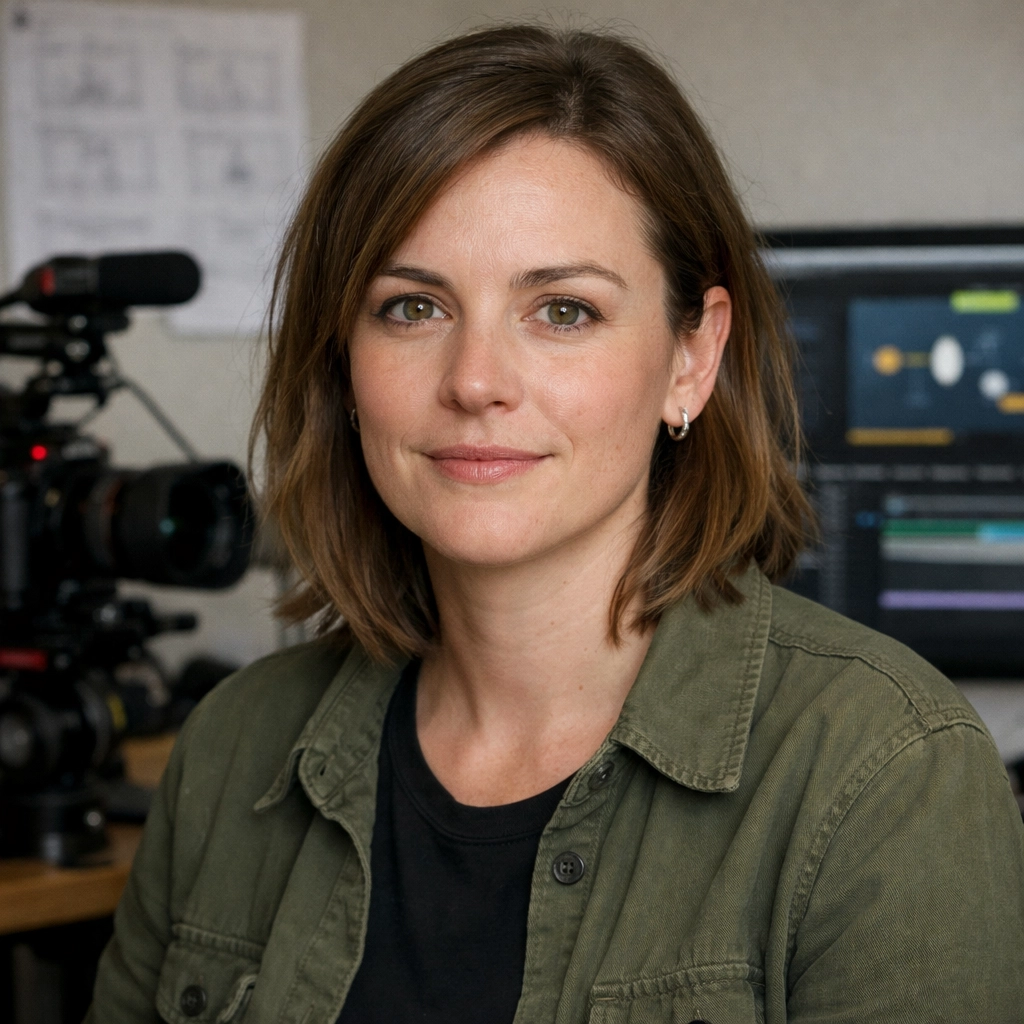
Upload one portrait and the Vofy Japanese Street Interview Video Generator turns it into an 8-second, 720p variety-show clip: Shibuya night lights, colorful telop captions, a reaction box, a moving microphone, and a shy Japanese reply. The result uses a fixed creative direction, so you do not have to write a video prompt, build television overlays, or keyframe a camera move.
This is a preset Japanese TV effect, not a custom interview builder. The current version does not let you rewrite the question, supply a different script, or extend the conversation. Your main creative decisions are the source portrait and whether the composition should be 16:9 or 9:16.
Disclosure: This tutorial uses Vofy, an all-in-one AI creative studio, as the demonstration tool. Product details were checked in August 2026.
TL;DR
- Input: one clear adult selfie, headshot, or waist-up portrait that you own or have permission to use.
- Output: one fixed 8-second, 720p video in 16:9 or 9:16.
- Dialogue:
えっと……まだ、秘密です……("Um... that's still a secret..."); custom questions and scripts are not supported. - Workflow: approve the generated TV frame before starting the animation stage.
- Limitation: Japanese lettering, lip movement, likeness, and background details can vary between generations.
1. What You'll Get
An AI street interview video generator turns a still portrait into a staged interview clip. Vofy's version specializes in a Japanese late-night variety-show treatment rather than an open-ended vox-pop scene. It creates a city-night background, colorful telop captions, a reaction inset, a handheld microphone, subtle camera movement, and a shy on-camera answer while trying to preserve the uploaded person's likeness.
The current output is deliberately constrained. Those constraints make the effect quick to set up, but they also determine whether it suits your project.
| Detail | Current app behavior |
|---|---|
| Input | One portrait |
| Output | One 8-second, 720p video |
| Aspect ratio | 16:9 by default; 9:16 also available |
| Spoken line | えっと……まだ、秘密です…… ("Um... that's still a secret...") |
| Visual style | Japanese late-night TV, Shibuya or Shinjuku street, telop graphics, reaction inset, microphone |
| Customization boundary | No custom question, script, duration, or multi-shot conversation |
Behind the interface, GPT Image 2 prepares the TV-show frame and Veo 3.1 animates it, as configured in August 2026. That split gives you one important quality checkpoint: if the prepared image has a distorted face or a caption across the eyes, regenerate it before moving to video. Animation is unlikely to repair a weak source frame.
2. Before You Start
Use a clear image of one adult subject. A centered selfie, clean headshot, or waist-up portrait gives the system enough information to preserve facial structure while leaving room for the microphone and broadcast graphics. Soft natural light is helpful because crushed shadows and strong beauty filters can hide identity details. A waist-up image also tends to fit a 16:9 interview composition better than an extreme close-up.
The source background matters less because the app rebuilds the scene around a Shibuya- or Shinjuku-style night setting. Existing posters, captions, watermarks, or interface screenshots can still compete with the generated TV graphics, so crop them out when possible. Avoid group photos: the workflow expects one clearly dominant person.
Use only a photo you own or have permission to transform. Do not use the app to impersonate someone, fabricate a real interview, or present an AI-generated statement as something a person actually said. The format works best when viewers can understand that the clip is a playful, fictional effect; label AI-generated media when the publishing context could otherwise be misleading.
3. How to Make an AI Street Interview Video in 3 Steps
The app separates scene preparation from animation. Check the relevant failure at each stage so you do not repeat a video generation when the problem started in the source photo.
3.1 Upload a Clear Portrait
Open the Japanese Street Interview Video Generator and upload one selfie, headshot, or waist-up photo. Choose an image where the eyes, mouth, jawline, and hairstyle are easy to read. Avoid sunglasses, hands across the face, heavy motion blur, or a face occupying a tiny part of the frame; the prepared image must retain the subject before facial motion is added.
Choose the final orientation before generating. The default 16:9 setting gives the scene room for the street, reaction inset, question panel, and microphone, so it resembles a television frame. Select 9:16 when the clip is intended to fill a vertical mobile feed. A vertical crop increases the subject's visual weight, but it leaves less horizontal room for graphics; source images with open space around the face tend to adapt more cleanly.
3.2 Generate and Check the TV Frame
Click Generate to prepare the scene. At this stage, the app uses the portrait as an identity reference and creates the Japanese variety-show composition: night street lighting, passersby, a microphone, colorful telop captions, a question box, a small reaction window, and a slightly textured broadcast look. The app's direction is fixed so these elements stay coherent across attempts. There is no need to paste the effect description into a prompt field.
Check the face first, then scan the preview for text covering important features, an extra microphone, a malformed reaction inset, or a distracting background face. AI-generated Japanese lettering can vary between runs. Regenerate at this stage if identity or a prominent graphic is unusable; carrying the flaw into animation will not make it easier to fix.
3.3 Generate, Review, and Download the Video
Once the preview looks right, click Generate again to create the 8-second video. The animation is directed toward a shy interview beat: natural blinking, a nervous smile, a glance toward the interviewer, subtle lip movement, a microphone moving closer, light handheld shake, and a slow camera push-in. The video stage is also instructed to preserve the graphics already present in the prepared image rather than inventing a new set of captions.
Review the face through the entire clip, not only the opening frame. Watch for identity drift during the smile, mismatched mouth motion, sudden caption changes, or a microphone crossing the face. Small background changes can suit the candid aesthetic; a noticeably different face or changing central caption usually calls for regeneration. Download the result once the identity, microphone, and main graphics remain stable.
4. Use the Source Photo as Your Main Creative Control
Because the effect uses a guided prompt, the source portrait becomes the most important way to direct the output. Expression, crop, wardrobe, gaze, and lighting all influence the generated interview moment before the animation begins. A neutral expression gives the model room to introduce a shy smile; an exaggerated grin can make the final reaction feel less natural. Likewise, a straight-on face is usually easier to animate than a hard profile because both eyes and the mouth remain visible.
Match the source to the role you want the clip to play. For a believable candid interview, use an everyday outfit and a portrait with relaxed shoulders. For a deliberately heightened creator gag, a polished portrait can make the contrast with the noisy late-night TV treatment funnier. If you mainly want subtle portrait motion without the television format, the Live Photo Maker guide covers a quieter workflow; for more explicit control over push-ins and camera direction, see the AI Camera Movement Effect guide.
Before generating, use this quick decision table to align the source and orientation with the intended edit. The choices are simple, but making them early reduces avoidable crops and layout conflicts later.
| Goal | Source-photo bias | Orientation |
|---|---|---|
| TV-show parody inside a landscape edit | Headshot or waist-up image with side space | 16:9 |
| Full-screen short-form reaction | Centered portrait with clear face | 9:16 |
| Dating-show-style character beat | Relaxed expression and everyday styling | Either |
| Fast cut inside a compilation | Strong silhouette and uncluttered clothing | Match the timeline |
Orientation should follow the destination rather than habit. A wide frame communicates more of the broadcast set, while a vertical frame gives the subject more presence on a phone. If the clip will be placed inside a larger edit, generate for that timeline's canvas so you do not have to crop away captions or the reaction box afterward.
5. Prepare the Clip for Short-Form Publishing
The generated video may still need context in the final post. A short setup card, an AI-generated label, or a reaction shot after the clip can make the joke legible without altering the effect itself. Keep critical added text away from the edges, where platform controls may cover it, and preview the exported post on a phone. Check the official YouTube resolution and aspect-ratio guidance and TikTok posting guide for the current destination workflow.
Audio deserves a separate editorial decision. The generated interview includes a directed Japanese answer, so adding unrelated speech over it can create a confusing clash. If you add music, keep the dialogue intelligible or intentionally mute it and frame the clip as a visual reaction. If you need custom spoken lines, multiple shots, or a different interview action, move to a general image-to-video workflow such as the one explained in the Kling 3.0 image-to-video guide, where prompting and shot design are the main controls.
6. Common Mistakes to Avoid
Most weak results come from asking the fixed effect to compensate for unsuitable input. Check these problems before starting another video generation:
- Uploading a group photo: competing faces make identity selection and reaction-box composition less predictable.
- Using a heavily filtered portrait: missing skin and facial detail can become more visible once the face moves.
- Ignoring the prepared frame: text or likeness problems in the image stage tend to remain in the video.
- Expecting exact typography or custom dialogue: the visual text can vary, while the spoken line is fixed.
- Presenting the clip as real footage: the effect should not be used to fabricate statements or impersonate a person.
Input problems call for a better photo, composition problems call for a new prepared frame, and motion problems call for a new video generation. Diagnose the stage first instead of repeating the last step automatically.
7. Conclusion
The Japanese Street Interview Video Generator is a focused preset for fictional creator edits, reaction clips, and character moments. Start with a readable portrait, choose the destination orientation, and reject identity or layout problems in the prepared frame before animation. That checkpoint matters more than any later edit because motion tends to amplify a weak face or graphic layout rather than hide it.
FAQ
What is an AI street interview video generator?
It is a tool that turns a still image into a staged interview clip. Vofy's app specializes in a Japanese variety-show treatment, adding a city-night setting, broadcast captions, a reaction inset, microphone movement, facial animation, and handheld camera texture around one uploaded portrait.
Do I need to write a prompt?
No. The interview look, spoken line, and motion direction are already configured. You upload a portrait, generate the TV frame, review it, and then generate the final video.
Can I change what the person says?
No. The current spoken line is えっと……まだ、秘密です…… ("Um... that's still a secret..."). Use a general video generation workflow when exact script control is central to the project.
Why is the Japanese text not exact every time?
The captions in the prepared frame are AI-generated visual elements, so individual characters and wording can vary between attempts. Judge the frame before moving to video, and regenerate if a prominent caption is malformed or placed badly.
Which aspect ratio should I choose for TikTok or YouTube Shorts?
Choose the app's 9:16 option for a full-screen vertical result. Platform requirements can change, so check the destination's current guidance before publishing and keep essential overlays away from interface-covered edges.
Can I use someone else's photo?
Use a photo only when you own it or have permission from the person shown. Do not create misleading footage, attribute invented speech to a real person, or use the result to impersonate them.
Related Reading
Try it yourself on Vofy
Generate AI images and videos with the best models - all in one studio.
Discover More

 Ryan Mitchell•
Live Photo Maker: Turn a Photo Into Motion Online
Use a live photo maker online to turn one still image into a subtle motion clip for portraits, travel shots, profile visuals, and social cover loops.
 Ryan Mitchell•
AI Camera Movement Effect for Still Photos
Learn how an AI camera movement effect turns one still photo into a cinematic short video with push-in, pull-back, side pan, and rise reveal presets.
 Ryan Mitchell•
How to Use Kling 3.0 Image-to-Video on Vofy
Learn how to get better Kling 3.0 image-to-video results on Vofy by choosing stronger source images, writing motion prompts that fit the frame, and knowing when to use interpolation or motion control.