Live Photo Maker: Turn a Photo Into Motion Online
Use a live photo maker online to turn one still image into a subtle motion clip for portraits, travel shots, profile visuals, and social cover loops.

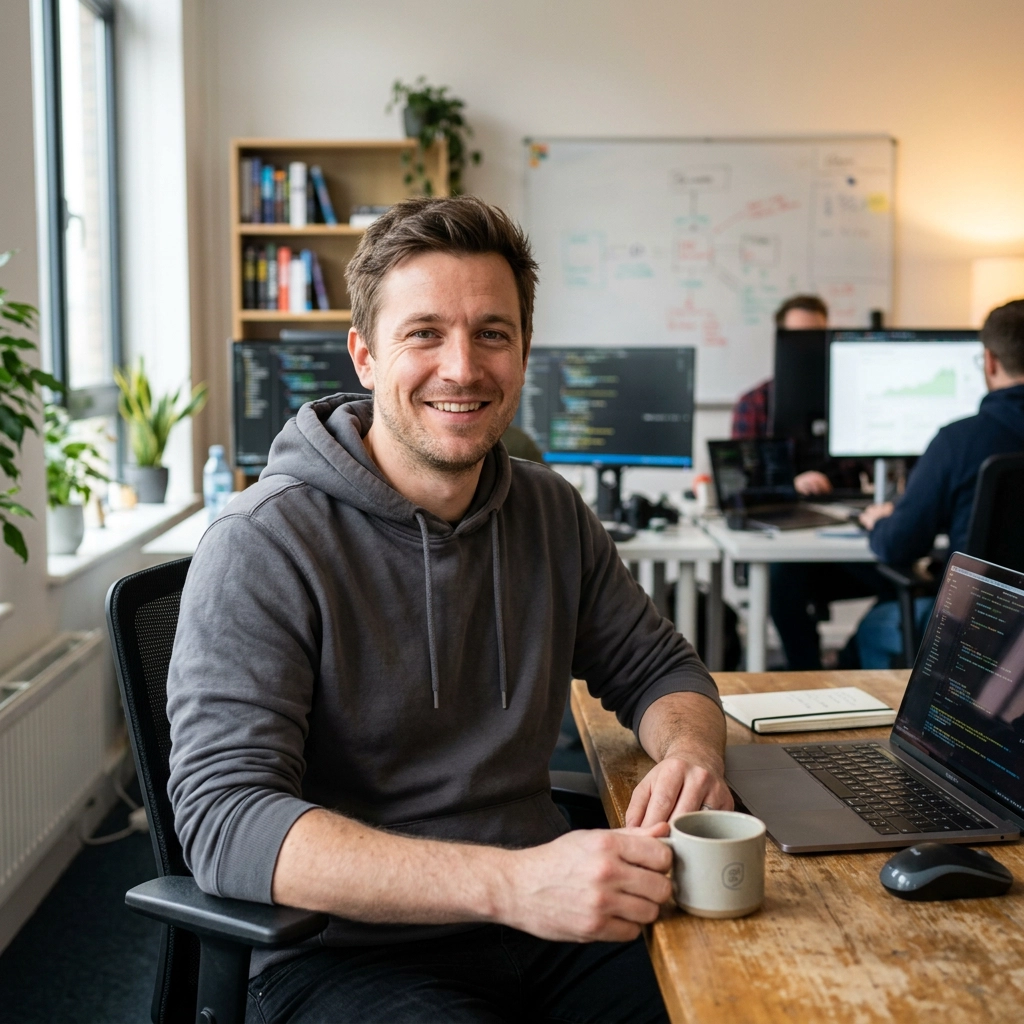
Most photos do not need heavy animation. A good portrait, travel shot, or profile image often works best when it moves just enough to feel alive: a soft blink, a little hair movement, a quiet push-in, or a faint breeze in the background.
That is where a live photo maker is useful. Instead of asking AI to rebuild the whole scene, you start with one still image and create a short live-photo-style motion clip that keeps the face, lighting, framing, and mood close to the original. The goal is not a dramatic video performance. The goal is a photo that breathes.
What Is a Live Photo Maker?
A live photo maker turns a still image into a short motion video. You upload a photo, choose or describe a subtle motion style, and generate a clip that uses the image as the visual anchor.
The most natural results usually come from small movements. A portrait can blink once, breathe softly, and keep the same expression. A travel photo can add gentle environmental motion. A profile visual can become a calm loop without changing identity or pose. Vofy Live Photo Maker is built around that restrained photo-to-video workflow, so the uploaded image stays important instead of becoming a loose suggestion.
When a Still Photo Works Best as a Live Photo
The best source image already looks like the first frame of a good video. Clear faces, stable lighting, visible eyes, simple backgrounds, and natural depth all help. If the photo has hair, fabric, water, clouds, reflections, or soft ambient light, the live-photo motion has something believable to animate.
Portraits are especially strong because micro-motion can change the feeling of the image without changing the person. Travel shots also work well when the motion belongs to the scene: wind through hair, a slight camera drift, or background movement that does not distract from the subject.
What usually fails is asking for too much. If the still photo is a close-up portrait, do not ask the person to walk away, change clothes, turn dramatically, and smile in the same clip. Keep the prompt aligned with the original frame.
How to Make a Live Photo With Vofy
Open Vofy Live Photo Maker, upload one clear image, and choose a motion style that fits the photo. For a profile portrait, keep the camera mostly stable and ask for blinking, breathing, and tiny hair movement. For a travel shot, ask for a light breeze or soft environmental motion. For a cover loop, keep the subject steady and let the scene move gently around it.
Use this prompt as a starting point:
“Turn this still portrait into a subtle live-photo-style motion clip. Add gentle camera drift, soft hair movement, natural blinking, and a calm breathing effect. Keep the face recognizable and preserve the original lighting.”
The key is to say what should stay unchanged. Add phrases like “preserve facial identity,” “keep the same expression,” “keep the original lighting,” and “avoid exaggerated motion.” Those constraints help the clip feel like a living version of the same photo rather than a new scene.
After the video is generated, review it like a short loop rather than a long film. Check whether the first frame still matches the uploaded photo, whether the face remains stable, and whether the motion feels calm enough for the place you want to use it. If the clip feels too active, reduce the prompt instead of adding more details.
Real Input and Output Examples
The examples below show the basic pattern: the left side is the uploaded input image, and the right side is the generated output video. This is the workflow to keep in mind when using a live photo maker: preserve the still frame first, then add only enough movement to make it feel present.
Portrait Live Photo
For a portrait, the safest motion is minimal. A small blink, calm breathing, and soft hair movement are usually enough. The face should remain recognizable, and the expression should not drift into a different mood.

Outdoor Motion Photo
Outdoor portraits can use a little more environmental motion because the scene already suggests movement. Hair, fabric, light, and background depth can all move softly while the subject stays stable.

Travel Shot to Live Photo
Travel images work best when the prompt keeps the camera movement gentle. A little parallax, soft breeze, or natural background motion can make the photo feel like a captured memory without distracting from the person.

Prompt Tips for Natural Live Photo Motion
Good prompts are specific but restrained. Start by naming the subject, then describe one or two natural movements, then add preservation rules.
For portraits, use language like “natural blink,” “subtle breathing,” “soft hair movement,” and “barely noticeable camera drift.” For travel images, use “light breeze,” “gentle background motion,” “soft parallax,” or “slow handheld feel.” For profile visuals and cover loops, ask for stable identity and loop-friendly motion.
Avoid verbs that imply a full action scene. “Run,” “spin,” “dance,” “dramatic turn,” and “big camera orbit” usually push the result away from a live-photo feel. If you want the clip to look premium, keep the movement small enough that the viewer notices the image is alive only after a second.
A useful prompt formula is:
[subject in the uploaded photo] + [one or two subtle motions] + [simple camera behavior] + [preservation rules]
For example, a strong portrait prompt might say: “Keep the same portrait framing, add one natural blink, soft breathing, and slight hair movement, with a barely noticeable handheld drift. Preserve the face, expression, outfit, lighting, and background.”
That structure is short, but it gives the model the right priorities. The uploaded image stays in charge, and the prompt only tells the live photo maker where motion should appear.
Best Use Cases for Live Photo Videos
Live-photo-style clips work well for portraits, travel shots, profile visuals, and social cover loops. They are useful anywhere a still image feels a little flat but a full video would feel too heavy.
This horizontal example is a good fit for wider placements such as profile covers, page headers, website sections, or social banners. It does not need input/output labels because the final asset is meant to be viewed as a finished cover loop.
FAQ
Can I turn any photo into a live photo?
You can try most clear photos, but the best results come from sharp images with a readable subject, good lighting, and natural motion cues.
What kind of motion looks most natural?
Small movement works best: blinking, breathing, hair movement, fabric motion, light breeze, background drift, or a slow handheld feel.
How do I keep the face recognizable?
Use a clear source image and add constraints such as “preserve facial identity,” “keep the same expression,” and “do not change face shape.”
What photos should I avoid?
Avoid blurry images, heavy filters, extreme crops, very small faces, and busy group shots. If the source photo is hard to read as a still image, it will usually be harder to turn into a stable live-photo-style clip.
Is a live photo maker different from a general video generator?
Yes. A general video generator may create a new scene from text. A live photo maker starts from your still image and focuses on controlled motion while preserving the original frame.
Subtle motion is often the difference between a photo people scroll past and a visual they pause on. A good live photo maker keeps the image you already like, then adds just enough movement to make it feel present. Try Vofy Live Photo Maker to turn one still photo into a calm live-photo-style motion clip online.
Try it yourself on Vofy
Generate AI images and videos with the best models - all in one studio.
Discover More
 Ryan Mitchell•
How to Use Kling 3.0 Image-to-Video on Vofy
Learn how to get better Kling 3.0 image-to-video results on Vofy by choosing stronger source images, writing motion prompts that fit the frame, and knowing when to use interpolation or motion control.

 Priya Sharma•
Photo to 3D Model with AI: A Practical Guide
Turn a photo into a polished 3D-style model image with Vofy. Learn which photos work best, how to generate, and how to fix common results.

 Alex Harper•
How to Make AI Football Fan Videos From One Photo
Make AI football fan videos from one photo with a fictional Spain goal celebration and an optional Japanese street-interview companion clip.