AI Beauty Filter Guide: Choose the Right Portrait Tool
Compare AI beauty filter tools for skin, eyes, teeth, jawline, and face shape, then choose the lightest edit that fits your portrait.

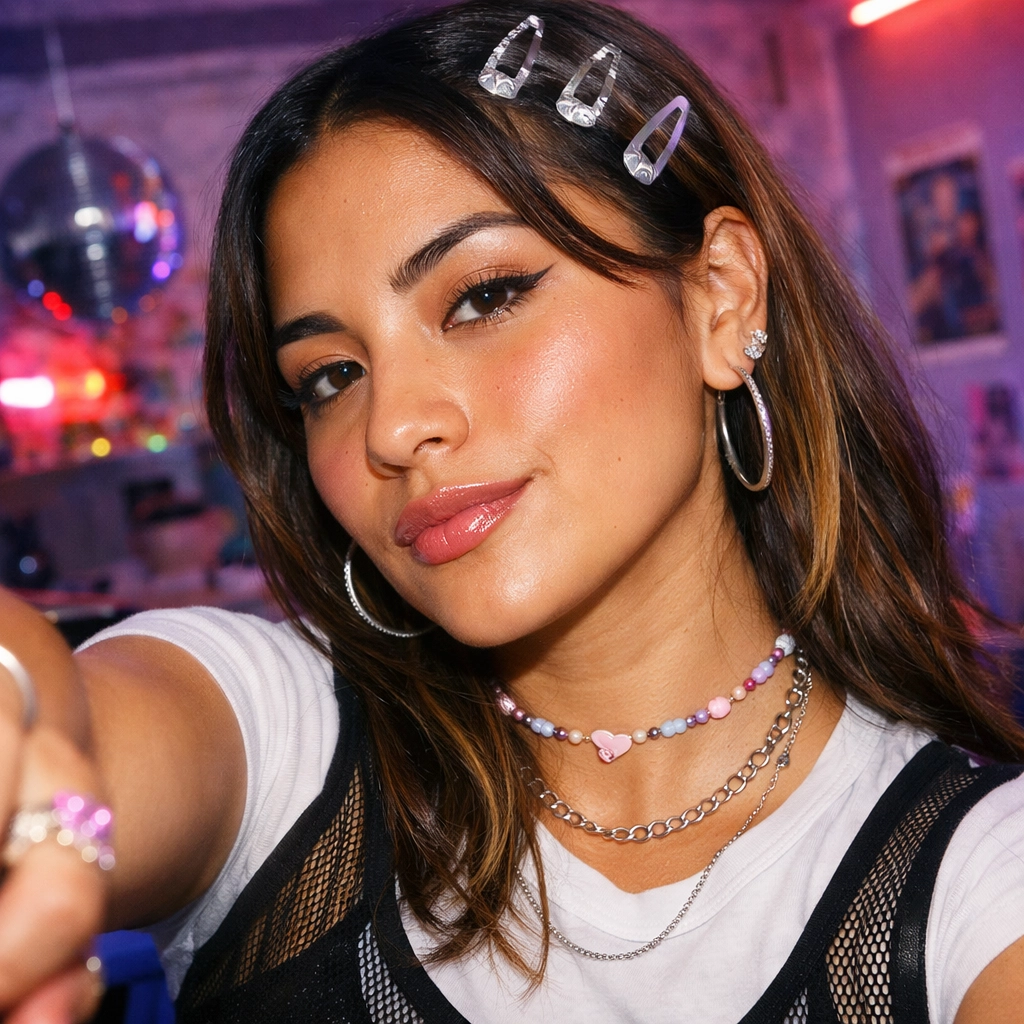
Disclosure: Vofy is an all-in-one AI creative studio. This article compares portrait-editing workflows available on Vofy to help you choose an appropriate tool. App interfaces and availability may change after July 2026.
An AI beauty filter polishes a portrait while aiming to keep the person recognizable. Some tools adjust the whole image; others target one detail or preview a new contour. This guide compares 11 Vofy tools so you can choose the smallest edit that solves the problem.
TL;DR
- Use AI Beauty Filter for natural overall polish and Retouch Portraits for restrained photographic cleanup.
- Choose a focused tool when only skin, under-eyes, wrinkles, or teeth need attention.
- Use structural filters cautiously and inspect the face outline, hair, neck, and background for warping.
- Pick Bold Glamour Filter for visible makeup styling, then stop before texture or identity disappears.
1. The Decision You Are Actually Making
Choose by scope. Whole-portrait tools coordinate skin, eyes, teeth, and lighting. Local tools change one area, while structural tools alter the jaw, chin, cheeks, or overall face shape. Bold Glamour sits apart because its goal is visible makeup styling rather than invisible correction.
Use the least powerful edit that fits the job. A temporary spot calls for Blemish Remover, flat portrait lighting may call for Retouch Portraits, and a contour preview may call for Face Slimmer. This smallest-edit rule preserves more of the original and makes changes easier to evaluate.
2. AI Beauty Filter Comparison at a Glance
The table below treats each tool as a different editing instrument rather than ranking them from strongest to weakest. "Edit scope" describes how much of the portrait the workflow is designed to affect. "Check closely" identifies the area most likely to reveal an overdone result.
| Tool | Edit scope | Best fit | Check closely |
|---|---|---|---|
| AI Beauty Filter | Whole portrait | Natural skin, eye, and overall polish | Pores, freckles, identity |
| Bold Glamour Filter | Whole portrait and makeup | Contour, lashes, brows, lips, full-glam styling | Makeup edges and face consistency |
| Blemish Remover | Local skin detail | Temporary spots, minor redness, small marks | Repeated or blurred texture |
| Eye Bag Remover | Under-eye area | Puffy under-eyes and dark-circle softening | Eye shape and lower-lid texture |
| Wrinkle Remover | Local facial lines | Softer forehead lines, crow's feet, and fine creases | Expression and age cues |
| Teeth Whitening Filter | Visible teeth | Smile photos, headshots, and portrait polish | Gums, lip edges, and color cast |
| Retouch Portraits | Whole portrait | Restrained cleanup plus lighting balance | Skin texture and overall contrast |
| Jawline Enhancement | Jaw edge and lower face | More defined jaw contour | Ears, hair, neck, and background lines |
| Double Chin Remover | Chin-to-neck transition | Reduced under-chin fullness | Neck anatomy, collars, and shadows |
| Face Shape Filter | Overall facial proportions | Previewing oval, heart, V-line, or softer-square directions | Symmetry and recognizability |
| Face Slimmer | Cheeks and lower face | Subtle reduction of cheek or lower-face fullness | Background warping and jaw balance |
Several tools can appear to overlap, but their starting assumptions differ. AI Beauty Filter expects a connected polish across the portrait, while Retouch Portraits favors a cleanup pass that still reads like the original capture. Blemish Remover and Eye Bag Remover assume most of the image should remain untouched. Face Shape Filter, by contrast, is a visualization tool for a broader contour direction. Choosing by assumption, not by the most dramatic sample, is what keeps the edit aligned with your actual goal.
3. Choose a Whole-Portrait Finish
Whole-portrait tools suit images with several small issues. Give them a specific goal, such as freshening a dim selfie while preserving freckles, rather than a vague request to change the face.
3.1 AI Beauty Filter for natural overall polish
AI Beauty Filter combines mild skin cleanup, a fresher eye area, and overall polish. It fits profile pictures, creator avatars, and casual selfies. See how to use an AI beauty filter without losing identity for the full workflow.
3.2 Retouch Portraits for restrained cleanup
Retouch Portraits is better for conventional cleanup than a visible filter look. It can balance temporary blemishes, under-eye shadows, teeth, and exposure without adding a new makeup style or face shape. The portrait retouching guide covers preservation checks.
3.3 Bold Glamour Filter for an intentional styled look
Bold Glamour Filter adds visible contour, lashes, defined brows, and polished lips. Use it for beauty concepts, social posts, or makeup references, not identity-sensitive or documentary images. Check makeup edges and hairline transitions closely.
4. Fix One Local Detail
Focused tools are the clearest choice when one detail is distracting. Compare the result with the original at normal size; if your eye lands on the correction, reduce it.
4.1 Blemish Remover
Blemish Remover targets temporary spots and minor redness. Tell it to preserve freckles, moles, scars, pores, and natural variation; use Retouch Portraits when the whole complexion needs balancing.
4.2 Eye Bag Remover
Eye Bag Remover softens puffiness and dark under-eye shadows without changing eye shape. Keep some lower-eye depth so the face does not look flat.
4.3 Wrinkle Remover
Wrinkle Remover softens forehead lines, crow's feet, and fine creases. Preserve expression and age cues rather than erasing every line.
4.4 Teeth Whitening Filter
Teeth Whitening Filter corrects yellow or gray casts in visible teeth. Keep brightness consistent with the portrait and inspect gums, braces, and lip edges. It is a photo edit, not dental treatment or evidence of a physical result.
5. Refine the Lower Face or Overall Shape
Structural edits affect geometry and can bend hair, clothing, or background lines. Review the full frame beside the original, not just the edited jaw or chin.
5.1 Jawline Enhancement
Jawline Enhancement adds definition along the existing jaw edge. Check the ears, hairline, and neck shadow for hard or bent transitions.
5.2 Double Chin Remover
Double Chin Remover focuses on under-chin fullness and the chin-to-neck transition. Preserve collars, jewelry, hair, and shadows. Treat it as a photo edit, not a health assessment or physical prediction.
5.3 Face Shape Filter
Face Shape Filter previews broader directions such as oval, heart-shaped, V-line, or softer-square contours. Use it for visualization and prefer the lightest version that remains recognizable.
5.4 Face Slimmer
Face Slimmer narrows cheek fullness and the lower-face silhouette. A better camera distance may solve width caused by perspective; when editing, check both sides of the face and every straight background line.
6. How to Get a Natural Result in Vofy
Use one clear source, choose one primary correction, and compare every result with the original. This limits drift and makes weak edits easier to reject.
6.1 Upload a suitable source photo
Upload the highest-quality authorized photo available. Even light and a visible face give the editor clearer boundaries; use a visible smile for teeth whitening. Fix blur or low resolution before cosmetic editing.
6.2 Choose one primary correction
State the change and what must stay fixed. For example: "Soften under-eye shadows slightly; keep eye shape, freckles, lighting, and facial proportions unchanged." Structural edits should also protect ears, hair, neck, clothing, and background.
6.3 Generate, compare, and stop deliberately
Check the target area, nearby boundaries, and identity anchors such as the eyes, nose, and mouth. Review the final display size, reduce obvious corrections, and return to the original before trying another tool instead of stacking edits.
7. Limits and Responsible Use
Use only photos you own or have permission to edit. Do not impersonate another person, misrepresent consent, fabricate evidence, or present dental, weight, face-shape, or cosmetic previews as real outcomes. Disclose edits when they could mislead viewers.
Better light, camera distance, or a new crop may solve the problem before editing. For exact work around hair, jewelry, or complex backgrounds, use a manual workflow such as Adobe's retouching tools. The Content Credentials initiative is a useful reference for provenance. Preserve age, texture, and cultural features, and stop when each visible change has a reason.
8. Conclusion
Match the tool to the edit: AI Beauty Filter or Retouch Portraits for overall polish, a local tool for one detail, Bold Glamour for visible styling, and structural filters for cautious previews. Do not stack all 11 tools; every extra pass risks texture, geometry, or identity.
Use the comparison table to choose one starting point, then open the matching Vofy app and test the lightest version of the edit on an authorized photo.
FAQ
What is the difference between AI Beauty Filter and Retouch Portraits?
AI Beauty Filter creates a connected beauty pass across the portrait. Retouch Portraits favors restrained cleanup that still reads like the original photograph.
Should I use one broad filter or several focused tools?
Use one focused tool for a clear local issue and a broad filter when several small changes need to look coordinated. Avoid stacked passes.
Can an AI beauty filter keep my face recognizable?
That is the intended goal, but results vary. Protect identity in the instruction and reject changes to proportions, eye shape, ethnicity, age cues, or characteristic features.
Are face slimming and double chin removal the same edit?
No. Face Slimmer targets cheek and lower-face width, Double Chin Remover targets the chin-to-neck transition, and Jawline Enhancement adds edge definition.
Is Teeth Whitening Filter a dental preview?
No. It edits visible tooth brightness in a photograph; it is not treatment, diagnosis, or a guaranteed physical result.
What should I do if the result looks overfiltered?
Return to the original, choose a narrower app, reduce the strength, and list what must remain unchanged. See why AI images look fake for texture and edge problems.
Related Reading
Try it yourself on Vofy
Generate AI images and videos with the best models - all in one studio.
Discover More
 Sofia Rodriguez•
How to Use an AI Beauty Filter for Natural Retouching
Learn how to use an AI beauty filter for natural selfie retouching, brighter eyes, balanced skin, and portraits that still look like you.
 Sofia Rodriguez•
How to Retouch Portraits with AI - Natural Results
Learn how to retouch portraits with AI while preserving skin texture, facial identity, and natural light in a practical Vofy workflow.

 Ryan Mitchell•
Why AI Images Still Look Fake — and How to Fix It
Master advanced Nano Banana 2 techniques to fix fake-looking AI images. Learn the technical reasons behind common artifacts, physics-based solutions, and edge cases that separate amateur from professional photorealistic results.