Remove Watermark from Image with AI: A Careful Guide
Remove watermark from image files you own with localized AI repair, then inspect texture, edges, and detail before downloading the clean result.


Disclosure: This tutorial uses Vofy, an all-in-one AI creative studio, as the demonstration tool. The workflow reflects the app as available in July 2026, and its interface may evolve.
A proof word across a product photo, an old export stamp in a corner, or a small logo on a listing can make an otherwise usable image difficult to reuse. The Remove Watermark is built for this narrow repair: it removes a visible overlay and reconstructs the covered area instead of blurring the full frame or forcing a tighter crop. This guide explains how to choose the right cleanup direction, inspect the result, and recognize cases that need another pass.
Use images you own, licensed assets that permit modification, approved client proofs, or files you have explicit permission to edit. Watermark removal should not be used to bypass copyright, licensing, payment, access controls, or creator attribution. For background on ownership and licensing, review the U.S. Copyright Office copyright overview and the Creative Commons license descriptions before editing third-party material.
TL;DR
- Upload one owned, licensed, or permitted image with the watermark clearly visible.
- Match the preset to the mark: text watermark, corner logo, repeated mark, product stamp, or signature mark.
- Generate the edit, then inspect the repaired area at full size for repeated texture, warped lines, soft edges, or changed details.
- Small marks over simple textures are easier to repair than large overlays across faces, labels, hands, or detailed artwork.
1. What You'll Get from an AI Watermark Remover
An AI watermark remover uses localized inpainting to erase a visible overlay and estimate the pixels that may have existed beneath it. Rather than hiding the mark with blur or cropping it away, the editor uses nearby color, texture, lighting, perspective, and edges to rebuild the covered region while aiming to preserve the rest of the image.
The difficulty depends on what the mark covers. A corner logo over a plain wall gives the model more evidence than proof text crossing hair, fine typography, or a package edge. Judge the result by whether the repaired patch becomes visually quiet while the subject, crop, sharpness, and lighting stay consistent.
Before

After
The comparison shows the intended scope: remove the overlay without redesigning the product photo. Read the pair from large structure to small detail. First compare the bottle silhouette, label placement, crop, and shadow; then trace edges through the repaired area and check whether grain, highlights, and background tone still belong to the same photograph. A missing mark is only half the test if package geometry or readable product information has shifted. This AI-generated example illustrates the review method rather than guaranteeing that every hidden detail can be recovered. Use the workflow for approved proofs, owned campaign exports, or permitted listing images; when a licensed clean source exists, choose it because it preserves real detail instead of estimating it.
2. Before You Start
Confirm permission and define the edit scope before uploading. Name the mark to remove and the elements that must stay, especially legitimate labels, signatures, captions, or brand marks. "Remove the translucent SAMPLE text and preserve the package label" gives the model a clearer boundary than "clean this image."
Source quality also controls how much context the model can use. Choose the highest-resolution copy you are allowed to edit, and avoid screenshots when the original export is available. A mark over sky, a plain wall, sand, fabric, or a soft gradient often leaves enough surrounding evidence for a credible fill. A dense tiled watermark across a face, fine typography, jewelry, architectural lines, or detailed artwork hides information that the model cannot truly recover. In those cases, expect interpretation rather than restoration and plan to compare more than one result.
Repairability depends on visible evidence, not watermark size alone. A long translucent word over repeating wall texture may be easier than a small opaque logo covering a serial number, eye, or unique illustration. Look at what continues on both sides of the mark: straight lines, repeated patterns, material grain, and lighting gradients give the model clues, while one-of-a-kind text or anatomy does not. If the covered area contains a legally required disclosure, authentic signature, product identifier, or detail that must be exact, stop and obtain the original file instead of accepting an invented replacement. That boundary matters more than making the patch invisible.
Keep an untouched copy, note the original aspect ratio, and inspect the mark at 100 percent zoom. This baseline helps reveal changes to identity, product geometry, straight lines, small text, or color. If the actual problem is lighting rather than an overlay, use the workflow in our guide to removing shadows from photos.
3. How to Remove a Watermark with Vofy in 3 Steps
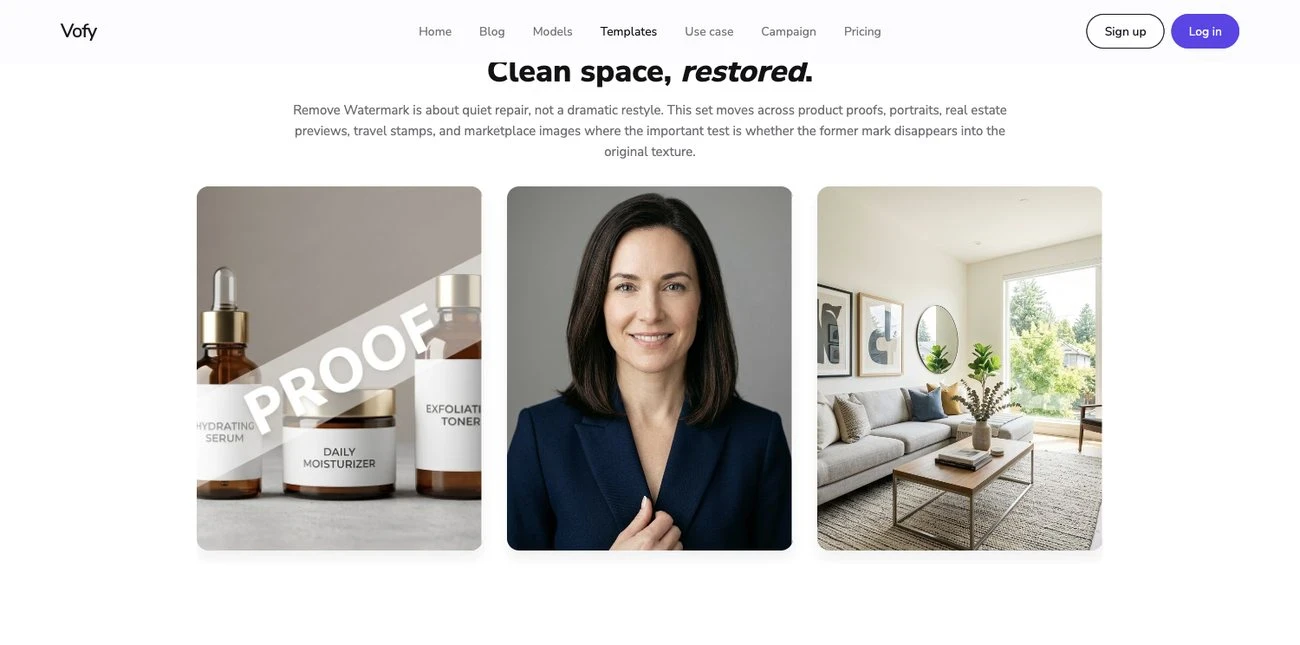
Treat generation as the first draft of the edit: source quality, preset choice, and final inspection all affect how localized the repair remains.
3.1 Upload the Watermarked Image
Open Remove Watermark and upload a permitted product photo, portrait proof, listing image, creator asset, or design export. Check the orientation and crop, then identify the nearby details that must remain stable. If the image contains several kinds of marks, plan separate passes so each result is easier to review.
3.2 Choose the Watermark Type
Choose by overlay type, not photo category. Use Text Watermark for translucent proof words, Corner Logo for a small edge mark, Product Stamp when package shape and label detail matter, and Repeated Mark for light tiled overlays with enough surrounding context. Signature Mark is for authorized proof or export marks, not for erasing someone else's attribution. The closest preset keeps the instruction narrow and reduces unrelated changes.
3.3 Generate, Compare, and Download
Generate the edit and compare it with the original at the same zoom level. Inspect the former mark, then scan the full frame for unintended changes. Check identity and hairlines on portraits; check label text, package corners, reflections, window frames, and other straight lines on products or interiors. A clean patch is not enough if an important detail changed elsewhere.
If you find a faint trace, repeated texture, an over-smoothed patch, or a bent edge, rerun from the original with a narrower instruction. Handle large overlays in sections when possible. Download only after protected details match the source, and keep both files so the edit history remains clear.
4. Tips for Better Watermark Removal Results
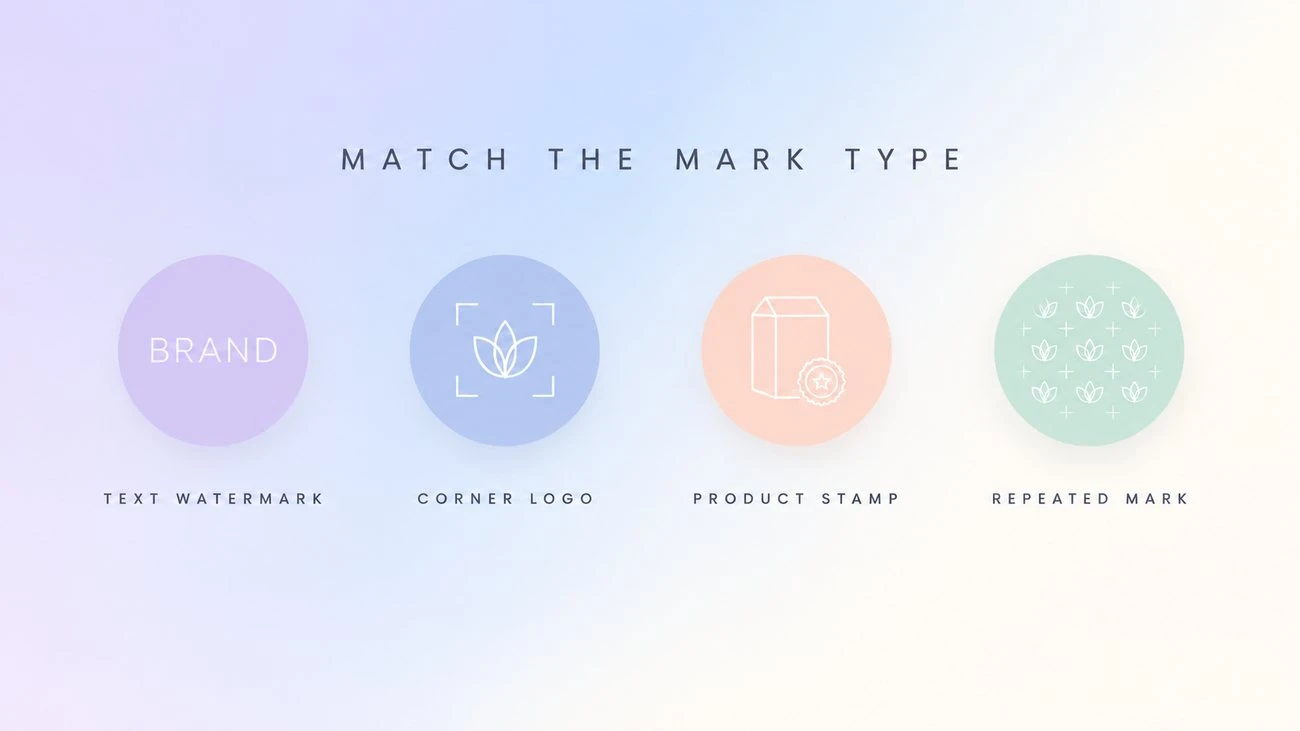
Good input and precise review matter more than adding a long prompt. First, describe the overlay by appearance and position: "remove the semi-transparent proof word across the lower background" is more useful than "make it clean." Then state what must remain stable, such as a face, package label, building line, or fabric pattern. This combination gives the edit both a target and a boundary.
For difficult images, remove one type of mark at a time. Compare texture scale and grain on simple backgrounds, and follow any repaired edge beyond the patch to catch bends or breaks. An unusually polished area often signals that the repair expanded too far.
Finally, choose the correct adjacent workflow. Watermark removal is for overlays, not every unwanted element. A green screen requires subject separation, which is covered in the AI green screen remover guide. A monochrome treatment is a color decision rather than an erasure problem; the remove color from image tutorial explains that workflow. Using a narrower tool keeps the instruction legible and makes the output easier to evaluate.
5. Common Mistakes to Avoid
Do not treat visible access or a downloadable preview as permission to edit. Use your own assets, authorized proofs, or licensed material that allows modification, and keep a record of that permission for client work.
Do not approve the result at thumbnail size. Review the full image at working resolution, where duplicated texture, softened type, changed facial details, and broken lines become visible. Remember that hidden content is reconstructed, not recovered.
Do not force every image through the broadest preset or retry from a compressed result. Match the preset to the mark and restart from the best permitted source so the model has the strongest visual evidence.
6. Conclusion
Watermark removal works best when the target and permission are clear. AI can estimate hidden pixels, but it cannot prove what was originally there, so use the licensed clean source whenever one is available.
Ready to edit an asset you are authorized to modify? Remove Watermark, choose the closest overlay type, and inspect the reconstructed area before download.
FAQ
Can AI remove every kind of watermark?
No. Small marks over repeatable backgrounds are easier than large tiled overlays across faces, artwork, or detailed labels. Difficult areas may need another pass or manual retouching.
Will removing a watermark blur the whole image?
The workflow targets the covered area rather than applying a whole-frame blur. Inspect the complete result because nearby texture or edges can still change.
Is it legal to remove a watermark from a photo?
Permission depends on ownership, license terms, jurisdiction, and intended use. Use the tool for files you own or have explicit permission to modify, and obtain the licensed clean source when available. This article is practical workflow guidance, not legal advice.
What should I do if a faint watermark remains?
Rerun from the original with the most specific preset, name the mark's location, and protect nearby details. Divide a large overlay into smaller repairs when possible.
Can I remove a logo from a product or listing photo?
Yes, when you own the image or have permission to edit it. Small corner or export marks are suitable targets, but verify that legitimate package labels, disclosures, and current branding remain intact.
Related Reading
Try it yourself on Vofy
Generate AI images and videos with the best models - all in one studio.
Discover More

 Ryan Mitchell•
How to Remove Shadows From Photos: Quick Guide (2026)
Remove unwanted shadows from photos instantly with AI. Fix harsh lighting, clean up product images, and improve portrait quality without complex editing software.

 Emma Clarke•
How to Remove Green Screen Backgrounds in Seconds (2026 Guide)
Remove green screen backgrounds instantly with AI. Perfect for content creators, video editors, YouTubers, and marketers who need clean background removal without complex editing software.
 Ryan Mitchell•
How to Remove Color From Image: Complete Guide (2026)
Remove color from image files instantly with AI. Convert photos to black and white, create monochrome designs, and desaturate images for professional results without Photoshop.