Virtual Hair Color Try-On: Preview a New Color with AI
Try a virtual hair color with AI before dyeing. Learn how to choose a useful photo, compare shades, read results, and avoid preview mistakes.

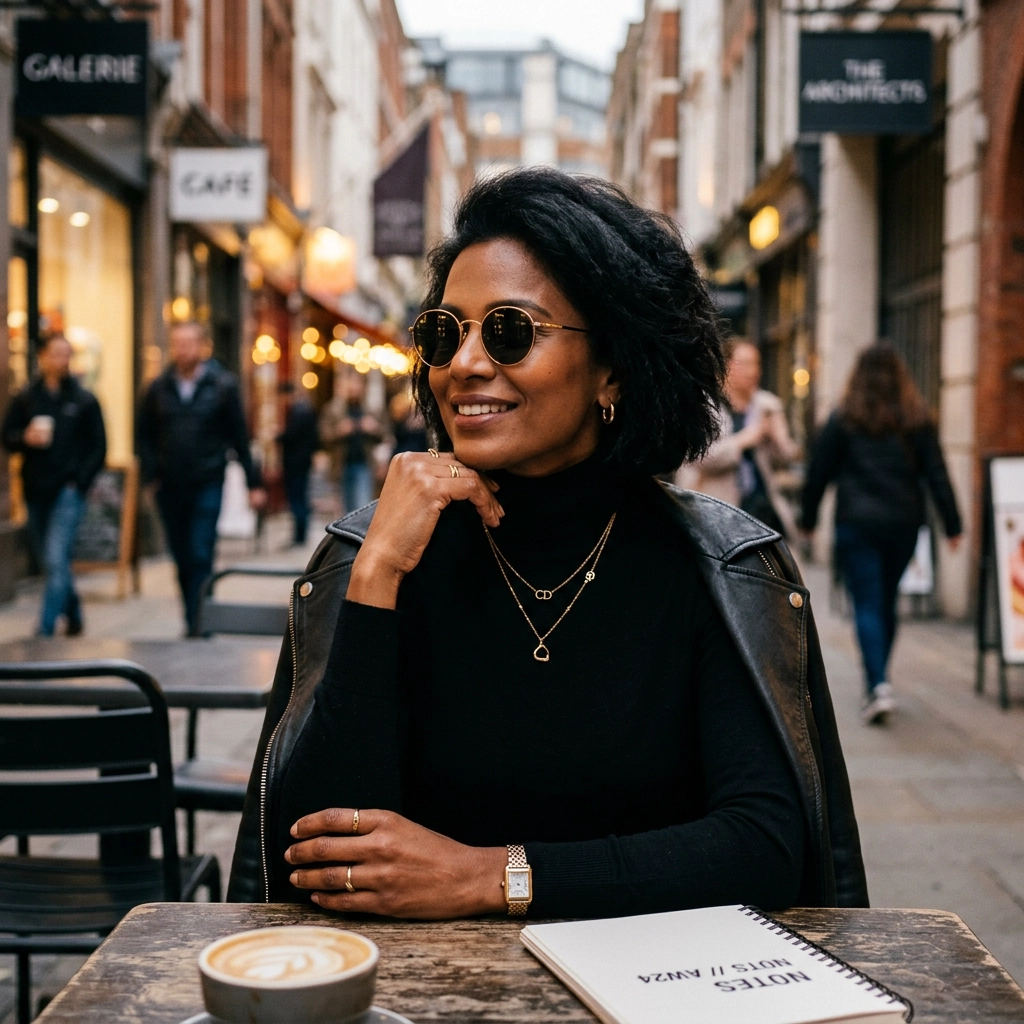
Disclosure: This tutorial uses Vofy, an all-in-one AI creative studio, as the demonstration tool. The workflow reflects the app as available in August 2026, and the interface may evolve.
A new hair color can change how your skin tone, eyebrows, wardrobe, and even phone camera lighting read together. That makes choosing from a small salon swatch surprisingly difficult. A virtual hair color try-on gives you a more personal reference: your own face, your current cut, and a color direction you can compare before making a commitment.
The goal is to narrow ten vague ideas to two or three color directions worth discussing with a colorist. AI can show how those directions interact with your visible features, but it cannot predict the chemical outcome on your hair. This guide shows how to prepare a photo, run a controlled comparison, and turn the strongest results into a useful shortlist.
Use only photos you own or have permission to edit. Do not use another person's portrait to create misleading content, impersonate them, or make decisions about identity, health, or professional suitability.

TL;DR
- Use a sharp, front-facing photo in soft neutral light, with most of the hair visible and no strong beauty filter.
- Compare one color family at a time, then test lighter, darker, warmer, and cooler variations with the same source photo.
- Judge the hairline, roots, highlights, shadow areas, and eyebrow relationship instead of looking only at the overall color.
- Record what you like about each candidate in terms of depth, temperature, intensity, and placement.
- Bring two or three saved references to a colorist when the change involves lightening, color correction, or a vivid shade.
This process is more informative than generating many unrelated looks. Keeping the photo and pose constant turns each result into a cleaner comparison, while a short shortlist makes the final choice easier to explain.
1. What a Virtual Hair Color Try-On Can Show You
A virtual hair color try-on is an AI-assisted edit that recolors the visible hair while aiming to preserve the face, haircut, pose, and surrounding scene. Its value is comparative: the same portrait can answer a series of focused questions without the lighting, expression, or camera angle changing between shades.
That distinction matters. The preview is well suited to questions such as whether warm copper or cool burgundy feels more harmonious, whether a near-black shade overwhelms your features, or whether face-framing blonde changes the balance of a familiar haircut. It can also reveal preferences that are difficult to express with a color name alone. Two people may both ask for "brown," while one means a soft neutral brunette and the other imagines a deep espresso with cool highlights.
Virtual try-on is especially practical when you are choosing among nearby shades. It can also show that a dramatic idea should stay an idea. If you are considering a cut and color together, compare the color first, then use the AI haircut virtual try-on guide as a separate decision step. Changing one variable at a time makes it easier to tell which part of a result you actually like.


2. Before You Start: Choose a Photo That Gives AI Clear Evidence
The source image has more influence on the preview than most people expect. AI has to infer where the hair begins and ends, which strands are in shadow, and which shapes belong to clothing or the background. A clear photo gives it enough visual evidence to recolor the hair without unnecessarily changing the face or flattening the haircut.
Use the following checklist before uploading:
- Choose a sharp image at an adequate resolution rather than a screenshot or heavily compressed social post.
- Face the camera or turn only slightly, keeping both sides of the hairstyle visible when possible.
- Use soft daylight or neutral indoor light; avoid colored LEDs and hard backlighting.
- Move loose hair away from clothing that has a similar tone, especially with dark brown or black hair.
- Remove hats, large hair accessories, and strong filters that hide the hairline or alter skin tone.
- Keep your current hair texture visible instead of brushing curls, waves, or flyaways into an unfamiliar shape.
A perfect studio portrait is not required. A clean phone photo near a window is often more reliable than a glamorous image with dramatic shadows. If your goal is a realistic salon reference, choose a photo that resembles how you usually look rather than the most edited photo in your camera roll.
Hair dye and lightener can also cause irritation or allergic reactions, which an image preview cannot evaluate. Before coloring, follow product directions and review the American Academy of Dermatology's coloring precautions. If you have had a previous reaction or develop symptoms, the NHS overview of hair dye reactions explains when to seek medical help.
3. How to Preview a New Hair Color with Vofy in 3 Steps
The workflow is intentionally simple, but the comparison method around it is what produces a defensible choice. Start with one good source photo and keep it unchanged through the first round. That gives every generated color the same lighting, expression, haircut, and background.
3.1 Upload your photo
Open the Vofy Hair Color Filter and upload the portrait you prepared. Before continuing, inspect the preview at normal size. Make sure the image is upright, the hair is not cut off at the crown, and no important section disappears beyond the frame.
If your hair blends into the background, switch to another photo rather than expecting the color transformation to repair the boundary. Fine strands, bangs across the forehead, and curls against patterned clothing are harder areas for any automated edit. A second source image can be valuable later, but using several different photos in the first comparison introduces lighting and camera differences that can make one shade look better for the wrong reason.
3.2 Choose a color direction
Select the color direction you want to preview. Begin with a broad family such as blonde, brunette, black, copper, red, silver ash, or a vivid fashion color, then compare nearby variations within the family. A disciplined sequence is more informative than jumping from platinum to blue to auburn without a clear question.
For each promising family, compare four dimensions:
- Depth: lighter, similar to your current level, or darker.
- Temperature: warm, neutral, or cool.
- Intensity: soft and wearable or vivid and high-contrast.
- Placement: all-over color, dimensional highlights, face-framing pieces, or darker roots.
These dimensions give you precise language for a salon consultation. Instead of saying, "I want the third image," you can explain that you prefer a medium-depth copper with softer saturation and a natural-looking root. The preview remains a reference, but your description becomes portable even if the final formula or technique changes.
3.3 Generate, compare, and download
Generate the preview, then inspect it before saving. Look closely at the hairline, part, ears, ends, and any strands crossing the face. A result can feel convincing at thumbnail size while showing color spill or missing texture when enlarged. If a boundary looks wrong, retry with the same color once; if it repeats, return to the source-photo step.
Save only the results that answer a real decision question. Two or three clear references are usually easier to compare than a gallery of loosely related experiments. When you have a shortlist, download the selected images and view them on the same screen at the same brightness. You can also compare the strongest option with your original photo to see whether you like the color itself or simply the novelty of a larger change.
4. Evaluate and Refine Your Hair Color Preview
Do not rank candidates by first impression alone. Review each image in the same order and at the same size, first beside the original portrait and then beside the other candidates. This separates a genuine color preference from novelty, flattering exposure, or a small face edit.
| Check | What a usable result preserves | Reason to retry |
|---|---|---|
| Identity | Facial shape, skin texture, eyebrows, and expression still match the source | The face looks retouched, reshaped, or relit |
| Boundaries | The part, temples, ears, flyaways, and ends remain clearly separated | Color spills onto skin, clothing, or background |
| Dimension | Existing highlights, shadows, and strand texture remain visible | The hair becomes a flat block of color |
| Facial contrast | You can describe whether the hair-to-skin and hair-to-brow contrast feels intentional | The image changes skin tone or eyebrow color, so the comparison is unreliable |
| Practical direction | The depth, temperature, intensity, and placement are clear enough to name | The effect is attractive but too ambiguous to describe or reproduce |
Use a simple keep, retry, or discard decision after the check. Keep an image when the edit is clean and it answers a real preference question. Retry once when the color direction is promising but a local defect, such as spill at one temple, weakens the image. Discard it when the face changes, the same boundary problem survives a retry, or the shade only looks appealing because the whole portrait has been brightened.
| Visible problem | Decision | Next action |
|---|---|---|
| Correct shade, one small edge defect | Retry | Use the same source and color so only generation variance changes |
| Color feels too loud or too heavy | Retry | Adjust intensity or depth, but keep temperature and placement stable |
| Favorite changes when screen brightness changes | Retry | Compare again at a fixed brightness against the original |
| Face, skin tone, or haircut changes | Discard | Return to the source image or choose a clearer portrait |
| Clean result that remains convincing on a second photo | Keep | Add a precise label and one sentence explaining why it works |
Starting hair type changes which evidence deserves the closest attention. With very dark hair, inspect whether shadows and root depth remain visible; a pale result with identical brightness from roots to ends is weak evidence for placement. With curls, coils, or strong waves, trace several individual bends from root to tip. If the pattern is smoothed or the volume changes, you are evaluating a new texture as well as a new color. With gray or white hair, decide whether you are testing full coverage, a translucent blend, or deliberate silver dimension. An opaque recolor cannot answer all three questions.
5. Build a Controlled Shortlist for a Salon Conversation
Create a four-column comparison sheet: the unchanged original plus no more than three candidates. Under each candidate, write a compact label in the same order: depth / temperature / intensity / placement. For example, "medium / warm / soft / all-over with natural root" is clearer than "copper option." Add one sentence beginning with "Keep" and one beginning with "Change": "Keep the warmth near the face; change the ends to a quieter saturation." This records the decision while the visual difference is fresh.
Run the first sheet from one source photo. Change only one attribute between neighboring candidates, such as warm versus neutral at the same depth. Once one direction wins, test that finalist on a second image taken in similar neutral light from a slightly different angle. A candidate earns a place in the final shortlist when the color preference survives both images and the edit preserves the relevant hair boundaries in each.
The final two or three references should serve different purposes rather than repeat the same look. Include the preferred direction, a nearby lower-maintenance alternative, and, for a dramatic change, an aspirational version. Record your nonvisual constraints beside them: willingness to lighten, acceptable root contrast, desired appointment frequency, and whether preserving curl condition or gray blending is a priority. Those notes give a colorist concrete tradeoffs to discuss instead of asking them to reverse-engineer a generated image.
For broader principles about comparing other appearance edits, see the AI virtual try-on guide. Keep haircut decisions separate with the AI haircut virtual try-on guide; changing cut and color together makes it harder to identify which choice improved the result.
6. Conclusion
An effective virtual hair color try-on ends with a decision, not a large gallery. Start from one neutral portrait, test structured variations, reject edits that alter the evidence, and label the few candidates that remain. The strongest shortlist makes your preferences about warmth, depth, intensity, and placement easy to see and easy to discuss.
FAQ
Can AI show exactly how hair dye will look on me?
No. AI can create a useful visual approximation based on a photo, but it cannot measure your hair's starting level, porosity, previous color, gray coverage, or reaction to dye and lightener. Use the result to compare directions and communicate preferences, not as a guaranteed outcome.
What photo works best for a virtual hair color try-on?
Use a sharp, front-facing or slightly angled portrait in soft neutral light. Keep the full hair shape visible, avoid hats and strong filters, and choose a background that contrasts with your hair.
Can I try blonde hair on dark hair with AI?
Yes, you can preview the visual direction, but the image does not represent the lifting process or whether that shade is safely reachable in one appointment. Show the preview to a colorist, especially if your hair is very dark, previously dyed, or fragile.
Should I match my eyebrows to the previewed hair color?
Not necessarily. Use the preview to observe whether you prefer a strong or subtle contrast between hair and brows. Eyebrow coloring involves products and safety considerations that differ from hair coloring, so do not apply ordinary hair dye near the eyes.
Is a hair color filter useful for vivid colors such as pink or blue?
Yes, particularly for comparing temperature, saturation, and placement. However, vivid AI colors may look more even and luminous than real dye under everyday lighting. Check the idea on more than one photo and discuss the starting base and maintenance with a colorist.
Can I use someone else's photo?
Use only images you own or have permission to edit. Do not publish misleading edits, impersonate another person, or use a virtual appearance tool for identity, medical, employment, or eligibility decisions.
Related Reading
Try it yourself on Vofy
Generate AI images and videos with the best models - all in one studio.
Discover More
 Priya Sharma•
AI Age and Hair Preview: Compare 5 Vofy Filters
Compare five Vofy tools for an AI age and hair preview: look older, add vintage texture, try gray or new colors, and preview straight hair.

 Lucas Andersson•
Try Any Hairstyle Instantly: Free AI Haircut & Virtual Hair Try-On Guide
Try 12+ hairstyles instantly with free AI filters. Join 2M+ users testing long, short, curly, blonde, silver & pink hair virtually. See your perfect look in 30 seconds—no commitment needed.

 Sofia Rodriguez•
AI Virtual Try-On Guide: Bikinis, Swimsuits, and Hair Color
Compare AI virtual try-on workflows for bikini concepts, swimsuit previews, and hair color changes while keeping results useful and responsible.