Seedance 2.0 Prompt Guide for Better AI Video
Learn how to write stronger Seedance 2.0 prompts for text, image, video, and editing workflows, with practical templates for more controllable AI video.

Seedance 2.0 has drawn intense attention since launch, with creators, marketers, and AI video teams rushing to test what it can do. Now both Seedance 2.0 and Seedance 2.0 Fast are available on Vofy.
This guide shows how to write better Seedance prompts for text, image, video, and editing workflows, so you can move from curiosity to usable output fast. If you want to turn that hype into actual footage, start generating on Vofy now.
If you only remember one thing, make it this: Seedance 2.0 responds best when your prompt separates identity, action, camera, and reference intent cleanly. The model is capable of strong multimodal control, but it rewards precision more than verbosity.
What Makes Seedance 2.0 Prompting Different
Seedance 2.0 is not just a "describe a scene and hope for the best" model. It is built for structured prompting across multiple workflows:
T2Vfor text-to-videoI2Vfor image-to-videoR2Vfor reference-led video generationV2Vfor video-to-video and editing workflows
That means your prompt can do several jobs at once:
- define the subject
- define the motion
- define the environment and style
- specify visible text
- anchor the result to image, audio, or video references
- instruct the model to edit or extend existing footage
The practical upside is stronger control. The practical downside is that vague prompts waste more of Seedance 2.0's potential than they do in simpler models.
The Core Prompt Formula
Seedance 2.0 follows natural-language logic well, so you can think in modular prompt blocks instead of writing a giant paragraph.
A good baseline formula looks like this:
[subject] + [action] + [environment] + [camera behavior] + [style or visual quality]
For example:
A young woman in a white trench coat walks through a rain-soaked neon street, reflections on the pavement, slow forward tracking shot, cinematic cyberpunk lighting, premium commercial look.
This works because each part has a job:
subjecttells the model who or what mattersactiontells it what is happeningenvironmentsets the world and moodcamera behaviorshapes the shot languagestylecontrols the final aesthetic direction
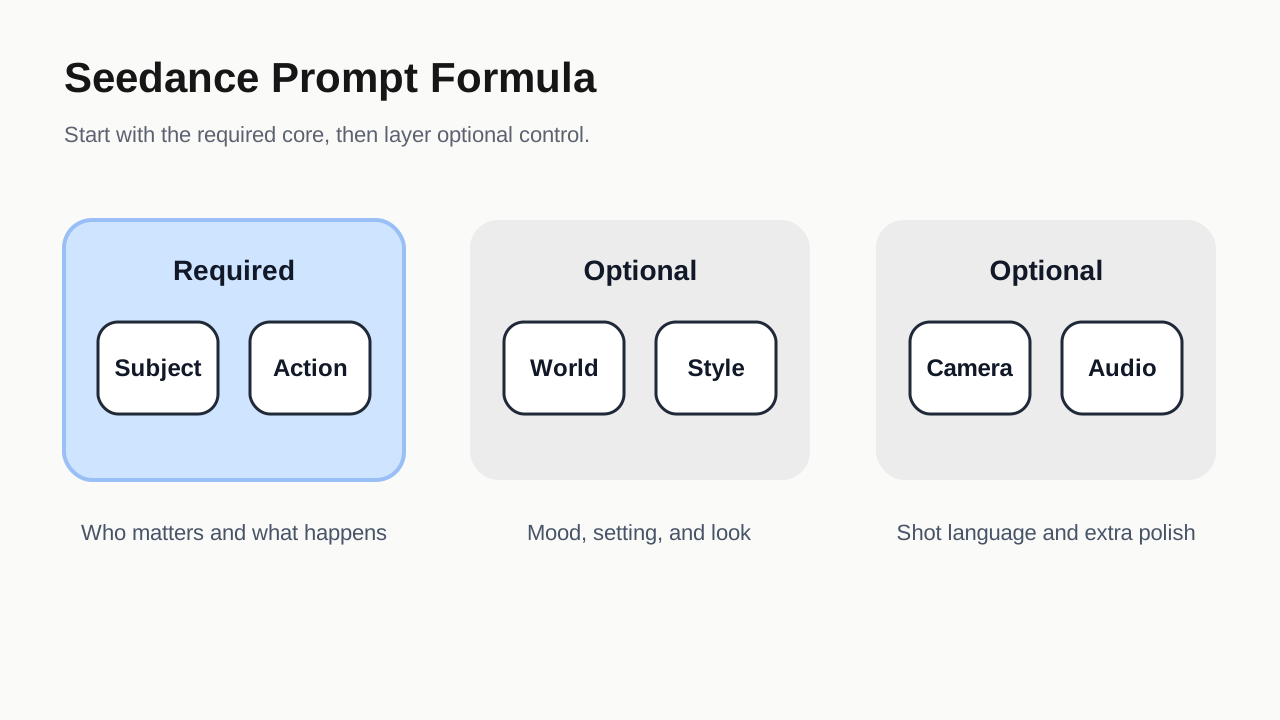
The biggest beginner mistake is mixing all of those into an unstructured sentence with competing details. If your prompt feels noisy, it probably is.
Use References as Anchors, Not Decorations
One of the most useful things about Seedance 2.0 is its deep multimodal reference control. In practice, that means references should not be treated like optional extras. They are your cleanest way to lock the model onto a target look, character, object, movement, or effect.
When you upload multiple references, keep the order intentional and refer to them explicitly as Image 1, Image 2, Video 1, and so on. The model can follow ordered references well, but only if your prompt naming stays consistent.
Here is the mindset:
- use text to tell the model what should happen
- use references to tell the model what it should resemble
That separation dramatically improves reliability.
On-Screen Text: Slogans, Subtitles, and Speech Bubbles
Seedance 2.0 can generate common on-screen text in multiple workflows, including ads, subtitle-heavy scenes, and stylized dialogue moments.
Three high-value text use cases stand out.
Slogans
Use this structure:
[text content] + [timing] + [position] + [appearance method] + [text style]
Example:
In a hand-drawn comic style, three people sit together eating the fried chicken from Image 1 in a friendly, cheerful atmosphere. The frame gradually blurs, and the text "All the Joy Is in Seedance" appears in the center.
Subtitles
Use this when dialogue or voiceover matters:
Subtitles appear at the bottom. The subtitle text is "[your line here]." The subtitles must stay fully synchronized with the audio rhythm.
Example:
Generate a video with voiceover. A deep, calm male voice says, "In the vast universe, our world is only a fleeting moment. Yet within it, life flourishes against all odds." The scene should slowly transition from night to dawn, with the stars gradually fading and the sun rising from behind the mountains. Subtitles appear at the bottom following the spoken lines.
Speech Bubbles
This is useful for playful ads, comics, and social video:
[character] says, "[dialogue]." When the character speaks, a speech bubble appears around them with the line written inside.
Example:
Reference the girl in Image 1 and Image 2. She is in a strawberry field, picks one strawberry, takes a bite, and smiles as she says, "This is the real deal!" A speech bubble appears around her with the line written inside.
One practical warning is worth keeping in mind: prefer common characters and avoid rare symbols when the text itself matters. The simpler and more standard the typography requirement, the better the rendering usually holds up.
Image References: Identity, Objects, Scenes, and Storyboards
Image references fall into several useful patterns, and this is where Seedance 2.0 starts to feel much more production-friendly.
1. Multi-Angle Subject Reference
If you want a product or character to remain stable, use several views of the same subject.
Template:
Reference, extract, or combine the subject in Image n to generate [scene description], while keeping the subject's characteristics consistent.
Example:
Extract the camera from Image 1, Image 2, and Image 3. Replace the background with white. Place the camera on a white table. Use a close-up shot to focus on the camera, then slowly rotate around it to clearly show the front, side, and back.
Best use cases:
- products that need front, side, and back consistency
- character identity lock
- close-up commercial object shots
2. Multi-Image Element Reference
This is one of the most valuable workflows in the entire guide. You can compose a result from multiple visual sources instead of hoping one image carries everything.
Template:
Reference, extract, combine, follow, or generate the referenced element from Image n to create [scene description], while keeping the referenced element consistent.
Example:
Reference the cat and dog in the images. In a cozy apartment, the dog is lying down and eating dog food. The cat walks over, reaches out a paw to tap the dog, and the dog stops eating after noticing the cat. The cat then nestles up beside the dog. Use a warm color palette.
This is ideal for:
- ads
- brand videos
- fashion
- product storytelling
- scene assembly from separate assets
3. Storyboard and Shotboard Reference
Seedance 2.0 can also respond to storyboard-like input, including multi-panel compositions and shot references.
Template:
Reference the storyboard in the image and generate an intense fight scene. Each storyboard composition in the image should appear in order, and then the two characters continue into a fierce fight.
This is especially useful for previsualization, short ads, and creator teams that want rough directing control without building every shot from scratch.
Video References: Motion, Camera, and Effects
Video reference is where Seedance 2.0 becomes more than a static visual generator. It helps to think about it in three control types.
Motion Reference
Use a source clip when you want to preserve how something moves, not just how it looks.
Template:
Reference the [motion description] in Video n to generate [scene description], while keeping the motion details consistent.
Example:
Reference the running form of the horse in Video 1. Generate a golden steed running across a grassland, then freeze its elegant running pose and turn it into a horse-shaped gold pendant.
Good for:
- action transfer
- gesture fidelity
- performance beats
- product transformation animations
Camera Reference
You can also borrow shot language separately from subject identity.
Template:
Reference the [camera movement description] in Video n to generate [scene description], while keeping the camera movement consistent.
Example:
Reference the camera movement in Video 1 to create a concept video for a technology park. Use the high-rise building in Image 1 as the visual center, with the same first-person diving perspective to show the technological feel of the park in Image 1.
This is especially strong when you already know the shot should feel like a drone rush, a tracking move, or a specific cinematic reveal.
Effect Reference
Effects can be anchored just as clearly.
Template:
Reference the [effect description] in Video n to generate [scene description], while keeping the effect consistent.
Example:
Reference the golden particle effect in Video 1. While the character in Image 2 plays the flute, surround them with the same particle effect.
That makes Seedance 2.0 much better for stylized music visuals, fantasy edits, and branded effect systems than prompt-only tools that have to "guess" the effect.
Video Editing: Add, Remove, Replace, Extend, and Bridge
Video editing is one of the most practical Seedance 2.0 workflows because it treats prompting as precise editing instruction rather than scene invention.
Add, Remove, or Replace Elements
Use clear edit language:
Add element: add [desired element description] to [time position] and [spatial position] in Video n.
Remove element: remove [element to delete] from Video n while keeping everything else unchanged.
Replace element: replace [element to swap] in Video n with [desired element description].
Example:
Add fried chicken, pizza, and other snacks onto the table in Video 1.
Clear the other parts and tools from the desktop in Video 1. Keep the surface neat and clean, leaving only what they are holding.
Replace the perfume bottle in Video 1 with the cream jar from Image 1. Keep the motion and camera movement unchanged.
This works best when you describe:
- where the edit happens
- when it happens
- what should stay unchanged
Extend a Video Forward or Backward
Template:
Extend Video n forward or backward with [description of the added footage].
Generate the content before or after Video n with [description of the added footage].
Example:
Generate the content after Video 1: the two late-arriving men run toward them, the five people finally meet, and they begin chatting warmly.
Or:
Extend Video 1 backward with an over-the-shoulder shot of the man in white. He says: It's not that bad. You're just stressed. Everyone goes through this, you just need to keep going.
Seedance 2.0 automatically uses the transition area for continuity instead of simply repeating the original footage. That is a small detail, but it matters a lot when you are building longer moments from short clips.
Bridge Multiple Clips
Seedance 2.0 also supports a track-fill style workflow.
Template:
Video 1 + [transition shot description] + cut to Video 2 + [transition shot description] + cut to Video 3
Example:
Video 1: at the moment the leaves hit the ground, golden particle effects burst upward. A gust of wind sweeps through, then cut to Video 2.
This workflow supports up to 3 input videos, with a total source duration of no more than 15 seconds.
A Practical Seedance 2.0 Prompt Stack
If you want a repeatable working method, use this order:
- Start with the target result in one sentence.
- Add the subject and action.
- Add the environment and lighting.
- Add camera language.
- Add any text-on-screen instruction.
- Add image or video references in upload order.
- Add editing constraints like "keep the motion unchanged" or "logo stays bottom-right."
Here is a strong commercial-style example:
Set the scene inside the restaurant from Image 4, with people moving through the space. The girl from Image 1 is wearing the outfit from Image 2 and is arranging items on the counter. The boy from Image 3 is a customer. He walks over and tries to ask the girl for her contact information. The logo from Image 5 remains visible in the lower-right corner throughout the video.
Common Mistakes to Avoid
Most bad Seedance 2.0 results come from one of these problems:
- uploading references in one order and describing them in another
- asking one prompt to control identity, motion, camera, text, and effects without clear separation
- using vague placeholders like "make it better" or "more cinematic"
- forgetting to specify what must stay unchanged in editing workflows
- overcomplicating on-screen text with rare symbols or overly strict styling
The model is capable of a lot, but it does not reward ambiguity.
Final Take
The best way to think about Seedance 2.0 prompting is that it is less like writing prose and more like directing. You are assigning roles: this image defines identity, this video defines motion, this text defines the shot outcome, and this edit instruction defines what changes.
Once you treat Seedance 2.0 that way, the model becomes much easier to control. Instead of hoping for a good clip, you start designing one.
If you are using Seedance 2.0 for ads, reference-heavy storytelling, or short-form cinematic generation, that shift in mindset is usually the difference between random results and repeatable output.
Seedance 2.0 and Seedance 2.0 Fast are available on Vofy right now. If you want to stop testing weak prompts in theory and start producing stronger video outputs, open Vofy and run your first Seedance workflow now.
Try it yourself on Vofy
Generate AI images and videos with the best models - all in one studio.
Discover More

 Priya Sharma•
Photo to 3D Model with AI: A Practical Guide
Turn a photo into a polished 3D-style model image with Vofy. Learn which photos work best, how to generate, and how to fix common results.

 Alex Harper•
How to Make AI Football Fan Videos From One Photo
Make AI football fan videos from one photo with a fictional Spain goal celebration and an optional Japanese street-interview companion clip.
Seedance 2.0
Seedance 2.0 is ByteDance's multimodal AI video model on Vofy for reference-driven creation and video editing workflows. In the current Vofy setup it supports text-to-video, image-to-video, interpolation, reference-image, multimodal-reference, video-to-video, and video-extension generation at 480p or 720p for 4 to 15 seconds, with optional audio and web-search controls.