01
Half-face underwater framing
The composition keeps the face close, cropped, and anchored left so the sharp eye, wet texture, and open water all have room to read.
Upload one portrait and create a hyper-realistic underwater half-face close-up with one sharp eye, caustic light, bubbles, wet skin texture, and cinematic blue-green depth.
 Before
 After
AfterPreview the intended water-portrait direction across vertical, square, and wide crops: close face placement, caustic light, bubbles, and blue-green depth around the subject.


Underwater Portrait Generator turns a normal portrait into a submerged cinematic close-up. The look is specific: the face is pushed to the left edge of the frame, only part of the face is visible, one eye stays sharp, and the surrounding water adds bubbles, floating droplets, caustic light, and soft blue-green depth.
This is not a broad water filter or a pool-surface overlay. It rebuilds the image as an underwater portrait photograph: wet lips, eyelashes, skin pores, soft shadows, sharp highlights, shallow depth of field, and a macro perspective that makes the face feel close to the camera while the water opens around it.
Use it for profile experiments, album art, editorial thumbnails, posters, moodboards, and surreal self-portrait ideas. The result should be treated as a stylized generated image, not proof that the person was photographed underwater or performing a real submerged scene.
The composition keeps the face close, cropped, and anchored left so the sharp eye, wet texture, and open water all have room to read.
Light rays, water droplets, and suspended bubbles build the underwater depth while keeping the portrait photographic instead of illustrated.
The main choice is output shape: auto for the intended 3:4 portrait, 9:16 for stories, 1:1 for profile grids, and 16:9 for wider cinematic crops. Resolution stays in settings.
Tip: 01
Upload a clear portrait or selfie where at least one eye, the face outline, lips, and hairline are visible; the close crop depends on those details.
Tip: 02
Use auto for the intended vertical 3:4 composition. Choose 9:16 when you want more water above and below the face, 1:1 for profile squares, or 16:9 for album-cover and thumbnail layouts.
Tip: 03
Side-angle or three-quarter portraits can work, but the result is designed to turn the subject toward a front-facing underwater close-up before applying the half-face crop.
Tip: 04
Avoid source photos with heavy sunglasses, masks, extreme blur, or hands covering the eye area, because the final image relies on one eye staying sharp.
Tip: 05
Use photos you own or have permission to transform. The result is a creative underwater portrait, not a real swimming, diving, safety, or documentary image.
Create a striking close-up when a normal selfie feels too plain for a creator profile, avatar refresh, or personal visual theme.
Use the sharp eye, dark water, and caustic light as a moody square or vertical direction for music, podcast, or story artwork.
Make a portrait hook for videos, essays, and posts that need emotion, mystery, or dreamlike tension without a busy background.
Test underwater portrait lighting, wet texture, bubbles, and face crop before planning a shoot, campaign reference, or poster concept.
Start with one clear portrait, choose the output shape, and create a close underwater result without preparing a real pool shoot.
Use a selfie, headshot, or close portrait where the face shape, one eye, lips, skin texture, and hairline are easy to read.
Tip: front-facing photos are easiest, but side-angle portraits are reoriented into a front-facing close-up.
Keep auto for the intended 3:4 portrait, switch to 9:16 for vertical stories, 1:1 for profile squares, or 16:9 for wider cover art.
Tip: the visual effect stays fixed; the ratio changes how much surrounding water appears.
Create the image, check that the same person is recognizable and one eye stays crisp, then download or retry with a sharper source photo.
Tip: if the eye softens too much, use a cleaner upload with fewer shadows or obstructions.
“The half-face crop gives a selfie a completely different mood without turning it into a cartoon or fantasy avatar.”
“The sharp eye and water texture are useful for cover ideas where the image needs to feel intimate and cinematic.”
“It is a fast way to test underwater portrait lighting before deciding whether a concept is worth a real shoot.”
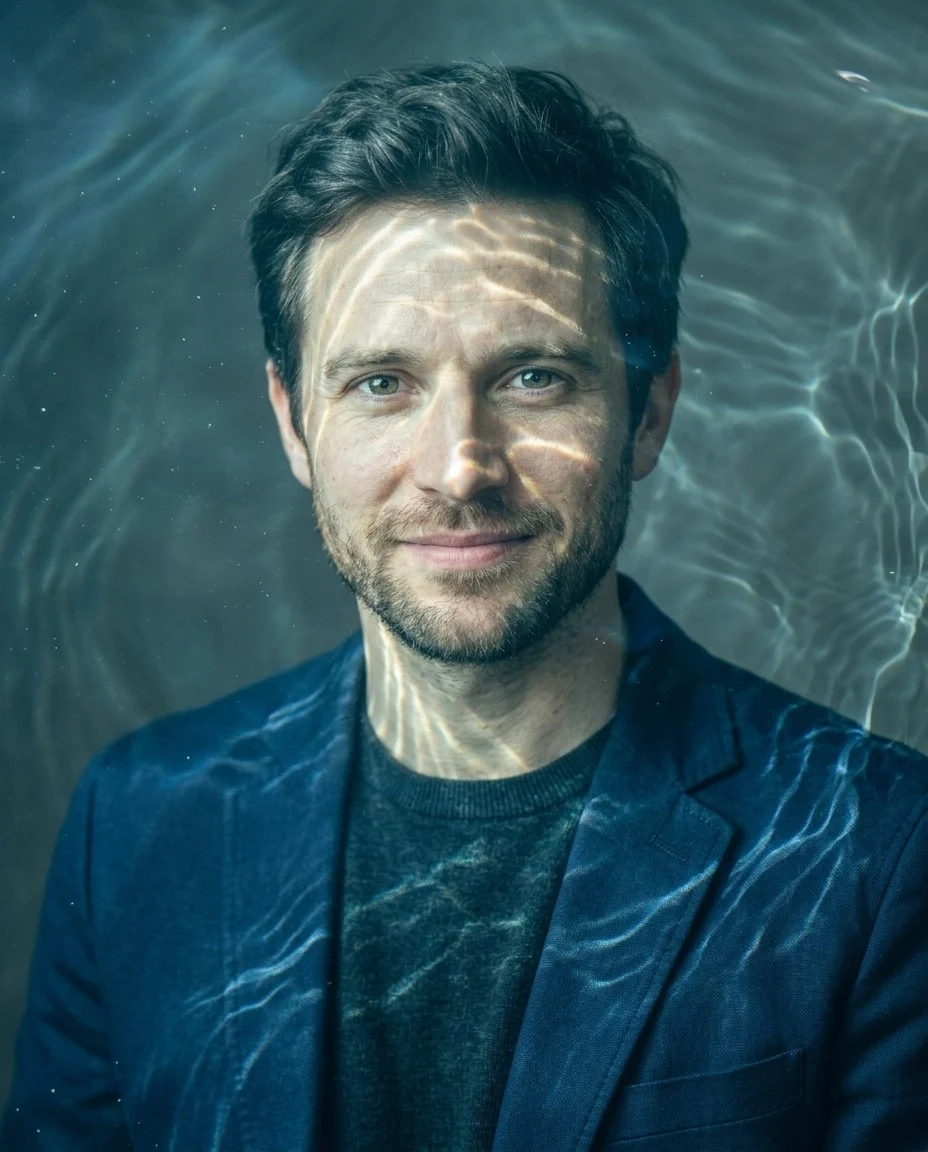
Create through-the-water style photos with AI water refraction, ripple distortion, caustic light, and blue-green shimmer.

Upload your photo and create a dramatic black-and-white cinematic portrait with side light, round sunglasses, and skyline reflections.

Relight portraits, product photos, backlit shots, and dark images with realistic AI lighting.
It turns one uploaded portrait into a realistic underwater close-up with the face cropped on the left, one eye in focus, caustic light across the skin, bubbles, droplets, wet texture, and soft cinematic depth.
Use a clear portrait or selfie with a readable eye area, face outline, lips, skin texture, and hairline. Avoid images where sunglasses, masks, hands, or heavy blur cover the main face details.
The effect is designed to preserve facial structure, skin tone, eye shape, age, hairline cues, and distinctive features while changing the crop, lighting, water, and atmosphere.
Auto creates the intended vertical 3:4 composition for the underwater portrait. You can also choose 9:16 for stories, 1:1 for profile squares, or 16:9 for wider cover images.
The visual direction stays focused: underwater half-face close-up, one sharp eye, caustic light, bubbles, wet skin detail, and shallow depth of field. The main creative choice is the output shape.
Use photos you own or have permission to transform, and follow your Vofy plan terms. The result is a stylized generated portrait, not proof of a real underwater shoot, endorsement, or documentary scene.
Get practical notes on new portrait looks, image tools, and creative ideas worth trying.