A Universal AI Image Prompt Formula That Works Across Models
Use one model-neutral AI image prompt formula for portraits, products, social graphics, and edits, with copy-ready templates and practical fixes.

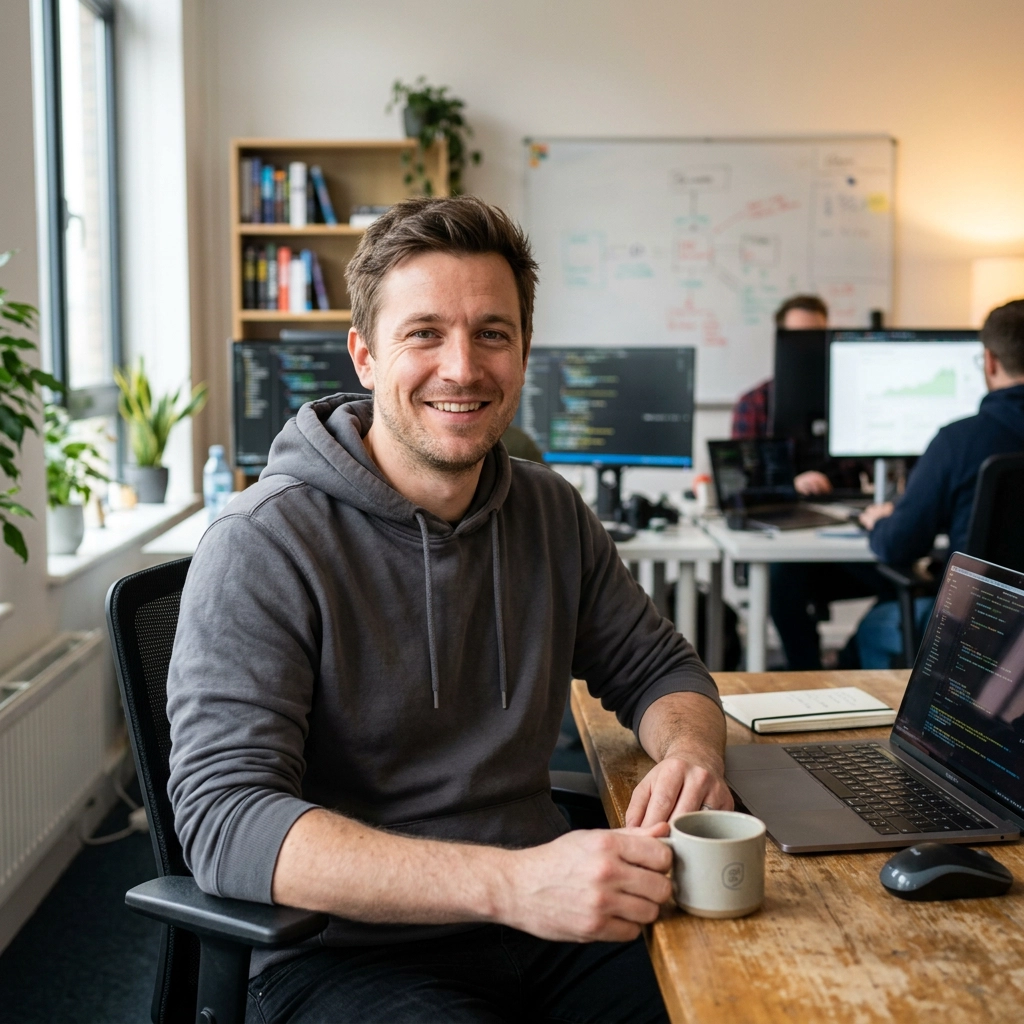
Most image prompts fail because they describe a mood but not the asset's job, the subject's place in the frame, or what must remain untouched. Treat the prompt as a compact production brief: define the deliverable, visual priority, supporting choices, and unacceptable errors. That model-neutral structure turns vague intent into visible decisions a generator can follow.
Disclosure: Vofy is an all-in-one AI creative studio. This guide uses Vofy as a demonstration workflow for testing the same prompt across several image models; the formula itself is designed to be portable.
TL;DR
- Use the same eight-part order for most image tasks: Deliverable, Canvas, Subject, Composition, Light, Style, Constraints, Output.
- Write concrete, inspectable instructions. Replace "beautiful" with a lighting direction, material, camera relationship, palette, or amount of negative space.
- Put non-negotiables near the end in a short constraint block, and separate requested changes from protected details when editing an image.
- Keep the core prompt model-neutral, then adjust only model controls such as aspect ratio, resolution, quality, references, or search.
- Test the exact same prompt on at least two models before rewriting it. A failure pattern tells you whether the prompt or the model is the limiting factor.
1. Why AI Image Prompts Break Across Models
An undefined deliverable is the first failure. "A woman in a city" could be a portrait, campaign, movie still, thumbnail, or postcard, each with different framing and empty-space needs. Naming the use, such as "a vertical editorial portrait for a fashion story," gives the model a reason to make composition choices.
Adjective stacking leaves those choices unresolved. Replace "premium, stunning, cinematic" with two or three visible decisions: restrained color and controlled reflections for a premium product shot, or a low viewpoint and motivated backlight for a cinematic frame. Concrete evidence is more portable than mood words.
Conflicts create another failure. A flat lay cannot also be eye-level, and a minimal background cannot be filled with props. Read the prompt as a shot list; when clauses compete, keep the production priority and remove the weaker one.
Finally, do not ask one generation to solve art direction, exact typography, legal copy, and layout production at once. Short display text may work, but labels, dates, prices, and regulated claims need character-by-character review. Define direct-use output once in the final clause, then regenerate any result with a meaningful content or layout error.
2. The Universal AI Image Prompt Formula
Here is the reusable order:
Deliverable + Canvas + Subject + Composition + Light + Style + Constraints + Output
The formula works as a paragraph, labeled lines, or a short template. The labels guide your thinking and can be removed if a model responds better to natural prose. Keep the order stable while learning so failures are easier to diagnose.
2.1 Deliverable and Canvas
Start with what the image is for: product hero, social cover, editorial portrait, poster background, app icon concept, or reference-based edit. Then specify the canvas: orientation, aspect ratio, and the location of any copy space. "Wide image" is less useful than "16:9 landscape with the subject in the right third and the left 40% quiet for a headline."
The ratio belongs both in the prompt and in the model control when that control exists. The sentence explains the design relationship; the setting enforces the output shape. Use 1:1 for square covers and product tiles, 4:5 or 3:4 for portrait feeds, 9:16 for stories, and 16:9 for a video thumbnail or presentation slide. Do not ask for a square composition and then generate a wide canvas hoping to crop it later.
2.2 Subject and Evidence
Describe only details that affect recognition. For a product, name shape, material, color, surface, label orientation, and the parts that must stay visible. For a person, describe action, pose, wardrobe, expression, and environment. For an illustration, name the medium, silhouette, and focal motif. Avoid a long inventory of details that the viewer will never inspect.
If a real image is supplied, state what it is evidence for. For example: "Use reference image 1 for the bottle silhouette and label colors; do not copy the background." When editing, protect identity, geometry, pose, camera angle, or texture explicitly. Use only photos you own or have permission to edit, and do not create misleading content that impersonates another person.

Example: the jar's silhouette, blue surface, white lid, and front-facing label are the observable details a reference instruction should identify and protect.
2.3 Composition and Hierarchy
Composition should describe relationships, not just coordinates. State the subject's scale in the frame, its position, the camera viewpoint, the foreground and background roles, and where the eye should go first. "One centered bottle occupying about 60% of frame height, cap fully visible, soft shadow below" is more actionable than "beautiful product composition."
Give empty space a physical description. A plain paper wall, a clear sky, or a quiet gradient surface is easier for a model to render than the abstract phrase "negative space." If copy will be added later, reserve the region and keep objects out of it. If text must appear in the image, quote the exact short wording, state how many lines it occupies, and say that no additional text may appear.
2.4 Light, Camera, and Style
Lighting and camera terms are useful when they change the visible result. Say "large soft light from upper left" to reveal matte texture, "narrow rim light from behind" to separate a dark subject, or "top-down view" to organize a tabletop. Lens numbers are optional. Include one only when perspective or depth of field is important; otherwise describe the effect directly.
Style is the rendering container, not a pile of references. Choose one dominant medium such as clean commercial photography, editorial flash, watercolor, ink line art, clay 3D, or cut-paper collage. Add a restrained palette, texture, and contrast behavior. Do not ask for three unrelated styles at once. A coherent style clause gives the model room to solve the subject and composition.

Example: soft window light defines the face while the low-right placement creates deliberate negative space and a clear editorial hierarchy.
2.5 Constraints and Output
Finish with a short list of observable boundaries: one subject, exact object count, no cropped edges, label facing camera, no watermark, no extra people, no duplicate props, no mockup. Positive structure should come first; constraints should protect likely failure points rather than list every imaginable defect.
The output clause is the delivery lock. Ask for "one complete flat finished image filling the canvas, ready to publish without crop, retouching, compositing, text replacement, or background repair." Ordinary compression, proportional resizing, and WebP conversion are file operations. Any change to content, geometry, text, or layout is post-production and means the output did not meet a direct-use requirement.
3. Keep the Formula Portable Across Models
Different models interpret the same natural-language brief differently. That is expected. The portable part is the creative specification; the model-specific part belongs in settings. Keep the prompt free of unsupported parameter syntax, hidden weighting notation, and claims that a particular keyword always improves quality. Use the model's controls for ratio, resolution, quality, reference images, image count, search, or sequential generation when those controls are available.
| Workflow decision | Keep in the shared prompt | Check in model settings |
|---|---|---|
| Format | "portrait 4:5 with clear space above subject" | Exact aspect-ratio selector |
| Detail | "crisp edges and readable short label" | Resolution or quality tier |
| References | "reference 1 defines product shape" | Number and role of uploaded images |
| Variations | "one final composition" | Output count or sequence mode |
| Grounding | "fictional product, no outside facts" | Search or browsing toggle |
As of August 2026, Vofy exposes several image routes that can be tested with the same core brief, including GPT Image 2, Nano Banana 2, Grok Imagine Image Quality, and Seedream 5.0 Lite. Their controls and availability can change, so treat the current Studio interface as the source of truth. The GPT Image 2 prompts guide goes deeper into one model's editing behavior, while this formula is intentionally broader.
Section 6 turns this separation between shared prompt and model settings into a controlled comparison workflow.
4. Copy-Ready Prompt Templates by Use Case
These are complete briefs, not keyword lists. Replace the bracketed content and remove clauses that do not apply.
4.1 Product Hero
Create a finished [ecommerce hero / campaign] product photograph of one [product] named "[short name]". [Aspect ratio] composition. Show one [shape, material, color, and key physical details], fully visible and [centered / placed in the right third]. Keep the [label / logo area] facing the camera and reserve [specific region] as quiet copy space. Use [light direction and softness], [camera viewpoint], and [background or surface]. The image should feel like [one medium and restrained palette], with realistic [material behavior] and a grounded contact shadow. No extra products, no duplicate parts, no hands, no unrelated props, no watermark, no border, no mockup. Print only "[exact short copy]" if text is required; add no other text. Deliver one complete flat image filling the canvas, ready to publish without crop, retouching, compositing, or text replacement.
The strongest product clause protects geometry before atmosphere. If the product already exists, upload a clean reference and say which details must remain unchanged. If the label is legally or commercially important, treat generated text as a draft unless it passes a literal character check.
4.2 Editorial Portrait
Create a finished editorial portrait for [publication or social use]. [Aspect ratio] composition. Show one [person description] [action or pose], wearing [wardrobe], with [expression and gaze]. Place the subject [position and scale] against [simple environment], leaving [specific copy space] clear. Use [light source and direction], [camera relationship], natural skin texture, realistic anatomy, and a restrained [palette or contrast]. The visual medium is [editorial photography / film still / illustrated portrait]. No extra people, duplicate limbs, distorted hands, beauty-ad plastic skin, background text, logos, watermark, border, or mockup. Deliver one complete flat image filling the canvas with no crop, retouching, compositing, or face replacement.
When the portrait is an edit of a real person, add a Preserve clause: "Preserve the person's identity, facial proportions, hairline, and expression; change only the background and wardrobe color." Use authorized source material and review the result for unintended identity changes.
4.3 Social Cover or Thumbnail
Create a finished [platform] cover image for [topic]. [Aspect ratio] composition. Make [single focal subject] the clear first read, occupying about [percentage] of the frame and placed [position]. Use [simple background], [palette], and [lighting or texture] to create separation. Keep [top / left / right] [percentage] visually quiet for later headline placement; no objects may cross into that zone. Include only the short display text "[exact phrase]" if needed, centered in [zone], with no other words. No collage, device mockup, UI screenshot, extra subjects, logos, watermark, border, or cropped focal object. Deliver one complete flat image filling the canvas, ready to publish without crop, text replacement, or layout repair.
A quiet region should be simple enough to remain quiet. If a model keeps filling it, remove decorative props from the subject paragraph and describe a plain wall, sky, or paper surface instead of adding more negative instructions.

Example: a 9:16 story cover with the train held near the lower edge and the upper sky reserved as a quiet headline zone.
4.4 Reference-Based Edit
Use reference image 1 for [subject identity, product geometry, or pose] and reference image 2 only for [lighting, palette, or environment]. Change: [one precise requested edit]. Preserve: [identity, proportions, camera angle, label, texture, and all details not named in Change]. Match the replacement environment's perspective, shadow direction, and color temperature to the preserved subject. [Aspect ratio] composition. Do not add objects, people, text, logos, watermarks, borders, or extra styling. Deliver one complete flat edited image filling the canvas, with no crop, generative fill, retouching, compositing, or further repair required.
The Change/Preserve split is the most important part of an edit prompt. If the first result changes too much, issue a narrow delta such as "keep the previous composition; restore the original product shape and change only the background and contact shadow." Avoid sending a completely new creative brief for every revision.

Example edit result: inspect the headphone shape, padding, joints, and black materials as preserved details, then compare the room, light direction, and contact shadow with the source references.
5. Troubleshooting: Change One Layer at a Time
Diagnose the failed layer before rewriting. Fix Subject or Constraints for missing and duplicate objects, Composition for scale or placement, and Light or Style for mood. If copy space is crowded, simplify the background; if text is malformed, shorten it and verify every character. Keep a one-line log such as wrong object count, camera too wide, or copy space filled, then address only that failure in the next prompt.
Separate prompt failures from settings. Aspect ratio can reshape the composition, resolution can reveal rather than fix bad text, and extra outputs provide options without proving reliability. Hold the core brief and controls steady during comparisons. Vofy Credits vary by model, resolution, and output count, so use the current on-screen estimate.
For photorealistic work, inspect hands, reflections, shadows, edges, and repeated patterns at full size. The why AI images look fake guide covers those realism checks in detail.
6. Run a Fair Cross-Model Test on Vofy
Open Vofy Image Studio, paste the unchanged core prompt, and set the requested aspect ratio and resolution. Record the model ID and date, request one output, then repeat with another model. Test model-specific settings or a revised prompt only after this first comparison.
The acceptance check should be stricter than "looks good." Verify subject and count, hierarchy, protected space, plausible material and light, and the absence of unrequested text or objects. Reject and regenerate a failed result instead of repairing it or treating a polished mockup as a finished asset.

Rejected example: the exact count and broad product shape pass, but the unexplained gray rectangle is an unrequested object. Record the failure and rerun the unchanged prompt before comparing models.
Save the prompt, settings, model ID, date, and acceptance status together so the comparison stays reproducible. Before publishing benchmark or control claims, check the OpenAI image generation guide, Google Gemini image generation documentation, and xAI image generation documentation for current behavior.
7. Conclusion
Start with one of the four templates, make its subject and acceptance criteria concrete, and run an unchanged-prompt comparison. The best fit is not necessarily the model with the most dramatic first image, but the one that reliably preserves the details your finished asset cannot afford to lose.
FAQ
Does one AI image prompt really work across every model?
No prompt can guarantee identical results across every model. The formula is portable because it describes visible goals and constraints in plain language. Model-specific settings, reference limits, text rendering, and style interpretation still vary, so test the same brief and adjust controls separately.
What is the simplest AI image prompt formula to remember?
Remember Deliverable, Canvas, Subject, Composition, Light, Style, Constraints, Output. If time is limited, write the first four and the final constraints before adding aesthetic detail. A short structured brief usually beats a long list of mood adjectives.
Should I use negative prompts with this formula?
Use a concise constraint block rather than a long generic negative prompt. Name observable failures that matter for the scene, such as duplicate products, cropped edges, extra text, or a filled copy-space zone. Positive composition instructions should carry most of the prompt.
Which aspect ratio should I choose?
Choose the final placement first. Use 1:1 for square covers and product tiles, 4:5 or 3:4 for portrait feeds, 9:16 for stories, and 16:9 for thumbnails, slides, and wide campaign frames. Set the ratio in the model control as well as describing the composition in the prompt.
Should I use the same prompt for an image edit and a new generation?
Use the same high-level formula, but change the edit grammar. An edit needs explicit reference roles plus Change and Preserve clauses. A fresh generation needs a complete subject description because there is no source image supplying geometry or identity.
Related Reading
Try it yourself on Vofy
Generate AI images and videos with the best models - all in one studio.
Discover More
 Ryan Mitchell•
How to Write Better GPT Image 2 Prompts
Learn a reusable framework for GPT Image 2 prompts across photos, products, portraits, posters, and social graphics, with real examples and clearer control.

 Yuki Tanaka•
Nano Banana 2 Prompts: A Complete Guide with Real-World Use Cases
Learn how to write effective Nano Banana 2 prompts with real-world use cases for social media, e-commerce, branding, education, and more. Includes prompt examples and best practices.
 Ryan Mitchell•
Why AI Images Still Look Fake — and How to Fix It
Master advanced Nano Banana 2 techniques to fix fake-looking AI images. Learn the technical reasons behind common artifacts, physics-based solutions, and edge cases that separate amateur from professional photorealistic results.

 Priya Sharma•
Photo to 3D Model with AI: A Practical Guide
Turn a photo into a polished 3D-style model image with Vofy. Learn which photos work best, how to generate, and how to fix common results.

 Alex Harper•
How to Make AI Football Fan Videos From One Photo
Make AI football fan videos from one photo with a fictional Spain goal celebration and an optional Japanese street-interview companion clip.

 Lucas Andersson•
How to Make a Printable Coloring Page From a Photo
Make a printable coloring page from a photo with open fill areas, age-appropriate detail, and lines that stay clear after a real test print.

 Emma Clarke•
Japanese Street Interview Video Generator: Make a TV-Style Clip
Turn one portrait into an 8-second Japanese TV-style street interview. Learn the fixed preset, 720p output, framing choices, and common fixes.
 Alex Harper•
Qwen Image 2.0 Pro Prompts for Text-Heavy Designs
Use Qwen Image 2.0 Pro prompts for posters, price lists, infographics, schedules, packaging, and other text-heavy designs with clear hierarchy.
 Emma Clarke•
AI Photo Styles Compared: 3D, Toy, Pixel & Game Art
Compare nine AI photo styles by input, likeness, output format, and use case to choose the right 3D, toy, pixel, sprite, or game-art workflow.
 Emma Clarke•
Disney Style AI Generator: Create Storybook Art
Use a Disney style AI generator to turn portraits, couples, pets, and family photos into original storybook art with better prompts and publishing guidance.
 Emma Clarke•
Photo to Art Apps: How to Choose the Right AI Style
Choose among ten photo to art apps for painting, illustration, vector, stencil, coloring, silhouette, doodle, charcoal, pencil, and oil workflows.
 Alex Harper•
Wan 2.7 Multi-Reference Prompts for Product Campaigns
Use 20 Wan 2.7 multi-reference prompts to combine product, brand, talent, and setting images into cohesive campaign videos while reducing identity drift.
 Emma Clarke•
AI Cartoon Styles: Choose the Right Generator
Compare AI cartoon styles for portraits, posters, sitcom-inspired edits, and original characters, then choose the right Vofy workflow.
 Emma Clarke•
90s Anime Filter Tips: Fix Faces, Hands, and Style
Use these 90s anime filter tips to fix weak likeness, merged hands, busy backgrounds, and mismatched retro styling with a repeatable review process.
 Emma Clarke•
Cute AI Character Styles: Anime, Chibi & Kawaii
Choose cute AI character styles for avatars, stickers, posters, and fantasy portraits with current Vofy presets and input guidance.
 Emma Clarke•
Naruto AI Filter: Turn Your Photo Into Ninja Anime Art
Use a Naruto AI filter to preserve your likeness, choose the right ninja-anime direction, and repair weak avatars, posters, or thumbnails.
 Emma Clarke•
How to Use an AI Character Generator From Text or Photo
Use an AI character generator from text or a reference photo with complete examples, preset guidance, and a one-variable refinement workflow.
 Yuki Tanaka•
Anime Art Style Generator Guide: Choose the Right Style
Compare eight anime and manga-inspired photo styles, match current Vofy presets to your creative goal, and review results with practical checks.
 Emma Clarke•
AI Character Generator Guide: Choose the Right Workflow
Choose the right AI character generator for original OCs, cartoons, superheroes, collectible figures, or 3D-style character renders.

 Marcus Chen•
AI Character Consistency: Four Models Compared
See how four Vofy AI image models handled one reference in one retained four-scene output each, plus what this limited test cannot prove.
 Emma Clarke•
How to Turn a Photo Into a Cartoon While Preserving Likeness
Turn a photo into a cartoon without losing likeness. Compare a documented result, choose the right Vofy preset, and fix common conversion problems.
 Marcus Chen•
Seedream 5.0 Pro vs Lite: Is Pro Worth the Extra Cost?
Compare Seedream 5.0 Pro vs Lite on Vofy by price, resolution, references, output limits, design controls, and the workflows where Pro earns its premium.
 Marcus Chen•
AI Drawing Generators Compared by Output Type
Compare seven AI drawing generators by input, output language, and production handoff for CAD, sprites, clip art, vector art, stencils, and more.
 Priya Sharma•
Word Art Generator: Create Readable AI Text Effects
Use a Word Art Generator to create readable 3D text, neon titles, bubble letters, sticker words, and logo-style typography from a short phrase.
 Marcus Chen•
Best AI Model for Product Photography: A Side-by-Side Test
Compare four AI models for product photography with identical packshot, reflective-material, and campaign-scene prompts plus a practical scoring rubric.
 Priya Sharma•
AI Graphic Design Workflow for Covers, Posters, and Logos
Build a coherent AI graphic design workflow for covers, posters, lettering, symbols, and crests with clear tool roles, handoffs, and checks.
 Emma Clarke•
How to Make an Album Cover with AI: Brief to Final Art
Learn how to make an album cover with AI, turn a track into a focused brief, review real outputs, and prepare the artwork for release.
 Priya Sharma•
How to Blend Two Photos Naturally with AI
Learn how to blend two photos naturally with AI by matching framing and light, assigning each image a role, and fixing pasted-looking composite errors.
 Emma Clarke•
AI Photo Effects: Choose the Right Edit for Your Image
Choose the right AI photo effect for focus, light, refraction, or framing, with real before-and-after examples and practical review checks.
 Marcus Chen•
Best AI Image Editing Model: 6 Models Tested on the Same Photos
Compare six AI image editing models on the same portrait and product tasks, with copy-ready prompts, retained outputs, and an auditable scoring rubric.

 Sofia Rodriguez•
Photo Color Effects Guide: Which Edit Fits Your Image?
Choose among eight photo color effects for recoloring, tinting, duotone, color splash, negative, neon, pastel, and rainbow edits.
 Sofia Rodriguez•
AI Halloween Photo Ideas: Face Swaps, Filters, and Ghosts
Create Halloween photos with AI using Face Swap, AI Halloween Filter, and Ghost Filter for costumes, party posts, invites, and eerie portraits.
 Emma Clarke•
Retro Photo Effects and Cinematic Looks: 8 Compared
Compare eight retro and cinematic photo effects, from film grain and VHS texture to light leaks, flash, vignette, and teal-orange color.
 Alex Harper•
25 Seedream 5.0 Pro Prompts for Infographics and Posters
Copy 25 Seedream 5.0 Pro prompts for clear infographics, event posters, menus, reports, and multilingual visual designs.
 Lucas Andersson•
AI CAD Drawing Generator: Create Technical Concept Sheets
Use an AI CAD Drawing Generator to turn text, sketches, or product photos into clear concept plans, blueprints, and technical presentation sheets.
 Sofia Rodriguez•
AI Face Swap: How to Swap Faces in Photos Naturally
Learn how to use AI face swap with two photos, choose the right Vofy preset, fix awkward blends, and create responsible, natural-looking edits.
 Marcus Chen•
Best AI Image Generators in 2026: Text & Illustration Test
Six AI image generators face the same infographic and illustrated-story prompts in a 12-image first-output usability test.
 Yuki Tanaka•
Wan 2.7 Image Prompt Guide for Consistent Image Sets
Learn a reusable Wan 2.7 Image prompt framework for consistent characters, products, scenes, and campaign sets with controlled variation.
 Priya Sharma•
Virtual Hair Color Try-On: Preview a New Color with AI
Try a virtual hair color with AI before dyeing. Learn how to choose a useful photo, compare shades, read results, and avoid preview mistakes.
 Priya Sharma•
AI Age Generator: See Yourself Older or Younger
Use an AI Age Generator to preview a believable older or younger version of yourself. Learn which photo, preset, and checks produce better results.
 Marcus Chen•
Multi-Reference Image Generation Test: GPT Image 2 vs Wan 2.7 vs Seedream 5 Pro
Compare GPT Image 2, Wan 2.7 Image, and Seedream 5.0 Pro with a controlled multi-reference image generation test and reusable scoring method.
 Priya Sharma•
AI Age and Hair Preview: Compare 5 Vofy Filters
Compare five Vofy tools for an AI age and hair preview: look older, add vintage texture, try gray or new colors, and preview straight hair.
 Sofia Rodriguez•
AI Body Editor Guide: Preview Fitness and Body Shape Changes
Use an AI body editor to preview subtle body shape or fitness changes with Body Editor and Fat to Fit while preserving identity, context, and consent.
 Alex Harper•
Back-to-School Graphics with AI: A 3-Tool Workflow
Create coordinated back-to-school graphics with AI using Vofy's Doodle Font Generator, Word Art Generator, and PNG Maker in one workflow.
 Sofia Rodriguez•
Back-to-School Face Cut Out Ideas for Posters and Rosters
Plan back-to-school face cutout ideas for big-head posters, team rosters, profile graphics, and stickers with a transparent PNG workflow.
 Priya Sharma•
Turn Photos Into Notebook Doodles for Back-to-School Content
Turn photos into notebook doodles for back-to-school posts, class slides, journal covers, and study graphics with Vofy's three-step workflow.
 Priya Sharma•
How Teachers Can Create Back-to-School Worksheets With AI
Create back-to-school worksheets with AI using consistent classroom clip art, printable coloring pages, and a practical teacher review checklist.
 Marcus Chen•
Best AI Back-to-School Tools for Students, Parents, and Teachers
Compare 7 AI back-to-school tools for student photos, outfit planning, classroom printables, doodle notes, clip art, and coloring pages.
 Marcus Chen•
Which AI Image Model Renders Text Best? Test Protocol
A six-model AI poster text benchmark protocol with locked prompts, retry rules, scoring, edit checks, and preliminary samples excluded from results.
 Priya Sharma•
How to Create a Back-to-School Photo With AI
Create a back-to-school photo with AI, from a retro yearbook portrait to a clean student ID draft, using one clear source image.
 Marcus Chen•
Best AI Image Generators in 2026: The Core 6-Model Test
We test six AI image generators with the same three production prompts, keep every failure, and compare their first-pass usability rates.
 Sofia Rodriguez•
AI Virtual Try-On Guide: Bikinis, Swimsuits, and Hair Color
Compare AI virtual try-on workflows for bikini concepts, swimsuit previews, and hair color changes while keeping results useful and responsible.
 Priya Sharma•
Remove Watermark from Image with AI: A Careful Guide
Remove watermark from image files you own with localized AI repair, then inspect texture, edges, and detail before downloading the clean result.
 Priya Sharma•
Remove People from Photo with AI: Keep the Scene
Remove people from photo backgrounds with localized AI inpainting while preserving the main subject, landmark, lighting, perspective, and composition.
 Priya Sharma•
Remove Text from Photo with AI: A Clean Repair Guide
Remove text from a photo with AI, rebuild the covered area, and check the result for clean edges, consistent texture, and preserved details.
 Yuki Tanaka•
Grok Imagine Image: What It Is and When to Use It on Vofy
Learn what Grok Imagine Image does, where its Quality route fits, which image workflows suit it, and when another model may be a better choice.
 Priya Sharma•
AI Tattoo Generator: Design Ideas and Placement Previews
Use an AI tattoo generator to create original tattoo concepts, compare styles, preview placement, and prepare a clearer artist consultation brief.
 Sofia Rodriguez•
AI Virtual Try-On Tools for Beauty and Body Art
Compare six AI virtual try-on tools for makeup, brows, lashes, braces, nail art, and tattoos, then choose the right preview workflow.
 Priya Sharma•
How to Use AI Outfit Try-On — Preview Clothes on a Photo
Learn how to use AI outfit try on from a photo, choose the right clothing preset, preserve identity, and compare looks before shopping or styling.
 Alex Harper•
How to Write Better Grok Imagine Image Prompts
Learn a practical Grok Imagine Image prompt structure with clear guidance and visual examples for social graphics, product shots, portraits, and image edits.
 Priya Sharma•
AI Nail Art Generator: Preview Your Next Manicure
Use an AI nail art generator to preview chrome, French, bridal, gel, and acrylic designs on your hand or create manicure ideas from text.
 Sofia Rodriguez•
How to Use an AI Muscle Generator for Realistic Photos
Learn how to use an AI muscle generator, choose a clear source photo, avoid anatomy errors, and create a realistic athletic edit you can share responsibly.
 Sofia Rodriguez•
AI Beauty Filter Guide: Choose the Right Portrait Tool
Compare AI beauty filter tools for skin, eyes, teeth, jawline, and face shape, then choose the lightest edit that fits your portrait.
 Marcus Chen•
GPT Image 2 vs Seedream 5.0 Pro for Commercial Design
Compare GPT Image 2 vs Seedream 5.0 Pro for layouts, typography, product visuals, editing, resolution, and production-ready workflows.
 Marcus Chen•
AI Photo Enhancement Tools: Choose the Right Fix
Compare AI photo enhancement tools for blur, pixelation, low resolution, color, lighting, lens flare, and red-eye correction.
 Sofia Rodriguez•
How to Retouch Portraits with AI - Natural Results
Learn how to retouch portraits with AI while preserving skin texture, facial identity, and natural light in a practical Vofy workflow.
 Sofia Rodriguez•
How to Use an AI Beauty Filter for Natural Retouching
Learn how to use an AI beauty filter for natural selfie retouching, brighter eyes, balanced skin, and portraits that still look like you.
 Priya Sharma•
Image Enhancer: How to Improve Photo Quality with AI
Learn how to improve photo quality by balancing exposure, color, noise, contrast, and texture with a controlled AI enhancement workflow.
 Priya Sharma•
Unblur Image: How to Fix Blurry Photos with AI
Learn how to diagnose motion blur, camera shake, and missed focus, then unblur an image with AI while preserving intentional depth and reliable detail.
 Marcus Chen•
AI Photo Cleanup Tools: Which Vofy App Should You Use?
Compare seven AI photo cleanup tools for objects, people, text, watermarks, logos, stickers, and visible attribution before your next edit.
 Priya Sharma•
Upscale Image: How to Increase Resolution with AI
Plan pixel dimensions for web, print, slides, and ecommerce, then use an AI image upscaler to create an output that fits the destination.
 Sofia Rodriguez•
AI Breast Expansion: A Responsible Photo Editing Guide
Use an AI breast expansion app to create a natural-looking fuller-bust photo edit. Follow three steps, review realism, and edit adult photos responsibly.
 Priya Sharma•
How to Remove an Object from a Photo Online with AI
Remove an object from a photo with AI while preserving the main subject. Learn to erase people, stickers, wires, and clutter with natural inpainting.
 Alex Harper•
How to Change a Photo Background with AI — Natural Results
Change a photo background with AI while keeping the subject recognizable. Learn how to choose scenes and check edges, light, shadows, and scale.
 Marcus Chen•
AI Background Editor: Which Vofy Tool Fits Your Photo?
Compare seven AI background editor workflows for transparent cutouts, scene replacement, color backdrops, portraits, seasonal edits, and face cutouts.

 Vofy Team•
Wan 2.7 Image and Video Models Are Now Live on Vofy
Wan 2.7 image and video models are now live on Vofy. Explore reference workflows, supported formats, use cases, and how to start creating.
 Priya Sharma•
How to Remove a Background from an Image Online
Remove a background from an image online and create a reusable transparent cutout with practical source-photo, edge-checking, and export tips.
 Vofy Team•
Qwen Image 2.0 Pro Is Now Live on Vofy for Creators
Qwen Image 2.0 Pro is now live on Vofy with 2K output, multi-reference editing, stronger text rendering, and flexible aspect ratios.
 Vofy Team•
How to Use an AI Fat Filter for a Respectful Body Preview
Learn how to use an AI fat filter on adult selfies and body photos while preserving identity, choosing intensity, and avoiding harmful edits.
 Sofia Rodriguez•
AI Waist Slimmer: Edit Photos Without Warped Backgrounds
Use an AI waist slimmer to refine photos naturally. Follow a focused workflow, choose better source images, and catch warped backgrounds before saving.
 Emma Clarke•
Why Gemini Omni Flash Videos Fail: Prompting Mistakes and Fixes
Fix Gemini Omni Flash video failures with practical prompt repairs for vague scenes, unstable subjects, conflicting camera moves, and weak edits.
 Marcus Chen•
Gemini Omni Flash vs Veo: Which AI Video Model Should You Use?
Compare Gemini Omni Flash vs Veo for text-to-video, image-to-video, video editing, audio, social drafts, and polished AI video workflows.
 Emma Clarke•
How to Edit Videos with Gemini Omni Flash Using Natural Language
Learn how to edit videos with Gemini Omni Flash using natural-language prompts, keep/change instructions, references, and iteration loops.
 Ryan Mitchell•
20 Gemini Omni Flash Prompts You Can Copy for Better AI Videos
Copy practical Gemini Omni Flash prompts for product ads, character effects, pets, cinematic clips, logo motion, and video style changes.
 Yuki Tanaka•
Gemini Omni Flash Complete Guide: Turn Text and Images into Video
A practical Gemini Omni Flash guide for text-to-video, image-to-video, video edits, native audio, Vofy setup, limits, and use cases.
 Vofy Team•
Seedance 2.0 Mini Is Now on Vofy: Faster AI Video for Everyday Creators
Seedance 2.0 Mini is now on Vofy for short-form AI video drafts, reference-guided motion, edits, and everyday creator workflows.
 Vofy Team•
Nano Banana 2 Lite Is Now on Vofy: Fast Image Generation for High-Volume Creative Work
Nano Banana 2 Lite is now on Vofy for fast 1K image generation, reference edits, social visuals, and high-volume creative drafts.
 Lucas Andersson•
A Fast Creative Testing Workflow with Nano Banana 2 Lite
Build a Nano Banana 2 Lite workflow for fast creative testing, prompt batches, ad concepts, product mockups, and team review.
 Lucas Andersson•
20 Nano Banana 2 Lite Prompts for Social and Mockups
Copy Nano Banana 2 Lite prompt examples for social posts, thumbnails, ad drafts, product mockups, reference edits, and fast testing.
 Alex Harper•
Beverage Display: Fresh Product Shots From One Bottle
Create AI beverage display product shots from one bottle or can reference with condensation, splash, ice, readable labels, and ingredient cues.
 Marcus Chen•
Nano Banana 2 Lite vs Nano Banana 2: Which to Use
Compare Nano Banana 2 Lite vs Nano Banana 2 for speed, cost planning, resolution, editing, prompts, and real Vofy workflows.
 Priya Sharma•
How to Edit Product Images with Nano Banana 2 Lite
Edit product images with Nano Banana 2 Lite on Vofy using reference photos, background changes, lighting tests, and clean review steps.
 Alex Harper•
How to Create Ad Variations with Nano Banana 2 Lite
Create Nano Banana 2 Lite ad variations on Vofy for ecommerce tests, product campaigns, thumbnails, and fast creative review.
 Ryan Mitchell•
Nano Banana 2 Lite Prompt Guide for Faster Images
Use Nano Banana 2 Lite prompts for cleaner 1K images, faster iterations, better edits, social posts, mockups, and ad tests.
 Yuki Tanaka•
What Is Nano Banana 2 Lite? Fast Gemini Image Guide
Learn what Nano Banana 2 Lite is, when to use it, and how fast 1K Gemini image generation fits Vofy creative workflows.
 Alex Harper•
AI Product Poster Generator: Product Ads From One Photo
Create AI product poster ads from one product image with brand name, selling points, readable packaging, bold type, and campaign-ready layouts.
 Yuki Tanaka•
Better Camera Direction for Seedance 2.0 Mini
Write better Seedance 2.0 Mini camera control prompts with push-ins, pans, orbits, rack focus, shot size, and motion constraints.
 Marcus Chen•
Seedance 2.0 Mini vs Seedance 2.0: Which to Use
Compare Seedance 2.0 Mini vs Seedance 2.0 for short drafts, multimodal video workflows, quality needs, speed, and Vofy use cases.
 Emma Clarke•
12 Seedance 2.0 Mini Video Ideas for Social
Try Seedance 2.0 Mini video ideas for TikTok, Reels, and Shorts, with prompt starters for creators, brands, and social teams.
 Alex Harper•
Giant Product Generator: Oversized Ads From One Photo
Use Giant Product Generator to turn one product reference into an oversized AI product ad scene for ecommerce, launch pages, and social ads.
 Alex Harper•
Turn a Product Photo into Video with Seedance Mini
Use Seedance 2.0 Mini image-to-video workflows to turn one product photo into a short AI video for ecommerce ads and launches.
 Yuki Tanaka•
Seedance 2.0 Mini Prompt Guide for Better Motion
Learn Seedance 2.0 Mini prompts for camera moves, motion, scene control, image-to-video drafts, and short-form AI video.
 Yuki Tanaka•
What Is Seedance 2.0 Mini? Fast AI Video Guide
A practical Seedance 2.0 Mini guide for fast AI video generation, short-form workflows, use cases, limits, and Vofy setup.
 Emma Clarke•
Sky Jersey Outfit Video Generator: Make Football Outfit Videos from One Photo
Use Sky Jersey Outfit Video Generator to turn one character photo into a fun football jersey video for friends, family, Reels, and fan edits.
 Emma Clarke•
Skyfall Video Generator: Prank Friends With AI
Use Skyfall Video Generator to turn one photo into a dreamy falling-through-clouds video for funny friend and family pranks.
 Lucas Andersson•
Meat Heist Video Generator: Make Fake CCTV Pranks
Use the Meat Heist Video Generator to turn one photo into a fake supermarket CCTV prank video for group chats, Reels, and family jokes.
 Sofia Rodriguez•
Underwater Portrait Generator: Create a Cinematic Water Look
Create an underwater portrait from your photo with AI. Learn source photo tips, ratios, review checks, and safe creative use.
 Sofia Rodriguez•
Turn One Photo Into a Premium Male Editorial Portrait
Create a Premium Male Editorial Portrait from your photo with AI. Learn photo prep, ratios, styling checks, and safe editorial use.
 Priya Sharma•
AI Fashion Collage Poster Generator for Editorial Portraits
Create an AI fashion collage poster from one portrait. Learn photo prep, layout choices, review tips, and when to use each poster ratio.
 Sofia Rodriguez•
Street Fashion Portrait Generator: Create an Editorial Look
Create a street fashion portrait from your photo with AI. Learn photo prep, ratios, styling checks, and how to keep the result believable.
 Sofia Rodriguez•
Create a Cinematic Urban Reflection Portrait From One Photo
Create an urban reflection portrait from your photo with AI. Learn source photo tips, ratios, review checks, and how to keep it cinematic.
 Priya Sharma•
Fashion Magazine Cover From Photo: AI Cover Guide
Create a fashion magazine cover from your photo with AI. Learn photo prep, cover text, ratios, magazine names, and review tips.
 Alex Harper•
10 World Cup AI Ideas for Matchday Content
Use 10 World Cup AI ideas to build crowd-cam videos, stadium fan photos, player posters, jersey graphics, and matchday social assets.
 Sofia Rodriguez•
Birthday Poster Ideas That Steal the Candlelight
Plan birthday poster ideas with AI, from luxury number posters to Polaroid keepsakes for party boards, stories, carousels, and prints.
 Alex Harper•
First Father's Day Card From Photo: New Dad Keepsake
Create a first fathers day card from one dad photo with new-dad keepsake tips, hidden baby face guidance, formats, and review steps.
 Emma Clarke•
Dog Dad Card Maker Guide for Cards and Gifts
Make a Dog Dad card from Dad and dog photos, with from-dog jokes, printable formats, and gift-ready ideas for Father's Day.
 Alex Harper•
Last-Minute Father's Day Card Ideas With AI
Make a last-minute Father's Day card with AI using Dad, child, dog, or new-dad photos. Compare four Vofy apps, formats, text tips, and review steps.
 Ryan Mitchell•
AI Camera Movement Effect for Still Photos
Learn how an AI camera movement effect turns one still photo into a cinematic short video with push-in, pull-back, side pan, and rise reveal presets.
 Sofia Rodriguez•
AI Hugging Video Generator: Make Hug Videos From Photos
Use an AI hugging video generator to turn one or two photos into a warm hug video for reunions, family, friendship, long-distance love, and memory edits.
 Sofia Rodriguez•
AI Money Rain Video Generator for Social Media
Use an AI money rain video generator to turn a portrait or prompt into a cinematic cash-rain clip for Reels, TikTok, Shorts, promos, and creator edits.
 Sofia Rodriguez•
Memory Motion Video Generator for Old Photos
Use a memory motion video generator to animate old family photos, wedding memories, and tribute portraits with five gentle Vofy video styles.
 Ryan Mitchell•
Live Photo Maker: Turn a Photo Into Motion Online
Use a live photo maker online to turn one still image into a subtle motion clip for portraits, travel shots, profile visuals, and social cover loops.
 Ryan Mitchell•
A Practical Guide to AI Art Styles (and the Prompts Behind Them)
AI art styles aren't just genres — they're prompt modifiers your model can summon. A field guide to the families that work, with copy-ready prompt templates.
 Yuki Tanaka•
Anime Live2D Video Generator: Animate Anime Art
Learn how an Anime Live2D video generator turns anime images or prompts into short clips with blinking, breathing, hair sway, and camera drift.
 Emma Clarke•
AI Kissing Video Generator: Create Videos From Photos
Use an AI kissing video generator to turn one or two photos into short romantic clips with Vofy input, output, prompt, style, and photo tips.
 Ryan Mitchell•
GPT Image 2 Product Photos for a Mother's Day Campaign
Plan a Mother's Day ecommerce campaign with GPT Image 2 product photos, from white background packshots and gift sets to banners, email, and social ads.
 Alex Harper•
Mother's Day AI Image Ideas for Cards and Gifts
Explore Mother's Day AI image ideas for cards, gifts, portraits, and photo edits that turn family memories into personalized visuals in minutes.
 Ryan Mitchell•
Multilingual Mothers Day Campaign Ideas for Small Businesses
Use GPT Image 2 to localize Mother's Day banners, ads, and social posts into English, Spanish, and French for faster small-business campaigns.
 Marcus Chen•
GPT Image 2 vs Nano Banana Pro for Complex Prompts
Compare GPT Image 2 vs Nano Banana Pro for complex prompts, text-heavy layouts, editing, consistency, and real commercial image delivery for teams.
 Marcus Chen•
GPT Image 2 vs Midjourney for Real Creative Workflows
Compare GPT Image 2 vs Midjourney across style exploration, text-heavy layouts, revisions, and brand-safe asset delivery for real creative teams.
 Ryan Mitchell•
How to Edit Existing Images with GPT Image 2
Learn how to edit existing images with GPT Image 2 for background changes, object cleanup, layout fixes, and fast marketing-ready asset variations.
 Ryan Mitchell•
Multilingual Mothers Day Asset Ideas for Small Businesses
Use GPT Image 2 for multilingual Mother's Day asset ideas, turning one offer into banners, social posts, and promo visuals in English, Spanish, and French.
 Ryan Mitchell•
GPT Image 2 Guide: What It Is, Key Features, and Use Cases
Learn what GPT Image 2 is, what is new, and how it helps with posters, product images, multilingual layouts, brand assets, and image editing workflows.
 Lucas Andersson•
AI Tankini & Swimsuit Try-On: Easy Guide
Learn how to preview a tankini or swap bathing suits on your own photo with AI. Compare styles fast, refine coverage, and get better prompts today.
 Sofia Rodriguez•
Your Pet Is Not Sleeping. It Is On Its Phone.
Make funny AI pet videos where your dog or cat hides a phone and pretends to sleep. A fast social-media-friendly guide for TikTok, Reels, Shorts, and group chats.
 Emma Clarke•
Easter Church Graphics Ideas for Holy Week
Create Easter church graphics, Holy Week posts, and Resurrection Sunday visuals with AI. Practical prompts for sermon slides, invites, and short reels.
 Marcus Chen•
Seedance 2.0 Prompt Guide for Better AI Video
Learn how to write stronger Seedance 2.0 prompts for text, image, video, and editing workflows, with practical templates for more controllable AI video.
 Alex Harper•
21 April Fools AI Prank Ideas for Photos and Videos in 2026
Need harmless April Fools content fast? These 21 AI prank ideas for photos, pets, and short videos are easy to make, easy to share, and built for social media in 2026.
 Lucas Andersson•
Barbie Filter Guide: How to Create a Pink Doll Aesthetic with AI
Create a Barbie-inspired pink aesthetic with AI. Learn how to choose photos, pick the right style, avoid mistakes, and get a polished doll-like look.
 Vofy Team•
Cartoon to Realistic AI: When Your Waifu Becomes Real
Learn how cartoon to realistic AI turns anime art and OCs into believable portraits, with practical tips for cleaner, more recognizable results.
 Ryan Mitchell•
Kling 3.0 Complete Guide: Features, Pricing, Prompts, and Best Use Cases
Comprehensive guide to Kling 3.0 covering why it leads AI video generation right now, its core features, pricing tradeoffs, basic prompt structure, and best use cases.
 Yuki Tanaka•
Kling 3.0 Prompt Examples: 30 Styles for Cinematic, Anime, and Product Videos
30 professional Kling 3.0 prompt examples for anime videos and product showcases. Battle-tested prompts with proven results for creators and marketers.
 Lucas Andersson•
Piercing Filter Guide: Try Before You Pierce (No Regrets)
Try a piercing filter to preview septum rings, nose studs, and more on your photo before you pierce. No needles, no regrets.
 Alex Harper•
Vintage Pin-Up Art Generator: Bring Back the Golden Age of Glamour
Step back into the golden age of pin-up art with AI. Transform your photos into authentic 1940s-1950s vintage pin-up portraits with victory rolls, classic poses, and timeless poster glamour.
 Yuki Tanaka•
25 Best Kling 3.0 Prompts for Cinematic AI Videos
Master Kling 3.0 with 25 proven prompts for cinematic AI videos. Complete prompt guide with examples for filmmakers, creators, and marketers.
 Ryan Mitchell•
Best Kling 3.0 Settings on Vofy for More Realistic AI Videos
Learn which Kling 3.0 settings on Vofy actually matter for realistic AI videos, including mode, duration, resolution, aspect ratio, reference frames, and multi-shot setup.
 Priya Sharma•
How to Create Eye-Catching Doodle Fonts for Social Media in 2026
Learn how to use AI doodle font generators to create stunning hand-drawn text designs for social media, marketing campaigns, and personal projects. Complete guide with practical examples and current trends.
 Alex Harper•
25 Easter AI Image Prompts for Bunnies, Eggs, Cards & Cute Spring Scenes
Create stunning Easter images with AI using these 25 prompts for bunnies, decorated eggs, greeting cards, and spring scenes. Perfect for social media, crafts, and holiday projects.
 Ryan Mitchell•
How to Use Kling 3.0 Image-to-Video on Vofy
Learn how to get better Kling 3.0 image-to-video results on Vofy by choosing stronger source images, writing motion prompts that fit the frame, and knowing when to use interpolation or motion control.
 Alex Harper•
Why Photos Look Better With Warm Sunset Glow and How to Get It With AI
That magical warm glow photographers chase at sunset? You can add it to any photo instantly with AI. Learn how golden hour lighting transforms ordinary shots into stunning images.
 Sofia Rodriguez•
What Would I Look Like as a Baby? AI Generator Guide
Ever wondered what you looked like as a baby? AI baby face generators transform your selfies into adorable baby photos while keeping your features recognizable. Perfect for social media content that actually gets engagement.
 Sofia Rodriguez•
Take a Selfie with AI Celebrity: Your VIP Pass to Star-Studded Photos
Ever wanted to snap a selfie with your favorite celebrity? AI celebrity selfie generators make it happen in seconds. Create viral-worthy photos with stars, no VIP pass required.
 Priya Sharma•
Free AI Eye Color Changer: Transform Your Look Instantly
Free AI eye color changer—try ice blue, emerald green, warm hazel, silver gray, honey brown, violet, or dramatic black eyes instantly. Change brown eyes to blue in seconds, no contacts needed.
 Ryan Mitchell•
How to Remove Shadows From Photos: Quick Guide (2026)
Remove unwanted shadows from photos instantly with AI. Fix harsh lighting, clean up product images, and improve portrait quality without complex editing software.
 Marcus Chen•
Transform Into a Ninja Instantly: AI Ninja Outfit Generator Guide
Generate ninja costume designs with AI. Preview outfit ideas for cosplay, Halloween, or content creation without buying expensive costumes or learning photo editing.
 Priya Sharma•
Change Your Skin Tone in Seconds with Free AI
Transform skin tones in photos with AI—test makeup shades, explore diverse looks, or fix lighting issues. Free skin color changer for instant results.
 Sofia Rodriguez•
How to Change Face Expressions with AI (Free Online Tool)
Transform facial expressions instantly with free AI tools. Change photos from sad to happy, neutral to surprised—perfect for content creators and photographers.
 Ryan Mitchell•
Transform Into Rick and Morty Characters: AI Art Style Generator
Turn your photos into Rick and Morty cartoon characters with AI. Bold outlines, vibrant colors, and authentic animation style—free and instant.
 Lucas Andersson•
Try Any Hairstyle Instantly: Free AI Haircut & Virtual Hair Try-On Guide
Try 12+ hairstyles instantly with free AI filters. Join 2M+ users testing long, short, curly, blonde, silver & pink hair virtually. See your perfect look in 30 seconds—no commitment needed.
 Alex Harper•
Transform Any Photo into Stunning Line Art in Seconds (Free AI Tool)
Turn photos into professional line drawings instantly—perfect for coloring books, tattoo stencils, and print-on-demand products. No design skills needed, just upload and download.
 Lucas Andersson•
Should I Shave My Beard? Try This Free AI Filter First
Wondering how you'd look without a beard? This free AI no beard filter shows you in 10 seconds. Remove or add beards, try goatee styles—explore all facial hair options. No Photoshop needed. Try it before you shave!
 Ryan Mitchell•
How to Remove Color From Image: Complete Guide (2026)
Remove color from image files instantly with AI. Convert photos to black and white, create monochrome designs, and desaturate images for professional results without Photoshop.
 Alex Harper•
Free AI Old Camera Filter: Turn Photos Into Vintage Film in Seconds
Transform any photo into authentic vintage film photography instantly. Free AI old camera filter adds realistic grain, nostalgic colors, and retro aesthetics—no film camera needed.
 Priya Sharma•
AI Skin Enhancer: One-Click Portrait Retouching in 2026
Transform portraits with AI skin enhancement in one click. Choose Soft, Realistic, or Imperfect styles for professional retouching without Photoshop. Perfect for photographers, content creators, and social media.
 Emma Clarke•
How to Remove Green Screen Backgrounds in Seconds (2026 Guide)
Remove green screen backgrounds instantly with AI. Perfect for content creators, video editors, YouTubers, and marketers who need clean background removal without complex editing software.
 Sofia Rodriguez•
How to Create a Professional LinkedIn Headshot With AI
Transform selfies into professional LinkedIn headshots instantly with our free AI generator. Get polished, studio-quality profile photos in 2 minutes—perfect for job seekers, founders, and remote workers.
 Priya Sharma•
Ghibli Style AI: How to Transform Your Photos Into Stunning Anime Art
Transform your photos into Studio Ghibli-style anime art with AI. Complete guide to creating painterly, cinematic illustrations for social media, profile pictures, and creative projects.
 Lucas Andersson•
How to Create Photorealistic Product Images(with Prompts)
Learn how to generate professional, photorealistic product images with Nano Banana 2. Includes proven prompt templates, lighting techniques, and real examples for e-commerce success.
 Emma Clarke•
AI South Park Character Creator: Turn Photos Into Cartoon Avatars in Seconds
Create South Park-style characters from photos or text prompts with AI. Complete guide to making cartoon avatars, profile pictures, couple characters, and meme-ready art instantly.
 Sofia Rodriguez•
AI Couple Photoshoot Generator: Create Romantic Photos from Two Separate Images
Turn two separate portraits into one romantic couple photo with AI. Perfect for long-distance couples, engagement announcements, anniversary posts, and social media content.
 Alex Harper•
10 Best Prompts for Photorealistic AI Portraits
Discover the 10 best prompts for creating photorealistic AI portraits with Nano Banana 2. Learn professional techniques for lighting, composition, and detail that produce studio-quality results.
 Marcus Chen•
Nano Banana 2 vs Seedream 5.0 Lite: Complete Comparison with Real-World Tests
In-depth comparison of Nano Banana 2 and Seedream 5.0 Lite AI image generation models. Real-world test results analyzing speed, quality, cost, and use cases to help you choose the right model.
 Marcus Chen•
Seedance 2.0 Consistent Character: Advanced Techniques for Multi-Shot Identity Control
Master consistent character generation in Seedance 2.0 with advanced multi-reference techniques, identity anchoring, and cross-shot stability for professional AI video production.
 Yuki Tanaka•
Nano Banana 2 Trump Image Generation: Complete Guide with Prompts
Learn how to generate high-quality Trump images with Nano Banana 2. Includes prompt templates, best practices, and real examples for political content, memes, and editorial use.
 Priya Sharma•
Nano Banana 2 Prompts for Creative & Experimental Work: Unlock Your Artistic Vision
Master Nano Banana 2 prompts for creative and experimental art. Learn techniques for abstract art, surrealism, concept art, and artistic experimentation with practical examples.
 Sofia Rodriguez•
Nano Banana 2 Prompts for Brand Marketing: Build Consistent Visual Identity
Master Nano Banana 2 prompts for brand marketing. Create consistent visual identity across campaigns, social media, packaging, and ads with proven prompt templates.
 Ryan Mitchell•
Nano Banana 2 Photorealistic Images: Complete Guide to Achieving True-to-Life Quality
Master photorealistic image generation with Nano Banana 2. Learn prompt techniques, quality optimization, and best practices for creating lifelike AI images across portraits, products, and scenes.
 Yuki Tanaka•
Nano Banana 2 Prompts for Education & Storytelling: Visual Learning Made Simple
Create educational visuals and storytelling images with Nano Banana 2. Practical prompts for teachers, content creators, and educators building engaging learning materials.
 Yuki Tanaka•
Nano Banana 2 Prompts for E-Commerce Product Images: Complete Guide
Generate professional e-commerce product images with Nano Banana 2. Includes prompt templates for lifestyle shots, white background products, and conversion-focused visuals.
 Sofia Rodriguez•
Nano Banana 2 Prompts for Social Media: Go Viral Fast
Use this Nano Banana 2 prompt guide for Instagram, TikTok, and X. Create AI celebrity photos, stylized outfits, clean text visuals, and viral posts fast.
 Marcus Chen•
Nano Banana 2 Is Here: What Gemini 3.1 Flash Image Actually Changes
Nano Banana 2 (Gemini 3.1 Flash Image) brings web grounding, 5-character consistency, 4K upscaling, and thinking mode to Flash-tier speed. Here's what changed, what the benchmarks show, and when to use it over Pro.

GPT Image 2
GPT Image 2 is OpenAI's state-of-the-art image generation model for fast, high-quality image generation and editing. OpenAI positions it as a major step forward in instruction following, dense text rendering, multilingual layouts, stylistic fidelity, flexible sizing, and stronger world knowledge.
Nano Banana 2
Nano Banana 2 combines Pro-level image quality with Gemini Flash speed — advanced world knowledge, subject consistency across 5 characters, precise text rendering and translation, and 4K output from 512px, all powered by real-time web search.
Grok Imagine Image Quality
Grok Imagine Image Quality is xAI's recommended higher-quality image model replacing the retiring Pro tier. On Vofy, it supports prompt-based creation, image edits, broad style transfer, and multi-turn refinement at up to 2K with up to 10 outputs per run.
Seedream 5.0 Lite
Seedream 5.0 Lite is ByteDance's latest AI image creation model — the first to integrate real-time web search during generation. It fuses live web information to improve timeliness, with upgraded intelligence for parsing complex instructions and visual content, broader world knowledge, stronger cross-image consistency, and enhanced enterprise-grade scene generation quality.